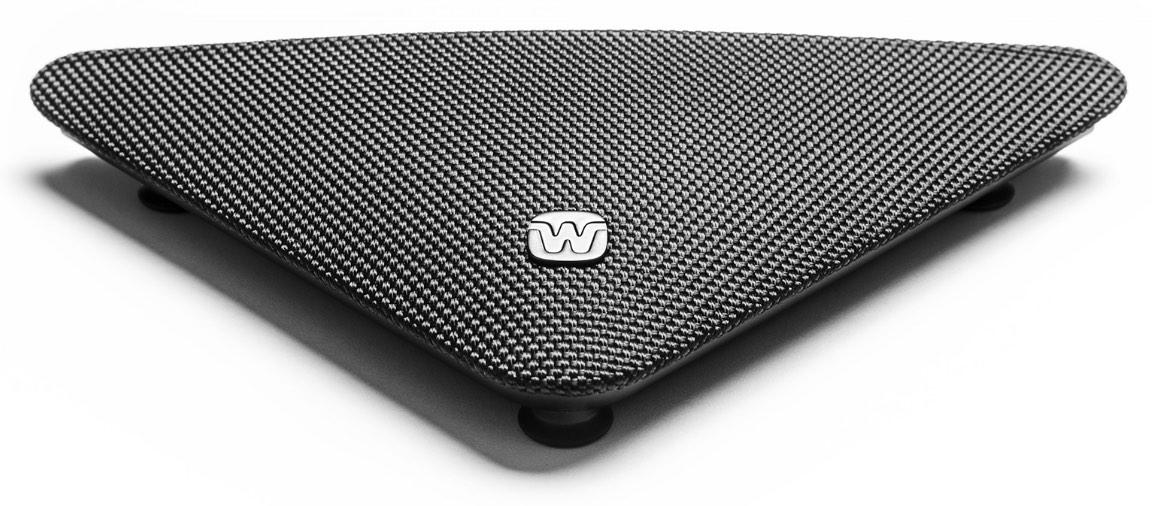
Widex TV PLAY 2
Geben Sie TV-Audio direkt über kompatible Widex Hörgeräte wieder.
Was TV PLAY 2 kann
TV PLAY 2 wird an den optischen oder analogen Audioausgang Ihres Fernsehers angeschlossen und sendet Ton an gekoppelte Widex Hörgeräte. Ein Schalter stellt den Streamer für Allure oder unterstützte ältere Widex Hörgeräte ein. Starten Sie das TV-Programm über die Hörgeräte, in der App oder mit einer kompatiblen RC-DEX-Fernbedienung.
Which hearing aids work with Widex TV PLAY 2?
TV-Ton
- Widex Allure RIC R D
Choose switch II for Allure RIC R D, then select the TV program on the paired hearing aids.
- Widex Allure BTE R D
Choose switch II for Allure BTE R D, then select the TV program on the paired hearing aids.
- Widex Allure ITE R D
Choose switch II for Allure ITE R D, then select the TV program on the paired hearing aids.
- Widex MOMENT RIC 312 D
Choose switch I for MOMENT RIC 312 D, then select the TV program on the paired hearing aids.
- Widex MOMENT SHEER™
Choose switch I for MOMENT SHEER sRIC R D, then select the TV program on the paired hearing aids.
- Widex MOMENT SmartRIC
Choose switch I for MOMENT SmartRIC, then select the TV program on the paired hearing aids.
Wählen Sie das genaue Modell auf Ihren Hörgeräten oder Unterlagen. Ein Treffer für eine Produktfamilie belegt nicht die Unterstützung jedes Modells dieser Familie.
Dokumentierte Geräte und Konfigurationen anzeigen
- Widex Allure RIC R D · Genaues Modell
Mode II for supported Widex Allure models · TV-Ton
Choose switch II for Allure RIC R D, then select the TV program on the paired hearing aids.
Zusätzliche Einrichtung erforderlichQuelle · 2026-11-18Choose switch II for Allure RIC R D, then select the TV program on the paired hearing aids.
- Choose switch II for Allure RIC R D, then select the TV program on the paired hearing aids.
- Widex Allure BTE R D · Genaues Modell
Mode II for supported Widex Allure models · TV-Ton
Choose switch II for Allure BTE R D, then select the TV program on the paired hearing aids.
Zusätzliche Einrichtung erforderlichQuelle · 2026-11-18Choose switch II for Allure BTE R D, then select the TV program on the paired hearing aids.
- Choose switch II for Allure BTE R D, then select the TV program on the paired hearing aids.
- Widex Allure ITE R D · Genaues Modell
Mode II for supported Widex Allure models · TV-Ton
Choose switch II for Allure ITE R D, then select the TV program on the paired hearing aids.
Zusätzliche Einrichtung erforderlichQuelle · 2026-11-18Choose switch II for Allure ITE R D, then select the TV program on the paired hearing aids.
- Choose switch II for Allure ITE R D, then select the TV program on the paired hearing aids.
- Widex MOMENT RIC 312 D · Genaues Modell
Mode I for supported older Widex models · TV-Ton
Choose switch I for MOMENT RIC 312 D, then select the TV program on the paired hearing aids.
Zusätzliche Einrichtung erforderlichQuelle · 2026-11-18Choose switch I for MOMENT RIC 312 D, then select the TV program on the paired hearing aids.
- Choose switch I for MOMENT RIC 312 D, then select the TV program on the paired hearing aids.
- Widex MOMENT SHEER™ · Genaues Modell
Mode I for supported older Widex models · TV-Ton
Choose switch I for MOMENT SHEER sRIC R D, then select the TV program on the paired hearing aids.
Zusätzliche Einrichtung erforderlichQuelle · 2026-11-18Choose switch I for MOMENT SHEER sRIC R D, then select the TV program on the paired hearing aids.
- Choose switch I for MOMENT SHEER sRIC R D, then select the TV program on the paired hearing aids.
- Widex MOMENT SmartRIC · Genaues Modell
Mode I for supported older Widex models · TV-Ton
Choose switch I for MOMENT SmartRIC, then select the TV program on the paired hearing aids.
Zusätzliche Einrichtung erforderlichQuelle · 2026-11-18Choose switch I for MOMENT SmartRIC, then select the TV program on the paired hearing aids.
- Choose switch I for MOMENT SmartRIC, then select the TV program on the paired hearing aids.
- Widex EVOKE Fusion 2 · Genaues Modell
Mode I for supported older Widex models · TV-Ton
Choose switch I for EVOKE Fusion 2, then select the TV program on the paired hearing aids.
Zusätzliche Einrichtung erforderlichQuelle · 2026-11-18Choose switch I for EVOKE Fusion 2, then select the TV program on the paired hearing aids.
- Choose switch I for EVOKE Fusion 2, then select the TV program on the paired hearing aids.
- Widex EVOKE BTE 13D · Genaues Modell
Mode I for supported older Widex models · TV-Ton
Choose switch I for EVOKE BTE 13 D, then select the TV program on the paired hearing aids.
Zusätzliche Einrichtung erforderlichQuelle · 2026-11-18Choose switch I for EVOKE BTE 13 D, then select the TV program on the paired hearing aids.
- Choose switch I for EVOKE BTE 13 D, then select the TV program on the paired hearing aids.
- Widex MOMENT RIC 10 · Genaues Modell
Mode I for supported older Widex models · TV-Ton
Widex explicitly excludes MOMENT RIC 10 in the TV PLAY 2 table.
Als inkompatibel dokumentiertQuelle · 2026-11-18 - Widex MOMENT BTE 312 · Genaues Modell
Mode I for supported older Widex models · TV-Ton
Widex explicitly excludes MOMENT BTE 312 in the TV PLAY 2 table.
Als inkompatibel dokumentiertQuelle · 2026-11-18 - Widex MOMENT BTE 312 · Genaues Modell
Mode I for supported older Widex models · TV-Ton
Widex explicitly excludes MOMENT BTE 312 in the TV PLAY 2 table.
Als inkompatibel dokumentiertQuelle · 2026-11-18
Dokumentierte Funktionen
Connections
- Analog audio input
- UnterstütztDokumentation · 2026-11-18
- Companion app control
- An appropriate Widex smartphone app can select the TV program and adjust streaming and environmental sound. A hearing-aid program button or RC-DEX can be used instead.Dokumentation · 2026-11-18
- Supported codecs
- PCM digital stereo on optical input, Dolby Digital on optical inputDokumentation · 2026-11-18
- Audio passthrough
- Analog input doubles as optical output when connected with a separate optical 3.5 mm adapter.Dokumentation · 2026-11-18
- Automatic streaming start
- false
Select the TV listening program after pairing.
Dokumentation · 2026-11-18 - Bilateral and unilateral use
- Choose mono for one hearing aid or stereo for two. Aids pair one after the other.Dokumentation · 2026-11-18
- Kein koaxialer Digitaleingang
- Dokumentation · 2026-11-18
- Connection priority
- A compatible direct-streaming phone can take calls. If the call fails to stream, try changing hearing-aid programs.Dokumentation · 2026-11-18
- Kein HDMI-ARC-Eingang
- Dokumentation · 2026-11-18
- Kein HDMI-eARC-Eingang
- Dokumentation · 2026-11-18
- Link to hearing aids
- 2.4 GHz wireless link to compatible aids, Bluetooth mode II for Allure, Bluetooth mode I for compatible earlier modelsDokumentation · 2026-11-18
- Accessory-to-hearing-aid range
- 10 m
Typical recommended clear-line-of-sight range in joint TV PLAY and TV PLAY 2 troubleshooting. The guide calls for 0–2 m when pairing.
Dokumentation · 2026-11-18 - Audio input selection
- A live optical signal takes priority. The streamer uses the analog connection when there is no optical signal.Dokumentation · 2026-11-18
- Analog input details
- Analog 3.5 mm stereo input. Supplied mini-jack to RCA cable connects to compatible TV analog output.Dokumentation · 2026-11-18
- Optical audio formats
- PCM digital stereo, Dolby DigitalDokumentation · 2026-11-18
- Optical audio input
- UnterstütztDokumentation · 2026-11-18
- Hearing-aid pairing method
- Set the correct Bluetooth and mono/stereo modes, restart the aids, and place them within 6.6 feet for pairing within three minutes. Each aid pairs separately and plays a tone.Dokumentation · 2026-11-18
- Professional setup
- Ask a hearing care professional to confirm the correct Bluetooth switch setting. Standard pairing can be done at home.Dokumentation · 2026-11-18
- Receiver requirements
- Streams directly to supported paired hearing aids. No separate receiver in the documented setup.Dokumentation · 2026-11-18
- Reconnection behavior
- Power on an already paired streamer and choose the TV listening program on the hearing aid. Resetting erases all pairings.Dokumentation · 2026-11-18
- Simultaneous listeners
- More than one listener with mutually compatible aids on the same switch setting. Widex excludes mixed Allure and older series in its model chart.Dokumentation · 2026-11-18
- Simultaneous source connections
- Only one wired audio source is selected. Optical takes priority when a signal is present.Dokumentation · 2026-11-18
- Soundbar/receiver setup
- Use the TV’s optical output into TV PLAY 2, then connect the dual-use output to a soundbar with a separately sold mini-TOSLINK to TOSLINK cable.Dokumentation · 2026-11-18
- Stereo streaming
- Unterstützt
Use stereo switch position and two paired compatible aids.
Dokumentation · 2026-11-18 - Stopping TV streaming
- Choose another hearing-aid program to stop listening. A short press of the streamer’s reset button pauses the transmitted stream for 30 seconds.Dokumentation · 2026-11-18
- TV audio streaming
- UnterstütztDokumentation · 2026-11-18
- Required TV settings
- Select an available optical or analog output on the TV. Set the optical TV output to a supported audio format.Dokumentation · 2026-11-18
- Independent TV stream volume
- A compatible app lets listeners adjust TV playback and hearing-aid volume independently. The TV controls speaker volume separately when the TV supports both paths.Dokumentation · 2026-11-18
- TV speakers alongside streaming
- TV dependent. A headphone plug may mute TV speakers. Optical or RCA output and an appropriate TV setting can allow both.Dokumentation · 2026-11-18
- TV/environment balance
- The appropriate app lets the user adjust TV stream and ambient sound. Room Off can suppress surrounding sound.Dokumentation · 2026-11-18
- Kein USB-Audioeingang
The manual shows USB as power. Audio arrives over separate optical or analog cables.
Dokumentation · 2026-11-18- Wall mounting
- Attach the provided adhesive bracket to an upper rear corner of the TV, clear of heat vents. Use the cable holder and supplied mounting materials.Dokumentation · 2026-11-18
Power and charging
- Electrical input requirements
- Use TV USB power or a USB wall adapter supplying at least 150 mA (0.75 W) per the TV PLAY 2 manual.Dokumentation · 2026-11-18
- Netzteil nicht im Lieferumfang enthalten
- Dokumentation · 2026-11-18
- Power connector
- Micro-USB power input.Dokumentation · 2026-11-18
- Kein USB-C-Stromanschluss
- Dokumentation · 2026-11-18
Design and everyday use
- Control accessibility
- The light changes during pairing. Each hearing aid plays a tone after it pairs.Dokumentation · 2026-11-18
- Dimensions
- 158 × 22 × 82 mm, width × height × depth in the Widex Japan catalog.Dokumentation · 2026-11-18
- Included items
- TV PLAY 2, Micro-USB cable, Optical TOSLINK cable, Analog mini-jack to RCA cable, Mounting bracket with cable holder, Cleaning sachet, Spare mounting adhesiveDokumentation · 2026-11-18
- Routine maintenance
- Wipe with a soft dry cloth. Do not immerse or use liquids.Dokumentation · 2026-11-18
- Operating conditions
- 32–113 °F (0–45 °C), 5–93% relative humidity, 700–1060 mbar.Dokumentation · 2026-11-18
- Physische Bedienelemente
- Bluetooth mode slider, Mono or stereo slider, Reset and temporary-pause buttonDokumentation · 2026-11-18
- Regional variants
- U.S. AccessGUDID TV PLAY 2 kit #2, catalog number 21041001.Dokumentation · 2026-11-18
- Required extras
- Compatible TV audio output, Compatible hearing aids, USB wall adapter if the TV has no USB port, Separate mini-TOSLINK to TOSLINK cable for optical pass-throughDokumentation · 2026-11-18
- Repair and service options
- Contact the hearing care professional if resetting and reconnecting do not restore operation.Dokumentation · 2026-11-18
- Status indicators
- Green for streaming or standby, Blue for pairing, Orange for temporary pause, Red for error, heat or unreadable formatDokumentation · 2026-11-18
- Storage conditions
- Store at 50–104 °F (10–40 °C) and 10–80% relative humidity. Transport −4–140 °F (−20–60 °C) and 5–90%.Dokumentation · 2026-11-18
- Warranty terms
- One year in the Widex Japan catalog. U.S. accessory terms for the checked kit were not verified.Dokumentation · 2026-11-18
- Wearing and placement options
- Tabletop placement, Included adhesive bracket for mounting to the back of the TVDokumentation · 2026-11-18
How to set up Widex TV PLAY 2
Schließen Sie den optischen oder analogen Audioausgang des TVs an und verbinden Sie das Micro-USB-Stromkabel. Stellen Sie den Bluetooth-Schalter für Allure auf II oder für unterstützte ältere Modelle auf I. Starten Sie die Hörgeräte in der Nähe des Streamers neu, warten Sie auf die Kopplungstöne und wählen Sie dann das TV-Programm.
Vor dem Kauf prüfen
Allure and older Widex models use different switch settings, so the streamer cannot serve them together. Check the exact model within MOMENT or EVOKE. Some TVs turn off their speakers when a cable is plugged into the headphone jack.
Set the switch for your hearing aids
Choose II for Allure, or I for compatible MOMENT and EVOKE models. Use the other bottom switch to choose mono for one hearing aid or stereo for a pair.
QuelleAdds a setting for Allure hearing aids
If you’re replacing the original Widex TV PLAY, your hearing-aid model determines which version you need. TV PLAY 2 adds support for Allure with its switch in position II. Position I serves selected MOMENT and EVOKE models, the families supported by the earlier streamer.
QuelleLeaves out some older Widex styles
TV PLAY 2 does not support MOMENT RIC 10 or MOMENT BTE 312 in Widex’s model chart. The older TV-DEX is listed for both. Check the specific style of hearing aid before choosing a TV streamer.
QuelleZugehörige Apps
Verwandtes Zubehör
Weitere in der Dokumentation genannte Geräte
Diese Namen wurden noch keinem genauen Gerät in unserem Katalog zugeordnet. Sie erzeugen daher keine bestätigten Treffer in der Suche.
Aktuelle Angebote werden geprüft…
Dokumentation geprüft am 18. Nov. 2026