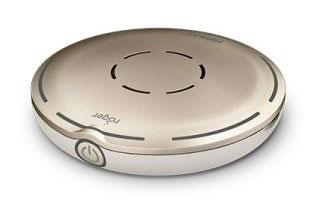
Phonak Roger Select 3
Choose a voice at a table, listen to one talker, or stream TV through the included dock.
What Roger Select 3 does
At a noisy dinner, lay Roger Select 3 in the middle of the table. It follows whoever is speaking. If two conversations overlap, tap the edge facing the person you want to hear. A talker can also wear it on their shirt. At home, its dock sends TV audio to the same Roger receivers.
Which hearing aids work with Phonak Roger Select 3?
Microphone audio
- Phonak Audéo EON R
A RogerDirect receiver must be installed in each hearing aid that will receive the microphone. Install or confirm the RogerDirect receiver in each hearing aid.
- Phonak Audéo EON Sphere
A RogerDirect receiver must be installed in each hearing aid that will receive the microphone. Install or confirm the RogerDirect receiver in each hearing aid.
- Phonak Audéo Lumity L-312
A RogerDirect receiver must be installed in each hearing aid that will receive the microphone. Install or confirm the RogerDirect receiver in each hearing aid.
- Phonak Audéo Lumity Life
A RogerDirect receiver must be installed in each hearing aid that will receive the microphone. Install or confirm the RogerDirect receiver in each hearing aid.
- Phonak Audéo Lumity R
A RogerDirect receiver must be installed in each hearing aid that will receive the microphone. Install or confirm the RogerDirect receiver in each hearing aid.
- Phonak Audéo Lumity RT
A RogerDirect receiver must be installed in each hearing aid that will receive the microphone. Install or confirm the RogerDirect receiver in each hearing aid.
TV audio
- Phonak Audéo EON R
A RogerDirect receiver must be installed in each hearing aid that will receive the microphone. Connect the powered Select dock to the TV’s optical or analog audio output. Install or confirm the RogerDirect receiver in each hearing aid. Power the Select dock and connect it to a compatible optical or analog TV output.
- Phonak Audéo EON Sphere
A RogerDirect receiver must be installed in each hearing aid that will receive the microphone. Connect the powered Select dock to the TV’s optical or analog audio output. Install or confirm the RogerDirect receiver in each hearing aid. Power the Select dock and connect it to a compatible optical or analog TV output.
- Phonak Audéo Lumity L-312
A RogerDirect receiver must be installed in each hearing aid that will receive the microphone. Connect the powered Select dock to the TV’s optical or analog audio output. Install or confirm the RogerDirect receiver in each hearing aid. Power the Select dock and connect it to a compatible optical or analog TV output.
- Phonak Audéo Lumity Life
A RogerDirect receiver must be installed in each hearing aid that will receive the microphone. Connect the powered Select dock to the TV’s optical or analog audio output. Install or confirm the RogerDirect receiver in each hearing aid. Power the Select dock and connect it to a compatible optical or analog TV output.
- Phonak Audéo Lumity R
A RogerDirect receiver must be installed in each hearing aid that will receive the microphone. Connect the powered Select dock to the TV’s optical or analog audio output. Install or confirm the RogerDirect receiver in each hearing aid. Power the Select dock and connect it to a compatible optical or analog TV output.
- Phonak Audéo Lumity RT
A RogerDirect receiver must be installed in each hearing aid that will receive the microphone. Connect the powered Select dock to the TV’s optical or analog audio output. Install or confirm the RogerDirect receiver in each hearing aid. Power the Select dock and connect it to a compatible optical or analog TV output.
Choose the exact model printed on your hearing aids or paperwork. A family match does not establish support for every model in that family.
View documented devices and setups
- Phonak Audéo EON R · Exact model
With a RogerDirect receiver installed in each compatible hearing aid · microphone_audio
A RogerDirect receiver must be installed in each hearing aid that will receive the microphone.
Requires additional setupSource · 2026-11-18A RogerDirect receiver must be installed in each hearing aid that will receive the microphone.
- Install or confirm the RogerDirect receiver in each hearing aid.
- Phonak Audéo EON R · Exact model
With a RogerDirect receiver installed in each compatible hearing aid · tv_audio
A RogerDirect receiver must be installed in each hearing aid that will receive the microphone. Connect the powered Select dock to the TV’s optical or analog audio output.
Requires additional setupSource · 2026-11-18A RogerDirect receiver must be installed in each hearing aid that will receive the microphone. Connect the powered Select dock to the TV’s optical or analog audio output.
- Install or confirm the RogerDirect receiver in each hearing aid.
- Power the Select dock and connect it to a compatible optical or analog TV output.
- Phonak Audéo EON R · Exact model
With a RogerDirect receiver installed in each compatible hearing aid · phone_calls
Phonak excludes Bluetooth calls through Select 3 with RogerDirect.
Documented as incompatibleSource · 2026-11-19 - Phonak Audéo EON Sphere · Exact model
With a RogerDirect receiver installed in each compatible hearing aid · microphone_audio
A RogerDirect receiver must be installed in each hearing aid that will receive the microphone.
Requires additional setupSource · 2026-11-18A RogerDirect receiver must be installed in each hearing aid that will receive the microphone.
- Install or confirm the RogerDirect receiver in each hearing aid.
- Phonak Audéo EON Sphere · Exact model
With a RogerDirect receiver installed in each compatible hearing aid · tv_audio
A RogerDirect receiver must be installed in each hearing aid that will receive the microphone. Connect the powered Select dock to the TV’s optical or analog audio output.
Requires additional setupSource · 2026-11-18A RogerDirect receiver must be installed in each hearing aid that will receive the microphone. Connect the powered Select dock to the TV’s optical or analog audio output.
- Install or confirm the RogerDirect receiver in each hearing aid.
- Power the Select dock and connect it to a compatible optical or analog TV output.
- Phonak Audéo EON Sphere · Exact model
With a RogerDirect receiver installed in each compatible hearing aid · phone_calls
Phonak excludes Bluetooth calls through Select 3 with RogerDirect.
Documented as incompatibleSource · 2026-11-19 - Phonak Audéo Lumity L-312 · Exact model
With a RogerDirect receiver installed in each compatible hearing aid · microphone_audio
A RogerDirect receiver must be installed in each hearing aid that will receive the microphone.
Requires additional setupSource · 2026-11-18A RogerDirect receiver must be installed in each hearing aid that will receive the microphone.
- Install or confirm the RogerDirect receiver in each hearing aid.
- Phonak Audéo Lumity L-312 · Exact model
With a RogerDirect receiver installed in each compatible hearing aid · tv_audio
A RogerDirect receiver must be installed in each hearing aid that will receive the microphone. Connect the powered Select dock to the TV’s optical or analog audio output.
Requires additional setupSource · 2026-11-18A RogerDirect receiver must be installed in each hearing aid that will receive the microphone. Connect the powered Select dock to the TV’s optical or analog audio output.
- Install or confirm the RogerDirect receiver in each hearing aid.
- Power the Select dock and connect it to a compatible optical or analog TV output.
- Phonak Audéo Lumity L-312 · Exact model
With a RogerDirect receiver installed in each compatible hearing aid · phone_calls
Phonak excludes Bluetooth calls through Select 3 with RogerDirect.
Documented as incompatibleSource · 2026-11-19 - Phonak Audéo Lumity Life · Exact model
With a RogerDirect receiver installed in each compatible hearing aid · microphone_audio
A RogerDirect receiver must be installed in each hearing aid that will receive the microphone.
Requires additional setupSource · 2026-11-18A RogerDirect receiver must be installed in each hearing aid that will receive the microphone.
- Install or confirm the RogerDirect receiver in each hearing aid.
- Phonak Audéo Lumity Life · Exact model
With a RogerDirect receiver installed in each compatible hearing aid · tv_audio
A RogerDirect receiver must be installed in each hearing aid that will receive the microphone. Connect the powered Select dock to the TV’s optical or analog audio output.
Requires additional setupSource · 2026-11-18A RogerDirect receiver must be installed in each hearing aid that will receive the microphone. Connect the powered Select dock to the TV’s optical or analog audio output.
- Install or confirm the RogerDirect receiver in each hearing aid.
- Power the Select dock and connect it to a compatible optical or analog TV output.
- Phonak Audéo Lumity Life · Exact model
With a RogerDirect receiver installed in each compatible hearing aid · phone_calls
Phonak excludes Bluetooth calls through Select 3 with RogerDirect.
Documented as incompatibleSource · 2026-11-19 - Phonak Audéo Lumity R · Exact model
With a RogerDirect receiver installed in each compatible hearing aid · microphone_audio
A RogerDirect receiver must be installed in each hearing aid that will receive the microphone.
Requires additional setupSource · 2026-11-18A RogerDirect receiver must be installed in each hearing aid that will receive the microphone.
- Install or confirm the RogerDirect receiver in each hearing aid.
- Phonak Audéo Lumity R · Exact model
With a RogerDirect receiver installed in each compatible hearing aid · tv_audio
A RogerDirect receiver must be installed in each hearing aid that will receive the microphone. Connect the powered Select dock to the TV’s optical or analog audio output.
Requires additional setupSource · 2026-11-18A RogerDirect receiver must be installed in each hearing aid that will receive the microphone. Connect the powered Select dock to the TV’s optical or analog audio output.
- Install or confirm the RogerDirect receiver in each hearing aid.
- Power the Select dock and connect it to a compatible optical or analog TV output.
- Phonak Audéo Lumity R · Exact model
With a RogerDirect receiver installed in each compatible hearing aid · phone_calls
Phonak excludes Bluetooth calls through Select 3 with RogerDirect.
Documented as incompatibleSource · 2026-11-19 - Phonak Audéo Lumity RT · Exact model
With a RogerDirect receiver installed in each compatible hearing aid · microphone_audio
A RogerDirect receiver must be installed in each hearing aid that will receive the microphone.
Requires additional setupSource · 2026-11-18A RogerDirect receiver must be installed in each hearing aid that will receive the microphone.
- Install or confirm the RogerDirect receiver in each hearing aid.
- Phonak Audéo Lumity RT · Exact model
With a RogerDirect receiver installed in each compatible hearing aid · tv_audio
A RogerDirect receiver must be installed in each hearing aid that will receive the microphone. Connect the powered Select dock to the TV’s optical or analog audio output.
Requires additional setupSource · 2026-11-18A RogerDirect receiver must be installed in each hearing aid that will receive the microphone. Connect the powered Select dock to the TV’s optical or analog audio output.
- Install or confirm the RogerDirect receiver in each hearing aid.
- Power the Select dock and connect it to a compatible optical or analog TV output.
- Phonak Audéo Lumity RT · Exact model
With a RogerDirect receiver installed in each compatible hearing aid · phone_calls
Phonak excludes Bluetooth calls through Select 3 with RogerDirect.
Documented as incompatibleSource · 2026-11-19 - Phonak Audéo Paradise 13T · Exact model
With a RogerDirect receiver installed in each compatible hearing aid · microphone_audio
A RogerDirect receiver must be installed in each hearing aid that will receive the microphone.
Requires additional setupSource · 2026-11-18A RogerDirect receiver must be installed in each hearing aid that will receive the microphone.
- Install or confirm the RogerDirect receiver in each hearing aid.
- Phonak Audéo Paradise 13T · Exact model
With a RogerDirect receiver installed in each compatible hearing aid · tv_audio
A RogerDirect receiver must be installed in each hearing aid that will receive the microphone. Connect the powered Select dock to the TV’s optical or analog audio output.
Requires additional setupSource · 2026-11-18A RogerDirect receiver must be installed in each hearing aid that will receive the microphone. Connect the powered Select dock to the TV’s optical or analog audio output.
- Install or confirm the RogerDirect receiver in each hearing aid.
- Power the Select dock and connect it to a compatible optical or analog TV output.
- Phonak Audéo Paradise 13T · Exact model
With a RogerDirect receiver installed in each compatible hearing aid · phone_calls
Phonak excludes Bluetooth calls through Select 3 with RogerDirect.
Documented as incompatibleSource · 2026-11-19 - Phonak Audéo Paradise 312 · Exact model
With a RogerDirect receiver installed in each compatible hearing aid · microphone_audio
A RogerDirect receiver must be installed in each hearing aid that will receive the microphone.
Requires additional setupSource · 2026-11-18A RogerDirect receiver must be installed in each hearing aid that will receive the microphone.
- Install or confirm the RogerDirect receiver in each hearing aid.
- Phonak Audéo Paradise 312 · Exact model
With a RogerDirect receiver installed in each compatible hearing aid · tv_audio
A RogerDirect receiver must be installed in each hearing aid that will receive the microphone. Connect the powered Select dock to the TV’s optical or analog audio output.
Requires additional setupSource · 2026-11-18A RogerDirect receiver must be installed in each hearing aid that will receive the microphone. Connect the powered Select dock to the TV’s optical or analog audio output.
- Install or confirm the RogerDirect receiver in each hearing aid.
- Power the Select dock and connect it to a compatible optical or analog TV output.
- Phonak Audéo Paradise 312 · Exact model
With a RogerDirect receiver installed in each compatible hearing aid · phone_calls
Phonak excludes Bluetooth calls through Select 3 with RogerDirect.
Documented as incompatibleSource · 2026-11-19 - Phonak Audéo Paradise R · Exact model
With a RogerDirect receiver installed in each compatible hearing aid · microphone_audio
A RogerDirect receiver must be installed in each hearing aid that will receive the microphone.
Requires additional setupSource · 2026-11-18A RogerDirect receiver must be installed in each hearing aid that will receive the microphone.
- Install or confirm the RogerDirect receiver in each hearing aid.
- Phonak Audéo Paradise R · Exact model
With a RogerDirect receiver installed in each compatible hearing aid · tv_audio
A RogerDirect receiver must be installed in each hearing aid that will receive the microphone. Connect the powered Select dock to the TV’s optical or analog audio output.
Requires additional setupSource · 2026-11-18A RogerDirect receiver must be installed in each hearing aid that will receive the microphone. Connect the powered Select dock to the TV’s optical or analog audio output.
- Install or confirm the RogerDirect receiver in each hearing aid.
- Power the Select dock and connect it to a compatible optical or analog TV output.
- Phonak Audéo Paradise R · Exact model
With a RogerDirect receiver installed in each compatible hearing aid · phone_calls
Phonak excludes Bluetooth calls through Select 3 with RogerDirect.
Documented as incompatibleSource · 2026-11-19 - Phonak Audéo Paradise RT · Exact model
With a RogerDirect receiver installed in each compatible hearing aid · microphone_audio
A RogerDirect receiver must be installed in each hearing aid that will receive the microphone.
Requires additional setupSource · 2026-11-18A RogerDirect receiver must be installed in each hearing aid that will receive the microphone.
- Install or confirm the RogerDirect receiver in each hearing aid.
- Phonak Audéo Paradise RT · Exact model
With a RogerDirect receiver installed in each compatible hearing aid · tv_audio
A RogerDirect receiver must be installed in each hearing aid that will receive the microphone. Connect the powered Select dock to the TV’s optical or analog audio output.
Requires additional setupSource · 2026-11-18A RogerDirect receiver must be installed in each hearing aid that will receive the microphone. Connect the powered Select dock to the TV’s optical or analog audio output.
- Install or confirm the RogerDirect receiver in each hearing aid.
- Power the Select dock and connect it to a compatible optical or analog TV output.
- Phonak Audéo Paradise RT · Exact model
With a RogerDirect receiver installed in each compatible hearing aid · phone_calls
Phonak excludes Bluetooth calls through Select 3 with RogerDirect.
Documented as incompatibleSource · 2026-11-19 - Phonak Naída M SP · Exact model
With a RogerDirect receiver installed in each compatible hearing aid · microphone_audio
A RogerDirect receiver must be installed in each hearing aid that will receive the microphone.
Requires additional setupSource · 2026-11-18A RogerDirect receiver must be installed in each hearing aid that will receive the microphone.
- Install or confirm the RogerDirect receiver in each hearing aid.
- Phonak Naída M SP · Exact model
With a RogerDirect receiver installed in each compatible hearing aid · tv_audio
A RogerDirect receiver must be installed in each hearing aid that will receive the microphone. Connect the powered Select dock to the TV’s optical or analog audio output.
Requires additional setupSource · 2026-11-18A RogerDirect receiver must be installed in each hearing aid that will receive the microphone. Connect the powered Select dock to the TV’s optical or analog audio output.
- Install or confirm the RogerDirect receiver in each hearing aid.
- Power the Select dock and connect it to a compatible optical or analog TV output.
- Phonak Naída M SP · Exact model
With a RogerDirect receiver installed in each compatible hearing aid · phone_calls
Phonak excludes Bluetooth calls through Select 3 with RogerDirect.
Documented as incompatibleSource · 2026-11-19 - Phonak Naída Paradise P-PR · Exact model
With a RogerDirect receiver installed in each compatible hearing aid · microphone_audio
A RogerDirect receiver must be installed in each hearing aid that will receive the microphone.
Requires additional setupSource · 2026-11-18A RogerDirect receiver must be installed in each hearing aid that will receive the microphone.
- Install or confirm the RogerDirect receiver in each hearing aid.
- Phonak Naída Paradise P-PR · Exact model
With a RogerDirect receiver installed in each compatible hearing aid · tv_audio
A RogerDirect receiver must be installed in each hearing aid that will receive the microphone. Connect the powered Select dock to the TV’s optical or analog audio output.
Requires additional setupSource · 2026-11-18A RogerDirect receiver must be installed in each hearing aid that will receive the microphone. Connect the powered Select dock to the TV’s optical or analog audio output.
- Install or confirm the RogerDirect receiver in each hearing aid.
- Power the Select dock and connect it to a compatible optical or analog TV output.
- Phonak Naída Paradise P-PR · Exact model
With a RogerDirect receiver installed in each compatible hearing aid · phone_calls
Phonak excludes Bluetooth calls through Select 3 with RogerDirect.
Documented as incompatibleSource · 2026-11-19 - Phonak Naída Paradise P-UP · Exact model
With a RogerDirect receiver installed in each compatible hearing aid · microphone_audio
A RogerDirect receiver must be installed in each hearing aid that will receive the microphone.
Requires additional setupSource · 2026-11-18A RogerDirect receiver must be installed in each hearing aid that will receive the microphone.
- Install or confirm the RogerDirect receiver in each hearing aid.
- Phonak Naída Paradise P-UP · Exact model
With a RogerDirect receiver installed in each compatible hearing aid · tv_audio
A RogerDirect receiver must be installed in each hearing aid that will receive the microphone. Connect the powered Select dock to the TV’s optical or analog audio output.
Requires additional setupSource · 2026-11-18A RogerDirect receiver must be installed in each hearing aid that will receive the microphone. Connect the powered Select dock to the TV’s optical or analog audio output.
- Install or confirm the RogerDirect receiver in each hearing aid.
- Power the Select dock and connect it to a compatible optical or analog TV output.
- Phonak Naída Paradise P-UP · Exact model
With a RogerDirect receiver installed in each compatible hearing aid · phone_calls
Phonak excludes Bluetooth calls through Select 3 with RogerDirect.
Documented as incompatibleSource · 2026-11-19 - Phonak Virto M M-312 · Exact model
With a RogerDirect receiver installed in each compatible hearing aid · microphone_audio
A RogerDirect receiver must be installed in each hearing aid that will receive the microphone.
Requires additional setupSource · 2026-11-18A RogerDirect receiver must be installed in each hearing aid that will receive the microphone.
- Install or confirm the RogerDirect receiver in each hearing aid.
- Phonak Virto M M-312 · Exact model
With a RogerDirect receiver installed in each compatible hearing aid · tv_audio
A RogerDirect receiver must be installed in each hearing aid that will receive the microphone. Connect the powered Select dock to the TV’s optical or analog audio output.
Requires additional setupSource · 2026-11-18A RogerDirect receiver must be installed in each hearing aid that will receive the microphone. Connect the powered Select dock to the TV’s optical or analog audio output.
- Install or confirm the RogerDirect receiver in each hearing aid.
- Power the Select dock and connect it to a compatible optical or analog TV output.
- Phonak Virto M M-312 · Exact model
With a RogerDirect receiver installed in each compatible hearing aid · phone_calls
Phonak excludes Bluetooth calls through Select 3 with RogerDirect.
Documented as incompatibleSource · 2026-11-19 - Phonak Bolero M M · Exact model
With a RogerDirect receiver installed in each compatible hearing aid · microphone_audio
A RogerDirect receiver must be installed in each hearing aid that will receive the microphone.
Requires additional setupSource · 2026-11-18A RogerDirect receiver must be installed in each hearing aid that will receive the microphone.
- Install or confirm the RogerDirect receiver in each hearing aid.
- Phonak Bolero M M · Exact model
With a RogerDirect receiver installed in each compatible hearing aid · tv_audio
A RogerDirect receiver must be installed in each hearing aid that will receive the microphone. Connect the powered Select dock to the TV’s optical or analog audio output.
Requires additional setupSource · 2026-11-18A RogerDirect receiver must be installed in each hearing aid that will receive the microphone. Connect the powered Select dock to the TV’s optical or analog audio output.
- Install or confirm the RogerDirect receiver in each hearing aid.
- Power the Select dock and connect it to a compatible optical or analog TV output.
- Phonak Bolero M M · Exact model
With a RogerDirect receiver installed in each compatible hearing aid · phone_calls
Phonak excludes Bluetooth calls through Select 3 with RogerDirect.
Documented as incompatibleSource · 2026-11-19 - Phonak Bolero M PR · Exact model
With a RogerDirect receiver installed in each compatible hearing aid · microphone_audio
A RogerDirect receiver must be installed in each hearing aid that will receive the microphone.
Requires additional setupSource · 2026-11-18A RogerDirect receiver must be installed in each hearing aid that will receive the microphone.
- Install or confirm the RogerDirect receiver in each hearing aid.
- Phonak Bolero M PR · Exact model
With a RogerDirect receiver installed in each compatible hearing aid · tv_audio
A RogerDirect receiver must be installed in each hearing aid that will receive the microphone. Connect the powered Select dock to the TV’s optical or analog audio output.
Requires additional setupSource · 2026-11-18A RogerDirect receiver must be installed in each hearing aid that will receive the microphone. Connect the powered Select dock to the TV’s optical or analog audio output.
- Install or confirm the RogerDirect receiver in each hearing aid.
- Power the Select dock and connect it to a compatible optical or analog TV output.
- Phonak Bolero M PR · Exact model
With a RogerDirect receiver installed in each compatible hearing aid · phone_calls
Phonak excludes Bluetooth calls through Select 3 with RogerDirect.
Documented as incompatibleSource · 2026-11-19 - Phonak Naída B B-R RIC · Exact model
Older hearing aid with a Roger X and compatible streamer · microphone_audio
Verify the eligible receiver path for this exact model. Active Roger X receiver matched to the older hearing-aid setup. Phonak ComPilot II with the Roger X connected.
Requires additional setupSource · 2026-11-18Verify the eligible receiver path for this exact model. Active Roger X receiver matched to the older hearing-aid setup. Phonak ComPilot II with the Roger X connected.
- Active Roger X receiver matched to the older hearing-aid setup.
- Phonak ComPilot II with the Roger X connected.
- Phonak Naída B B-R RIC · Exact model
Older hearing aid with a Roger X and compatible streamer · tv_audio
Verify the eligible receiver path for this exact model. Active Roger X receiver matched to the older hearing-aid setup. Phonak ComPilot II with the Roger X connected. Connect the powered Select dock to the TV’s optical or analog audio output.
Requires additional setupSource · 2026-11-18Verify the eligible receiver path for this exact model. Active Roger X receiver matched to the older hearing-aid setup. Phonak ComPilot II with the Roger X connected. Connect the powered Select dock to the TV’s optical or analog audio output.
- Active Roger X receiver matched to the older hearing-aid setup.
- Phonak ComPilot II with the Roger X connected.
- Power the Select dock and connect it to a compatible optical or analog TV output.
- Phonak Naída B B-SP · Exact model
Older hearing aid with matching external integrated Roger receiver · microphone_audio
Verify the eligible receiver path for this exact model. Fit a compatible Roger 18 external receiver.
Requires additional setupSource · 2026-11-18Verify the eligible receiver path for this exact model. Fit a compatible Roger 18 external receiver.
- Fit a compatible Roger 18 external receiver.
- Phonak Naída B B-SP · Exact model
Older hearing aid with matching external integrated Roger receiver · tv_audio
Verify the eligible receiver path for this exact model. Fit a compatible Roger 18 external receiver. Connect the powered Select dock to the TV’s optical or analog audio output.
Requires additional setupSource · 2026-11-18Verify the eligible receiver path for this exact model. Fit a compatible Roger 18 external receiver. Connect the powered Select dock to the TV’s optical or analog audio output.
- Fit a compatible Roger 18 external receiver.
- Power the Select dock and connect it to a compatible optical or analog TV output.
- Phonak Naída B B-SP · Exact model
Older hearing aid with a Roger X and compatible audio shoe · microphone_audio
Verify the eligible receiver path for this exact model. Active Roger X receiver matched to the older hearing-aid setup. Use Phonak audio shoe AS18 with the receiver.
Requires additional setupSource · 2026-11-18Verify the eligible receiver path for this exact model. Active Roger X receiver matched to the older hearing-aid setup. Use Phonak audio shoe AS18 with the receiver.
- Active Roger X receiver matched to the older hearing-aid setup.
- Use Phonak audio shoe AS18 with the receiver.
- Phonak Naída B B-SP · Exact model
Older hearing aid with a Roger X and compatible audio shoe · tv_audio
Verify the eligible receiver path for this exact model. Active Roger X receiver matched to the older hearing-aid setup. Use Phonak audio shoe AS18 with the receiver. Connect the powered Select dock to the TV’s optical or analog audio output.
Requires additional setupSource · 2026-11-18Verify the eligible receiver path for this exact model. Active Roger X receiver matched to the older hearing-aid setup. Use Phonak audio shoe AS18 with the receiver. Connect the powered Select dock to the TV’s optical or analog audio output.
- Active Roger X receiver matched to the older hearing-aid setup.
- Use Phonak audio shoe AS18 with the receiver.
- Power the Select dock and connect it to a compatible optical or analog TV output.
- Phonak Naída B B-UP · Exact model
Older hearing aid with matching external integrated Roger receiver · microphone_audio
Verify the eligible receiver path for this exact model. Fit a compatible Roger 19 external receiver.
Requires additional setupSource · 2026-11-18Verify the eligible receiver path for this exact model. Fit a compatible Roger 19 external receiver.
- Fit a compatible Roger 19 external receiver.
- Phonak Naída B B-UP · Exact model
Older hearing aid with matching external integrated Roger receiver · tv_audio
Verify the eligible receiver path for this exact model. Fit a compatible Roger 19 external receiver. Connect the powered Select dock to the TV’s optical or analog audio output.
Requires additional setupSource · 2026-11-18Verify the eligible receiver path for this exact model. Fit a compatible Roger 19 external receiver. Connect the powered Select dock to the TV’s optical or analog audio output.
- Fit a compatible Roger 19 external receiver.
- Power the Select dock and connect it to a compatible optical or analog TV output.
- Phonak Naída B B-UP · Exact model
Older hearing aid with a Roger X and compatible audio shoe · microphone_audio
Verify the eligible receiver path for this exact model. Active Roger X receiver matched to the older hearing-aid setup. Use Phonak audio shoe AS19 with the receiver.
Requires additional setupSource · 2026-11-18Verify the eligible receiver path for this exact model. Active Roger X receiver matched to the older hearing-aid setup. Use Phonak audio shoe AS19 with the receiver.
- Active Roger X receiver matched to the older hearing-aid setup.
- Use Phonak audio shoe AS19 with the receiver.
- Phonak Naída B B-UP · Exact model
Older hearing aid with a Roger X and compatible audio shoe · tv_audio
Verify the eligible receiver path for this exact model. Active Roger X receiver matched to the older hearing-aid setup. Use Phonak audio shoe AS19 with the receiver. Connect the powered Select dock to the TV’s optical or analog audio output.
Requires additional setupSource · 2026-11-18Verify the eligible receiver path for this exact model. Active Roger X receiver matched to the older hearing-aid setup. Use Phonak audio shoe AS19 with the receiver. Connect the powered Select dock to the TV’s optical or analog audio output.
- Active Roger X receiver matched to the older hearing-aid setup.
- Use Phonak audio shoe AS19 with the receiver.
- Power the Select dock and connect it to a compatible optical or analog TV output.
- Phonak Audéo Marvel R · Exact model
With a RogerDirect receiver installed in each compatible hearing aid · microphone_audio
Install or confirm Roger reception separately in each hearing device.
Requires additional setupSource · 2026-11-18Install or confirm Roger reception separately in each hearing device.
- Install or confirm the RogerDirect receiver in each hearing aid.
- Phonak Audéo Marvel R · Exact model
With a RogerDirect receiver installed in each compatible hearing aid · tv_audio
Install or confirm Roger reception separately in each hearing device. Connect the powered Select dock to the TV’s optical or analog audio output.
Requires additional setupSource · 2026-11-18Install or confirm Roger reception separately in each hearing device. Connect the powered Select dock to the TV’s optical or analog audio output.
- Install or confirm the RogerDirect receiver in each hearing aid.
- Power the Select dock and connect it to a compatible optical or analog TV output.
- Phonak Audéo Marvel R · Exact model
With a RogerDirect receiver installed in each compatible hearing aid · phone_calls
Phonak excludes Bluetooth calls through Select 3 with RogerDirect.
Documented as incompatibleSource · 2026-11-19 - Phonak Audéo Marvel RT · Exact model
With a RogerDirect receiver installed in each compatible hearing aid · microphone_audio
Install or confirm Roger reception separately in each hearing device.
Requires additional setupSource · 2026-11-18Install or confirm Roger reception separately in each hearing device.
- Install or confirm the RogerDirect receiver in each hearing aid.
- Phonak Audéo Marvel RT · Exact model
With a RogerDirect receiver installed in each compatible hearing aid · tv_audio
Install or confirm Roger reception separately in each hearing device. Connect the powered Select dock to the TV’s optical or analog audio output.
Requires additional setupSource · 2026-11-18Install or confirm Roger reception separately in each hearing device. Connect the powered Select dock to the TV’s optical or analog audio output.
- Install or confirm the RogerDirect receiver in each hearing aid.
- Power the Select dock and connect it to a compatible optical or analog TV output.
- Phonak Audéo Marvel RT · Exact model
With a RogerDirect receiver installed in each compatible hearing aid · phone_calls
Phonak excludes Bluetooth calls through Select 3 with RogerDirect.
Documented as incompatibleSource · 2026-11-19 - Phonak Audéo Marvel 312 · Exact model
With a RogerDirect receiver installed in each compatible hearing aid · microphone_audio
Install or confirm Roger reception separately in each hearing device.
Requires additional setupSource · 2026-11-18Install or confirm Roger reception separately in each hearing device.
- Install or confirm the RogerDirect receiver in each hearing aid.
- Phonak Audéo Marvel 312 · Exact model
With a RogerDirect receiver installed in each compatible hearing aid · tv_audio
Install or confirm Roger reception separately in each hearing device. Connect the powered Select dock to the TV’s optical or analog audio output.
Requires additional setupSource · 2026-11-18Install or confirm Roger reception separately in each hearing device. Connect the powered Select dock to the TV’s optical or analog audio output.
- Install or confirm the RogerDirect receiver in each hearing aid.
- Power the Select dock and connect it to a compatible optical or analog TV output.
- Phonak Audéo Marvel 312 · Exact model
With a RogerDirect receiver installed in each compatible hearing aid · phone_calls
Phonak excludes Bluetooth calls through Select 3 with RogerDirect.
Documented as incompatibleSource · 2026-11-19 - Phonak Audéo Marvel 312T · Exact model
With a RogerDirect receiver installed in each compatible hearing aid · microphone_audio
Install or confirm Roger reception separately in each hearing device.
Requires additional setupSource · 2026-11-18Install or confirm Roger reception separately in each hearing device.
- Install or confirm the RogerDirect receiver in each hearing aid.
- Phonak Audéo Marvel 312T · Exact model
With a RogerDirect receiver installed in each compatible hearing aid · tv_audio
Install or confirm Roger reception separately in each hearing device. Connect the powered Select dock to the TV’s optical or analog audio output.
Requires additional setupSource · 2026-11-18Install or confirm Roger reception separately in each hearing device. Connect the powered Select dock to the TV’s optical or analog audio output.
- Install or confirm the RogerDirect receiver in each hearing aid.
- Power the Select dock and connect it to a compatible optical or analog TV output.
- Phonak Audéo Marvel 312T · Exact model
With a RogerDirect receiver installed in each compatible hearing aid · phone_calls
Phonak excludes Bluetooth calls through Select 3 with RogerDirect.
Documented as incompatibleSource · 2026-11-19 - Phonak Audéo Marvel 13T · Exact model
With a RogerDirect receiver installed in each compatible hearing aid · microphone_audio
Install or confirm Roger reception separately in each hearing device.
Requires additional setupSource · 2026-11-18Install or confirm Roger reception separately in each hearing device.
- Install or confirm the RogerDirect receiver in each hearing aid.
- Phonak Audéo Marvel 13T · Exact model
With a RogerDirect receiver installed in each compatible hearing aid · tv_audio
Install or confirm Roger reception separately in each hearing device. Connect the powered Select dock to the TV’s optical or analog audio output.
Requires additional setupSource · 2026-11-18Install or confirm Roger reception separately in each hearing device. Connect the powered Select dock to the TV’s optical or analog audio output.
- Install or confirm the RogerDirect receiver in each hearing aid.
- Power the Select dock and connect it to a compatible optical or analog TV output.
- Phonak Audéo Marvel 13T · Exact model
With a RogerDirect receiver installed in each compatible hearing aid · phone_calls
Phonak excludes Bluetooth calls through Select 3 with RogerDirect.
Documented as incompatibleSource · 2026-11-19 - Phonak Virto Paradise 312 · Exact model
With a RogerDirect receiver installed in each compatible hearing aid · microphone_audio
Install or confirm Roger reception separately in each hearing device.
Requires additional setupSource · 2026-11-18Install or confirm Roger reception separately in each hearing device.
- Install or confirm the RogerDirect receiver in each hearing aid.
- Phonak Virto Paradise 312 · Exact model
With a RogerDirect receiver installed in each compatible hearing aid · tv_audio
Install or confirm Roger reception separately in each hearing device. Connect the powered Select dock to the TV’s optical or analog audio output.
Requires additional setupSource · 2026-11-18Install or confirm Roger reception separately in each hearing device. Connect the powered Select dock to the TV’s optical or analog audio output.
- Install or confirm the RogerDirect receiver in each hearing aid.
- Power the Select dock and connect it to a compatible optical or analog TV output.
- Phonak Virto Paradise 312 · Exact model
With a RogerDirect receiver installed in each compatible hearing aid · phone_calls
Phonak excludes Bluetooth calls through Select 3 with RogerDirect.
Documented as incompatibleSource · 2026-11-19 - Phonak Naída Lumity P-PR · Exact model
With a RogerDirect receiver installed in each compatible hearing aid · microphone_audio
Install or confirm Roger reception separately in each hearing device.
Requires additional setupSource · 2026-11-18Install or confirm Roger reception separately in each hearing device.
- Install or confirm the RogerDirect receiver in each hearing aid.
- Phonak Naída Lumity P-PR · Exact model
With a RogerDirect receiver installed in each compatible hearing aid · tv_audio
Install or confirm Roger reception separately in each hearing device. Connect the powered Select dock to the TV’s optical or analog audio output.
Requires additional setupSource · 2026-11-18Install or confirm Roger reception separately in each hearing device. Connect the powered Select dock to the TV’s optical or analog audio output.
- Install or confirm the RogerDirect receiver in each hearing aid.
- Power the Select dock and connect it to a compatible optical or analog TV output.
- Phonak Naída Lumity P-PR · Exact model
With a RogerDirect receiver installed in each compatible hearing aid · phone_calls
Phonak excludes Bluetooth calls through Select 3 with RogerDirect.
Documented as incompatibleSource · 2026-11-19 - Phonak Naída Lumity P-UP · Exact model
With a RogerDirect receiver installed in each compatible hearing aid · microphone_audio
Install or confirm Roger reception separately in each hearing device.
Requires additional setupSource · 2026-11-18Install or confirm Roger reception separately in each hearing device.
- Install or confirm the RogerDirect receiver in each hearing aid.
- Phonak Naída Lumity P-UP · Exact model
With a RogerDirect receiver installed in each compatible hearing aid · tv_audio
Install or confirm Roger reception separately in each hearing device. Connect the powered Select dock to the TV’s optical or analog audio output.
Requires additional setupSource · 2026-11-18Install or confirm Roger reception separately in each hearing device. Connect the powered Select dock to the TV’s optical or analog audio output.
- Install or confirm the RogerDirect receiver in each hearing aid.
- Power the Select dock and connect it to a compatible optical or analog TV output.
- Phonak Naída Lumity P-UP · Exact model
With a RogerDirect receiver installed in each compatible hearing aid · phone_calls
Phonak excludes Bluetooth calls through Select 3 with RogerDirect.
Documented as incompatibleSource · 2026-11-19 - Phonak Audéo Infinio Ultra R · Exact model
With a RogerDirect receiver installed in each compatible hearing aid · microphone_audio
Install or confirm Roger reception separately in each hearing device.
Requires additional setupSource · 2026-11-18Install or confirm Roger reception separately in each hearing device.
- Install or confirm the RogerDirect receiver in each hearing aid.
- Phonak Audéo Infinio Ultra R · Exact model
With a RogerDirect receiver installed in each compatible hearing aid · tv_audio
Install or confirm Roger reception separately in each hearing device. Connect the powered Select dock to the TV’s optical or analog audio output.
Requires additional setupSource · 2026-11-18Install or confirm Roger reception separately in each hearing device. Connect the powered Select dock to the TV’s optical or analog audio output.
- Install or confirm the RogerDirect receiver in each hearing aid.
- Power the Select dock and connect it to a compatible optical or analog TV output.
- Phonak Audéo Infinio Ultra R · Exact model
With a RogerDirect receiver installed in each compatible hearing aid · phone_calls
Phonak excludes Bluetooth calls through Select 3 with RogerDirect.
Documented as incompatibleSource · 2026-11-19 - Phonak Audéo Infinio Ultra Sphere · Exact model
With a RogerDirect receiver installed in each compatible hearing aid · microphone_audio
Install or confirm Roger reception separately in each hearing device.
Requires additional setupSource · 2026-11-18Install or confirm Roger reception separately in each hearing device.
- Install or confirm the RogerDirect receiver in each hearing aid.
- Phonak Audéo Infinio Ultra Sphere · Exact model
With a RogerDirect receiver installed in each compatible hearing aid · tv_audio
Install or confirm Roger reception separately in each hearing device. Connect the powered Select dock to the TV’s optical or analog audio output.
Requires additional setupSource · 2026-11-18Install or confirm Roger reception separately in each hearing device. Connect the powered Select dock to the TV’s optical or analog audio output.
- Install or confirm the RogerDirect receiver in each hearing aid.
- Power the Select dock and connect it to a compatible optical or analog TV output.
- Phonak Audéo Infinio Ultra Sphere · Exact model
With a RogerDirect receiver installed in each compatible hearing aid · phone_calls
Phonak excludes Bluetooth calls through Select 3 with RogerDirect.
Documented as incompatibleSource · 2026-11-19 - Phonak Virto Infinio R · Exact model
With a RogerDirect receiver installed in each compatible hearing aid · microphone_audio
Install or confirm Roger reception separately in each hearing device.
Requires additional setupSource · 2026-11-19Install or confirm Roger reception separately in each hearing device.
- Install or confirm the RogerDirect receiver in each hearing aid.
- Phonak Virto Infinio R · Exact model
With a RogerDirect receiver installed in each compatible hearing aid · tv_audio
Install or confirm Roger reception separately in each hearing device. Connect the powered Select dock to the TV’s optical or analog audio output.
Requires additional setupSource · 2026-11-19Install or confirm Roger reception separately in each hearing device. Connect the powered Select dock to the TV’s optical or analog audio output.
- Install or confirm the RogerDirect receiver in each hearing aid.
- Power the Select dock and connect it to a compatible optical or analog TV output.
- Phonak Virto Infinio R · Exact model
With a RogerDirect receiver installed in each compatible hearing aid · phone_calls
Phonak excludes Bluetooth calls through Select 3 with RogerDirect.
Documented as incompatibleSource · 2026-11-19 - Unitron Moxi Vivante RT · Exact model
With a RogerDirect receiver installed in each compatible hearing aid · microphone_audio
Install or confirm Roger reception separately in each hearing device.
Requires additional setupSource · 2026-11-19Install or confirm Roger reception separately in each hearing device.
- Install or confirm the RogerDirect receiver in each hearing aid.
- Unitron Moxi Vivante RT · Exact model
With a RogerDirect receiver installed in each compatible hearing aid · tv_audio
Install or confirm Roger reception separately in each hearing device. Connect the powered Select dock to the TV’s optical or analog audio output.
Requires additional setupSource · 2026-11-19Install or confirm Roger reception separately in each hearing device. Connect the powered Select dock to the TV’s optical or analog audio output.
- Install or confirm the RogerDirect receiver in each hearing aid.
- Power the Select dock and connect it to a compatible optical or analog TV output.
- Unitron Moxi Vivante RT · Exact model
With a RogerDirect receiver installed in each compatible hearing aid · phone_calls
Phonak excludes Bluetooth calls through Select 3 with RogerDirect.
Documented as incompatibleSource · 2026-11-19 - Unitron Moxi Vivante R · Exact model
With a RogerDirect receiver installed in each compatible hearing aid · microphone_audio
Install or confirm Roger reception separately in each hearing device.
Requires additional setupSource · 2026-11-19Install or confirm Roger reception separately in each hearing device.
- Install or confirm the RogerDirect receiver in each hearing aid.
- Unitron Moxi Vivante R · Exact model
With a RogerDirect receiver installed in each compatible hearing aid · tv_audio
Install or confirm Roger reception separately in each hearing device. Connect the powered Select dock to the TV’s optical or analog audio output.
Requires additional setupSource · 2026-11-19Install or confirm Roger reception separately in each hearing device. Connect the powered Select dock to the TV’s optical or analog audio output.
- Install or confirm the RogerDirect receiver in each hearing aid.
- Power the Select dock and connect it to a compatible optical or analog TV output.
- Unitron Moxi Vivante R · Exact model
With a RogerDirect receiver installed in each compatible hearing aid · phone_calls
Phonak excludes Bluetooth calls through Select 3 with RogerDirect.
Documented as incompatibleSource · 2026-11-19 - Phonak Virto Infinio 10 NW O · Exact model
Roger NeckLoop with the hearing device’s telecoil program · microphone_audio
Use a Roger NeckLoop with the optional fitted and enabled telecoil.
Requires additional setupSource · 2026-11-19Use a Roger NeckLoop with the optional fitted and enabled telecoil.
- The hearing device must have a telecoil fitted and its T or MT program enabled.
- Phonak Virto Infinio 10 NW O · Exact model
Roger NeckLoop with the hearing device’s telecoil program · tv_audio
Use a Roger NeckLoop with the optional fitted and enabled telecoil. Connect the powered Select dock to the TV’s optical or analog audio output.
Requires additional setupSource · 2026-11-19Use a Roger NeckLoop with the optional fitted and enabled telecoil. Connect the powered Select dock to the TV’s optical or analog audio output.
- The hearing device must have a telecoil fitted and its T or MT program enabled.
- Power the Select dock and connect it to a compatible optical or analog TV output.
- Phonak Virto Infinio Titanium · Exact model
Roger NeckLoop with the hearing device’s telecoil program · microphone_audio
Use a Roger NeckLoop with the optional fitted and enabled telecoil.
Requires additional setupSource · 2026-11-19Use a Roger NeckLoop with the optional fitted and enabled telecoil.
- The hearing device must have a telecoil fitted and its T or MT program enabled.
- Phonak Virto Infinio Titanium · Exact model
Roger NeckLoop with the hearing device’s telecoil program · tv_audio
Use a Roger NeckLoop with the optional fitted and enabled telecoil. Connect the powered Select dock to the TV’s optical or analog audio output.
Requires additional setupSource · 2026-11-19Use a Roger NeckLoop with the optional fitted and enabled telecoil. Connect the powered Select dock to the TV’s optical or analog audio output.
- The hearing device must have a telecoil fitted and its T or MT program enabled.
- Power the Select dock and connect it to a compatible optical or analog TV output.
- Phonak Audéo B 312T · Exact model
Roger NeckLoop with the hearing device’s telecoil program · microphone_audio
Use a personal Roger NeckLoop and select the hearing aid’s T or MT program.
Requires additional setupSource · 2026-11-18Use a personal Roger NeckLoop and select the hearing aid’s T or MT program.
- The hearing device must have a telecoil fitted and its T or MT program enabled.
- Phonak Audéo B 312T · Exact model
Roger NeckLoop with the hearing device’s telecoil program · tv_audio
Use a personal Roger NeckLoop and select the hearing aid’s T or MT program. Connect the powered Select dock to the TV’s optical or analog audio output.
Requires additional setupSource · 2026-11-18Use a personal Roger NeckLoop and select the hearing aid’s T or MT program. Connect the powered Select dock to the TV’s optical or analog audio output.
- The hearing device must have a telecoil fitted and its T or MT program enabled.
- Power the Select dock and connect it to a compatible optical or analog TV output.
- Phonak Audéo B 13 · Exact model
Roger NeckLoop with the hearing device’s telecoil program · microphone_audio
Use a personal Roger NeckLoop and select the hearing aid’s T or MT program.
Requires additional setupSource · 2026-11-18Use a personal Roger NeckLoop and select the hearing aid’s T or MT program.
- The hearing device must have a telecoil fitted and its T or MT program enabled.
- Phonak Audéo B 13 · Exact model
Roger NeckLoop with the hearing device’s telecoil program · tv_audio
Use a personal Roger NeckLoop and select the hearing aid’s T or MT program. Connect the powered Select dock to the TV’s optical or analog audio output.
Requires additional setupSource · 2026-11-18Use a personal Roger NeckLoop and select the hearing aid’s T or MT program. Connect the powered Select dock to the TV’s optical or analog audio output.
- The hearing device must have a telecoil fitted and its T or MT program enabled.
- Power the Select dock and connect it to a compatible optical or analog TV output.
- Phonak Audéo Marvel RT · Exact model
Roger NeckLoop with the hearing device’s telecoil program · microphone_audio
Use a personal Roger NeckLoop and select the hearing aid’s T or MT program.
Requires additional setupSource · 2026-11-18Use a personal Roger NeckLoop and select the hearing aid’s T or MT program.
- The hearing device must have a telecoil fitted and its T or MT program enabled.
- Phonak Audéo Marvel RT · Exact model
Roger NeckLoop with the hearing device’s telecoil program · tv_audio
Use a personal Roger NeckLoop and select the hearing aid’s T or MT program. Connect the powered Select dock to the TV’s optical or analog audio output.
Requires additional setupSource · 2026-11-18Use a personal Roger NeckLoop and select the hearing aid’s T or MT program. Connect the powered Select dock to the TV’s optical or analog audio output.
- The hearing device must have a telecoil fitted and its T or MT program enabled.
- Power the Select dock and connect it to a compatible optical or analog TV output.
- Phonak Audéo Marvel 312T · Exact model
Roger NeckLoop with the hearing device’s telecoil program · microphone_audio
Use a personal Roger NeckLoop and select the hearing aid’s T or MT program.
Requires additional setupSource · 2026-11-18Use a personal Roger NeckLoop and select the hearing aid’s T or MT program.
- The hearing device must have a telecoil fitted and its T or MT program enabled.
- Phonak Audéo Marvel 312T · Exact model
Roger NeckLoop with the hearing device’s telecoil program · tv_audio
Use a personal Roger NeckLoop and select the hearing aid’s T or MT program. Connect the powered Select dock to the TV’s optical or analog audio output.
Requires additional setupSource · 2026-11-18Use a personal Roger NeckLoop and select the hearing aid’s T or MT program. Connect the powered Select dock to the TV’s optical or analog audio output.
- The hearing device must have a telecoil fitted and its T or MT program enabled.
- Power the Select dock and connect it to a compatible optical or analog TV output.
- Phonak Audéo Marvel 13T · Exact model
Roger NeckLoop with the hearing device’s telecoil program · microphone_audio
Use a personal Roger NeckLoop and select the hearing aid’s T or MT program.
Requires additional setupSource · 2026-11-18Use a personal Roger NeckLoop and select the hearing aid’s T or MT program.
- The hearing device must have a telecoil fitted and its T or MT program enabled.
- Phonak Audéo Marvel 13T · Exact model
Roger NeckLoop with the hearing device’s telecoil program · tv_audio
Use a personal Roger NeckLoop and select the hearing aid’s T or MT program. Connect the powered Select dock to the TV’s optical or analog audio output.
Requires additional setupSource · 2026-11-18Use a personal Roger NeckLoop and select the hearing aid’s T or MT program. Connect the powered Select dock to the TV’s optical or analog audio output.
- The hearing device must have a telecoil fitted and its T or MT program enabled.
- Power the Select dock and connect it to a compatible optical or analog TV output.
- Phonak Bolero M M · Exact model
Roger NeckLoop with the hearing device’s telecoil program · microphone_audio
Use a personal Roger NeckLoop and select the hearing aid’s T or MT program.
Requires additional setupSource · 2026-11-18Use a personal Roger NeckLoop and select the hearing aid’s T or MT program.
- The hearing device must have a telecoil fitted and its T or MT program enabled.
- Phonak Bolero M M · Exact model
Roger NeckLoop with the hearing device’s telecoil program · tv_audio
Use a personal Roger NeckLoop and select the hearing aid’s T or MT program. Connect the powered Select dock to the TV’s optical or analog audio output.
Requires additional setupSource · 2026-11-18Use a personal Roger NeckLoop and select the hearing aid’s T or MT program. Connect the powered Select dock to the TV’s optical or analog audio output.
- The hearing device must have a telecoil fitted and its T or MT program enabled.
- Power the Select dock and connect it to a compatible optical or analog TV output.
- Phonak Naída M SP · Exact model
Roger NeckLoop with the hearing device’s telecoil program · microphone_audio
Use a personal Roger NeckLoop and select the hearing aid’s T or MT program.
Requires additional setupSource · 2026-11-18Use a personal Roger NeckLoop and select the hearing aid’s T or MT program.
- The hearing device must have a telecoil fitted and its T or MT program enabled.
- Phonak Naída M SP · Exact model
Roger NeckLoop with the hearing device’s telecoil program · tv_audio
Use a personal Roger NeckLoop and select the hearing aid’s T or MT program. Connect the powered Select dock to the TV’s optical or analog audio output.
Requires additional setupSource · 2026-11-18Use a personal Roger NeckLoop and select the hearing aid’s T or MT program. Connect the powered Select dock to the TV’s optical or analog audio output.
- The hearing device must have a telecoil fitted and its T or MT program enabled.
- Power the Select dock and connect it to a compatible optical or analog TV output.
- Phonak Audéo Paradise 13T · Exact model
Roger NeckLoop with the hearing device’s telecoil program · microphone_audio
Use a personal Roger NeckLoop and select the hearing aid’s T or MT program.
Requires additional setupSource · 2026-11-18Use a personal Roger NeckLoop and select the hearing aid’s T or MT program.
- The hearing device must have a telecoil fitted and its T or MT program enabled.
- Phonak Audéo Paradise 13T · Exact model
Roger NeckLoop with the hearing device’s telecoil program · tv_audio
Use a personal Roger NeckLoop and select the hearing aid’s T or MT program. Connect the powered Select dock to the TV’s optical or analog audio output.
Requires additional setupSource · 2026-11-18Use a personal Roger NeckLoop and select the hearing aid’s T or MT program. Connect the powered Select dock to the TV’s optical or analog audio output.
- The hearing device must have a telecoil fitted and its T or MT program enabled.
- Power the Select dock and connect it to a compatible optical or analog TV output.
- Phonak Audéo Paradise RT · Exact model
Roger NeckLoop with the hearing device’s telecoil program · microphone_audio
Use a personal Roger NeckLoop and select the hearing aid’s T or MT program.
Requires additional setupSource · 2026-11-18Use a personal Roger NeckLoop and select the hearing aid’s T or MT program.
- The hearing device must have a telecoil fitted and its T or MT program enabled.
- Phonak Audéo Paradise RT · Exact model
Roger NeckLoop with the hearing device’s telecoil program · tv_audio
Use a personal Roger NeckLoop and select the hearing aid’s T or MT program. Connect the powered Select dock to the TV’s optical or analog audio output.
Requires additional setupSource · 2026-11-18Use a personal Roger NeckLoop and select the hearing aid’s T or MT program. Connect the powered Select dock to the TV’s optical or analog audio output.
- The hearing device must have a telecoil fitted and its T or MT program enabled.
- Power the Select dock and connect it to a compatible optical or analog TV output.
- Phonak Naída Paradise P-UP · Exact model
Roger NeckLoop with the hearing device’s telecoil program · microphone_audio
Use a personal Roger NeckLoop and select the hearing aid’s T or MT program.
Requires additional setupSource · 2026-11-18Use a personal Roger NeckLoop and select the hearing aid’s T or MT program.
- The hearing device must have a telecoil fitted and its T or MT program enabled.
- Phonak Naída Paradise P-UP · Exact model
Roger NeckLoop with the hearing device’s telecoil program · tv_audio
Use a personal Roger NeckLoop and select the hearing aid’s T or MT program. Connect the powered Select dock to the TV’s optical or analog audio output.
Requires additional setupSource · 2026-11-18Use a personal Roger NeckLoop and select the hearing aid’s T or MT program. Connect the powered Select dock to the TV’s optical or analog audio output.
- The hearing device must have a telecoil fitted and its T or MT program enabled.
- Power the Select dock and connect it to a compatible optical or analog TV output.
- Phonak Audéo B R · Exact model
Roger X connected through a compatible ComPilot streamer · microphone_audio
A separate Roger X plugs into a compatible ComPilot or ComPilot II paired with the aids.
Requires additional setupSource · 2026-11-18A separate Roger X plugs into a compatible ComPilot or ComPilot II paired with the aids.
- Use a paired Phonak ComPilot II streamer. A model-compatible ComPilot is another documented option.
- Connect a Roger X receiver to the required accessory input.
- Phonak Audéo B R · Exact model
Roger X connected through a compatible ComPilot streamer · tv_audio
A separate Roger X plugs into a compatible ComPilot or ComPilot II paired with the aids. Connect the powered Select dock to the TV’s optical or analog audio output.
Requires additional setupSource · 2026-11-18A separate Roger X plugs into a compatible ComPilot or ComPilot II paired with the aids. Connect the powered Select dock to the TV’s optical or analog audio output.
- Use a paired Phonak ComPilot II streamer. A model-compatible ComPilot is another documented option.
- Connect a Roger X receiver to the required accessory input.
- Power the Select dock and connect it to a compatible optical or analog TV output.
- Phonak Audéo B 10 · Exact model
Roger X connected through a compatible ComPilot streamer · microphone_audio
A separate Roger X plugs into a compatible ComPilot or ComPilot II paired with the aids.
Requires additional setupSource · 2026-11-18A separate Roger X plugs into a compatible ComPilot or ComPilot II paired with the aids.
- Use a paired Phonak ComPilot II streamer. A model-compatible ComPilot is another documented option.
- Connect a Roger X receiver to the required accessory input.
- Phonak Audéo B 10 · Exact model
Roger X connected through a compatible ComPilot streamer · tv_audio
A separate Roger X plugs into a compatible ComPilot or ComPilot II paired with the aids. Connect the powered Select dock to the TV’s optical or analog audio output.
Requires additional setupSource · 2026-11-18A separate Roger X plugs into a compatible ComPilot or ComPilot II paired with the aids. Connect the powered Select dock to the TV’s optical or analog audio output.
- Use a paired Phonak ComPilot II streamer. A model-compatible ComPilot is another documented option.
- Connect a Roger X receiver to the required accessory input.
- Power the Select dock and connect it to a compatible optical or analog TV output.
- Phonak Audéo B 312 · Exact model
Roger X connected through a compatible ComPilot streamer · microphone_audio
A separate Roger X plugs into a compatible ComPilot or ComPilot II paired with the aids.
Requires additional setupSource · 2026-11-18A separate Roger X plugs into a compatible ComPilot or ComPilot II paired with the aids.
- Use a paired Phonak ComPilot II streamer. A model-compatible ComPilot is another documented option.
- Connect a Roger X receiver to the required accessory input.
- Phonak Audéo B 312 · Exact model
Roger X connected through a compatible ComPilot streamer · tv_audio
A separate Roger X plugs into a compatible ComPilot or ComPilot II paired with the aids. Connect the powered Select dock to the TV’s optical or analog audio output.
Requires additional setupSource · 2026-11-18A separate Roger X plugs into a compatible ComPilot or ComPilot II paired with the aids. Connect the powered Select dock to the TV’s optical or analog audio output.
- Use a paired Phonak ComPilot II streamer. A model-compatible ComPilot is another documented option.
- Connect a Roger X receiver to the required accessory input.
- Power the Select dock and connect it to a compatible optical or analog TV output.
- Phonak Audéo B 312T · Exact model
Roger X connected through a compatible ComPilot streamer · microphone_audio
A separate Roger X plugs into a compatible ComPilot or ComPilot II paired with the aids.
Requires additional setupSource · 2026-11-18A separate Roger X plugs into a compatible ComPilot or ComPilot II paired with the aids.
- Use a paired Phonak ComPilot II streamer. A model-compatible ComPilot is another documented option.
- Connect a Roger X receiver to the required accessory input.
- Phonak Audéo B 312T · Exact model
Roger X connected through a compatible ComPilot streamer · tv_audio
A separate Roger X plugs into a compatible ComPilot or ComPilot II paired with the aids. Connect the powered Select dock to the TV’s optical or analog audio output.
Requires additional setupSource · 2026-11-18A separate Roger X plugs into a compatible ComPilot or ComPilot II paired with the aids. Connect the powered Select dock to the TV’s optical or analog audio output.
- Use a paired Phonak ComPilot II streamer. A model-compatible ComPilot is another documented option.
- Connect a Roger X receiver to the required accessory input.
- Power the Select dock and connect it to a compatible optical or analog TV output.
- Phonak Audéo B 13 · Exact model
Model-specific external Roger receiver · microphone_audio
Attach the matching Roger 18 to this Audéo B-13.
Requires additional setupSource · 2026-11-18Attach the matching Roger 18 to this Audéo B-13.
- Use the Roger 18 receiver made for the Audéo B-13.
- Phonak Audéo B 13 · Exact model
Model-specific external Roger receiver · tv_audio
Attach the matching Roger 18 to this Audéo B-13. Connect the powered Select dock to the TV’s optical or analog audio output.
Requires additional setupSource · 2026-11-18Attach the matching Roger 18 to this Audéo B-13. Connect the powered Select dock to the TV’s optical or analog audio output.
- Use the Roger 18 receiver made for the Audéo B-13.
- Power the Select dock and connect it to a compatible optical or analog TV output.
- Cochlear Baha® 5 · Exact model
Roger X connected through Cochlear Mini Microphone 2+ · microphone_audio
Connect a Roger X to a Cochlear Wireless Mini Microphone 2+ paired with the sound processor.
Requires additional setupSource · 2026-11-18Connect a Roger X to a Cochlear Wireless Mini Microphone 2+ paired with the sound processor.
- Connect a Roger X receiver to the required accessory input.
- Connect the Roger X to a Cochlear Wireless Mini Microphone 2+ paired with the sound processor.
- Cochlear Baha® 5 · Exact model
Roger X connected through Cochlear Mini Microphone 2+ · tv_audio
Connect a Roger X to a Cochlear Wireless Mini Microphone 2+ paired with the sound processor. Connect the powered Select dock to the TV’s optical or analog audio output.
Requires additional setupSource · 2026-11-18Connect a Roger X to a Cochlear Wireless Mini Microphone 2+ paired with the sound processor. Connect the powered Select dock to the TV’s optical or analog audio output.
- Connect a Roger X receiver to the required accessory input.
- Connect the Roger X to a Cochlear Wireless Mini Microphone 2+ paired with the sound processor.
- Power the Select dock and connect it to a compatible optical or analog TV output.
- Cochlear Nucleus Kanso · Exact model
Roger X connected through Cochlear Mini Microphone 2+ · microphone_audio
Connect a Roger X to a Cochlear Wireless Mini Microphone 2+ paired with the sound processor.
Requires additional setupSource · 2026-11-18Connect a Roger X to a Cochlear Wireless Mini Microphone 2+ paired with the sound processor.
- Connect a Roger X receiver to the required accessory input.
- Connect the Roger X to a Cochlear Wireless Mini Microphone 2+ paired with the sound processor.
- Cochlear Nucleus Kanso · Exact model
Roger X connected through Cochlear Mini Microphone 2+ · tv_audio
Connect a Roger X to a Cochlear Wireless Mini Microphone 2+ paired with the sound processor. Connect the powered Select dock to the TV’s optical or analog audio output.
Requires additional setupSource · 2026-11-18Connect a Roger X to a Cochlear Wireless Mini Microphone 2+ paired with the sound processor. Connect the powered Select dock to the TV’s optical or analog audio output.
- Connect a Roger X receiver to the required accessory input.
- Connect the Roger X to a Cochlear Wireless Mini Microphone 2+ paired with the sound processor.
- Power the Select dock and connect it to a compatible optical or analog TV output.
- Cochlear Nucleus® 7 · Exact model
Roger X connected through Cochlear Mini Microphone 2+ · microphone_audio
Connect a Roger X to a Cochlear Wireless Mini Microphone 2+ paired with the sound processor.
Requires additional setupSource · 2026-11-18Connect a Roger X to a Cochlear Wireless Mini Microphone 2+ paired with the sound processor.
- Connect a Roger X receiver to the required accessory input.
- Connect the Roger X to a Cochlear Wireless Mini Microphone 2+ paired with the sound processor.
- Cochlear Nucleus® 7 · Exact model
Roger X connected through Cochlear Mini Microphone 2+ · tv_audio
Connect a Roger X to a Cochlear Wireless Mini Microphone 2+ paired with the sound processor. Connect the powered Select dock to the TV’s optical or analog audio output.
Requires additional setupSource · 2026-11-18Connect a Roger X to a Cochlear Wireless Mini Microphone 2+ paired with the sound processor. Connect the powered Select dock to the TV’s optical or analog audio output.
- Connect a Roger X receiver to the required accessory input.
- Connect the Roger X to a Cochlear Wireless Mini Microphone 2+ paired with the sound processor.
- Power the Select dock and connect it to a compatible optical or analog TV output.
- Cochlear Kanso® 2 · Exact model
Roger X connected through Cochlear Mini Microphone 2+ · microphone_audio
Connect a Roger X to a Cochlear Wireless Mini Microphone 2+ paired with the sound processor.
Requires additional setupSource · 2026-11-18Connect a Roger X to a Cochlear Wireless Mini Microphone 2+ paired with the sound processor.
- Connect a Roger X receiver to the required accessory input.
- Connect the Roger X to a Cochlear Wireless Mini Microphone 2+ paired with the sound processor.
- Cochlear Kanso® 2 · Exact model
Roger X connected through Cochlear Mini Microphone 2+ · tv_audio
Connect a Roger X to a Cochlear Wireless Mini Microphone 2+ paired with the sound processor. Connect the powered Select dock to the TV’s optical or analog audio output.
Requires additional setupSource · 2026-11-18Connect a Roger X to a Cochlear Wireless Mini Microphone 2+ paired with the sound processor. Connect the powered Select dock to the TV’s optical or analog audio output.
- Connect a Roger X receiver to the required accessory input.
- Connect the Roger X to a Cochlear Wireless Mini Microphone 2+ paired with the sound processor.
- Power the Select dock and connect it to a compatible optical or analog TV output.
- Cochlear Nucleus® 8 · Exact model
Roger X connected through Cochlear Mini Microphone 2+ · microphone_audio
Connect a Roger X to a Cochlear Wireless Mini Microphone 2+ paired with the sound processor.
Requires additional setupSource · 2026-11-18Connect a Roger X to a Cochlear Wireless Mini Microphone 2+ paired with the sound processor.
- Connect a Roger X receiver to the required accessory input.
- Connect the Roger X to a Cochlear Wireless Mini Microphone 2+ paired with the sound processor.
- Cochlear Nucleus® 8 · Exact model
Roger X connected through Cochlear Mini Microphone 2+ · tv_audio
Connect a Roger X to a Cochlear Wireless Mini Microphone 2+ paired with the sound processor. Connect the powered Select dock to the TV’s optical or analog audio output.
Requires additional setupSource · 2026-11-18Connect a Roger X to a Cochlear Wireless Mini Microphone 2+ paired with the sound processor. Connect the powered Select dock to the TV’s optical or analog audio output.
- Connect a Roger X receiver to the required accessory input.
- Connect the Roger X to a Cochlear Wireless Mini Microphone 2+ paired with the sound processor.
- Power the Select dock and connect it to a compatible optical or analog TV output.
- Cochlear Osia® 2 · Exact model
Roger X connected through Cochlear Mini Microphone 2+ · microphone_audio
Connect a Roger X to a Cochlear Wireless Mini Microphone 2+ paired with the sound processor.
Requires additional setupSource · 2026-11-18Connect a Roger X to a Cochlear Wireless Mini Microphone 2+ paired with the sound processor.
- Connect a Roger X receiver to the required accessory input.
- Connect the Roger X to a Cochlear Wireless Mini Microphone 2+ paired with the sound processor.
- Cochlear Osia® 2 · Exact model
Roger X connected through Cochlear Mini Microphone 2+ · tv_audio
Connect a Roger X to a Cochlear Wireless Mini Microphone 2+ paired with the sound processor. Connect the powered Select dock to the TV’s optical or analog audio output.
Requires additional setupSource · 2026-11-18Connect a Roger X to a Cochlear Wireless Mini Microphone 2+ paired with the sound processor. Connect the powered Select dock to the TV’s optical or analog audio output.
- Connect a Roger X receiver to the required accessory input.
- Connect the Roger X to a Cochlear Wireless Mini Microphone 2+ paired with the sound processor.
- Power the Select dock and connect it to a compatible optical or analog TV output.
- Cochlear Nucleus® 7 · Exact model
Model-specific external Roger receiver · microphone_audio
Use the Roger 20 receiver made for Nucleus 7 or 8.
Requires additional setupSource · 2026-11-18Use the Roger 20 receiver made for Nucleus 7 or 8.
- Configure Roger input on the processor with the model-specific Roger 20 attached.
- Cochlear Nucleus® 7 · Exact model
Model-specific external Roger receiver · tv_audio
Use the Roger 20 receiver made for Nucleus 7 or 8. Connect the powered Select dock to the TV’s optical or analog audio output.
Requires additional setupSource · 2026-11-18Use the Roger 20 receiver made for Nucleus 7 or 8. Connect the powered Select dock to the TV’s optical or analog audio output.
- Configure Roger input on the processor with the model-specific Roger 20 attached.
- Power the Select dock and connect it to a compatible optical or analog TV output.
- Cochlear Nucleus® 8 · Exact model
Model-specific external Roger receiver · microphone_audio
Use the Roger 20 receiver made for Nucleus 7 or 8.
Requires additional setupSource · 2026-11-18Use the Roger 20 receiver made for Nucleus 7 or 8.
- Configure Roger input on the processor with the model-specific Roger 20 attached.
- Cochlear Nucleus® 8 · Exact model
Model-specific external Roger receiver · tv_audio
Use the Roger 20 receiver made for Nucleus 7 or 8. Connect the powered Select dock to the TV’s optical or analog audio output.
Requires additional setupSource · 2026-11-18Use the Roger 20 receiver made for Nucleus 7 or 8. Connect the powered Select dock to the TV’s optical or analog audio output.
- Configure Roger input on the processor with the model-specific Roger 20 attached.
- Power the Select dock and connect it to a compatible optical or analog TV output.
- Cochlear Nucleus® 6 Sound Processor · Exact model
Model-specific external Roger receiver · microphone_audio
Fit a Roger 14 receiver to the Nucleus 6 processor.
Requires additional setupSource · 2026-11-18Fit a Roger 14 receiver to the Nucleus 6 processor.
- Configure the processor to receive sound through its attached Roger 14.
- Cochlear Nucleus® 6 Sound Processor · Exact model
Model-specific external Roger receiver · tv_audio
Fit a Roger 14 receiver to the Nucleus 6 processor. Connect the powered Select dock to the TV’s optical or analog audio output.
Requires additional setupSource · 2026-11-18Fit a Roger 14 receiver to the Nucleus 6 processor. Connect the powered Select dock to the TV’s optical or analog audio output.
- Configure the processor to receive sound through its attached Roger 14.
- Power the Select dock and connect it to a compatible optical or analog TV output.
Documented features
Listening and control
- Mute accessory microphone
- Supported
Setup: Used on its own at a table
Documentation · 2026-11-19 - No mute control for the accessory microphone
- Mute is unavailable while worn by a talker
Setup: When worn on a talker’s chest
Documentation · 2026-11-19 - Audio bandwidth
- 100 Hz to 7.3 kHzDocumentation · 2026-11-19
- Automatic mode switching
- Wearing the microphone on the chest activates lapel mode. Setting it flat on a table activates table mode when used alone.Documentation · 2026-11-19
- Directional microphone
- SupportedDocumentation · 2026-11-19
- Manual listening direction
- Tap the direction of the talker
Setup: Used on its own at a table
Documentation · 2026-11-19 - Remote-microphone runtime
- Rated operating time: 8 hoursDocumentation · 2026-11-19
- Built-in microphone count
- 3Documentation · 2026-11-19
- Microphone modes
- Automatic table, Manual selection, LapelDocumentation · 2026-11-19
- Maximum microphones per network
- 10Documentation · 2026-11-19
- Multiple microphones
- Up to 10 microphones. Select 3 works on the talker’s chest in a network.Documentation · 2026-11-19
- Table mode in a microphone network (not supported)
Setup: When several compatible Roger microphones share a network
Documentation · 2026-11-19- Noise management
- MultiBeam Technology automatically selects the direction of the person speaking.Documentation · 2026-11-19
- Microphone placement
- Center it on the table or clip it within 8 inches of a talker’s mouth.Documentation · 2026-11-19
- Remote microphone
- SupportedDocumentation · 2026-11-19
- Stream/environment balance
- The dock mutes its room pickup by default. Tap the center control to add the omnidirectional microphone. The guide does not specify hearing-aid microphone levels.Documentation · 2026-11-19
- Stream volume control
- Adjust the volume on the connected audio source.
Setup: With a wired audio source
Documentation · 2026-11-19 - Table microphone mode
- SupportedDocumentation · 2026-11-19
Connections
- Analog audio input
- SupportedDocumentation · 2026-11-19
- Automatic streaming start
- Dock the microphone and turn on the connected TV or audio source.Documentation · 2026-11-19
- Bluetooth profiles
- Headset (HSP), Hands-free (HFP)Documentation · 2026-11-19
- Call controls
- Press the center key to answer, Press and hold to end or decline a callDocumentation · 2026-11-19
- Call microphone path
- Wear Select 3 on your chest so its microphone picks up your voice for the far end.Documentation · 2026-11-19
- Computer audio
- Connect a computer’s analog audio output with the supplied audio cable. Bluetooth headset calls require an external receiver.Documentation · 2026-11-19
- Connection priority
- With several Roger microphones connected, turning on one Select on the table mutes the other microphones. Wear it on a talker to keep the remaining microphones active.
Setup: When several compatible Roger microphones share a network
Documentation · 2026-11-19 - Firmware updates
- If another network microphone is incompatible, the manual advises updating the microphone software and checking whether Bluetooth is enabled on a secondary Select.Documentation · 2026-11-19
- Link to hearing aids
- Roger 2.4 GHzDocumentation · 2026-11-19
- Accessory-to-hearing-aid range
- Up to 50 m in clear line of sight
Setup: With a RogerDirect receiver installed in each compatible hearing aid
Documentation · 2026-11-19 - Accessory-to-hearing-aid range
- Up to 25 m in clear line of sight
Setup: With a compatible personal Roger receiver
Documentation · 2026-11-19 - Audio input selection
- Use the dock for TV, or attach the short analog cable to the microphone for portable audio.Documentation · 2026-11-19
- Analog input details
- The dock accepts analog or TOSLINK audio. The short cable feeds a portable analog source into the microphone’s Micro-USB socket.Documentation · 2026-11-19
- Optical audio input
- SupportedDocumentation · 2026-11-19
- Hearing-aid pairing method
- Power on both devices. Bring them within 4 inches and press Connect. A green light confirms the connection.Documentation · 2026-11-19
- Hands-free phone calls
- Bluetooth headset calls · With conditions
Requires a compatible external Roger receiver and a phone or computer with the headset or hands-free profile.
Setup: With a Bluetooth phone or computer and a compatible external Roger receiver
Documentation · 2026-11-19 - No hands-free calling through this accessory
Setup: With a RogerDirect receiver installed in each compatible hearing aid
Documentation · 2026-11-19- Phone requirements
- A phone or computer with a compatible Bluetooth headset profile and an external Roger receiver.Documentation · 2026-11-19
- Professional setup
- A hearing care professional can check the receiver or configure the hearing aid’s Roger or telecoil program. Confirm the receiving path for the specific hearing device.Documentation · 2026-11-18
- Receiver licenses supplied
- unlimitedDocumentation · 2026-11-19
- Receiver requirements
- Install the included Roger receiver in each RogerDirect hearing aid, or use a compatible personal Roger receiver. SoundField is excluded.Documentation · 2026-11-19
- Simultaneous listeners
- Unlimited connected personal Roger receiversDocumentation · 2026-11-19
- Source-to-accessory range
- Up to 3 m from the Bluetooth source
Setup: With a Bluetooth phone or computer and a compatible external Roger receiver
Documentation · 2026-11-19 - Stopping TV streaming
- Switch off the source or lift the microphone out of the dock.Documentation · 2026-11-19
- Telecoil use
- A personal Roger NeckLoop receives the wireless signal and passes audio to the hearing device’s active telecoil program.
Setup: Roger NeckLoop with the hearing device’s telecoil program
Documentation · 2026-11-18 - TV audio streaming
- SupportedDocumentation · 2026-11-19
- Required TV settings
- Use the TV’s audio output. The dock accepts an optical TOSLINK or an analog connection rated up to 1.4 Vrms.
Setup: In the supplied TV docking station
Documentation · 2026-11-19
Power and charging
- Accessory battery is not user-replaceable
- Documentation · 2026-11-19
- Accessory battery type
- Rechargeable lithium polymer, 400 mAh at 3.7 VDocumentation · 2026-11-19
- Rechargeable accessory battery
- SupportedDocumentation · 2026-11-19
- Battery status reporting
- The power light flashes green while charging and stays green when full.Documentation · 2026-11-19
- Electrical input requirements
- 5 V DC. The supplied adapter accepts 100–240 V AC.Documentation · 2026-11-19
- Power adapter included
- SupportedDocumentation · 2026-11-19
- Power connector
- Micro-USBDocumentation · 2026-11-19
- No USB-C power input
- Documentation · 2026-11-19
- Use while charging
- Streams TV audio while docked
Setup: In the supplied TV docking station
Documentation · 2026-11-19
Design and everyday use
- Control accessibility
- The six directional lights show which sectors are active. The back light turns green for two seconds when a receiver connects.Documentation · 2026-11-19
- Dimensions
- 55 mm across × 12 mm highDocumentation · 2026-11-19
- Included items
- Power adapter and USB cable, Dock, Optical and analog audio cables, Clip, Lanyard, PouchDocumentation · 2026-11-19
- Routine maintenance
- Clean with a damp cloth and protect the microphone openings from dirt.Documentation · 2026-11-19
- Operating conditions
- 0 to 40 °C, below 90% relative humidity without condensation.Documentation · 2026-11-19
- Physical controls
- Six direction keys, Center touch key, Power, Connect and Bluetooth buttonsDocumentation · 2026-11-19
- Regional variants
- U.S. order code 056-3033-xx011. The Australian form lists 056-3033-xx010.Documentation · 2026-11-19
- Required extras
- External receiver setup · With conditions
Required for hearing devices that receive Roger through an external interface.
Setup: With a compatible personal Roger receiver
Documentation · 2026-11-19 - Repair and service options
- Contact the hearing care professional who supplied the microphone for service.Documentation · 2026-11-19
- Status indicators
- Battery light, Directional lights, Bluetooth and connection status, Center mute lightDocumentation · 2026-11-19
- Storage conditions
- −20 to 60 °C; keep relative humidity below 90% during extended storage.Documentation · 2026-11-19
- Warranty terms
- One-year limited international warranty for manufacturing and material defects with proof of purchase. Local terms vary.Documentation · 2026-11-19
- Wearing and placement options
- Magnetic clip, LanyardDocumentation · 2026-11-19
- Weight
- 28 gDocumentation · 2026-11-19
How to set up Phonak Roger Select 3
Connect the microphone within 4 inches of the Roger receiver using the Connect button. For a group, set it flat in the middle of the table. For one speaker, clip it at chest level within 8 inches of their mouth. For TV, power the dock, attach the TV’s optical or analog audio output, and place the microphone in the dock.
What to check before buying
Bluetooth calls through Select 3 require a compatible external personal Roger receiver. Phonak excludes that call path over RogerDirect. In a shared microphone network, wear Select 3 on a talker. Setting it on the table mutes it.
Choose a talker with a tap
At a crowded table you can tap Roger Select 3 to hear people on one side. Roger Table Mic 3 follows the active talker automatically. For a long meeting table, several Table Mic 3 units can keep listening from different seats. A networked Select 3 has to be worn by a speaker.
SourceConnect the TV dock
Connect the TV audio output to the powered dock with the included optical or analog cable. Insert Select 3 and turn on the TV. To include voices in the room, tap the center touch key.
SourceRelated accessories
Other devices named in the documentation
These names have not been matched to an exact device in our catalog. They do not create verified matches in the finder.
Checking current offers…
Documentation checked Nov 19, 2026