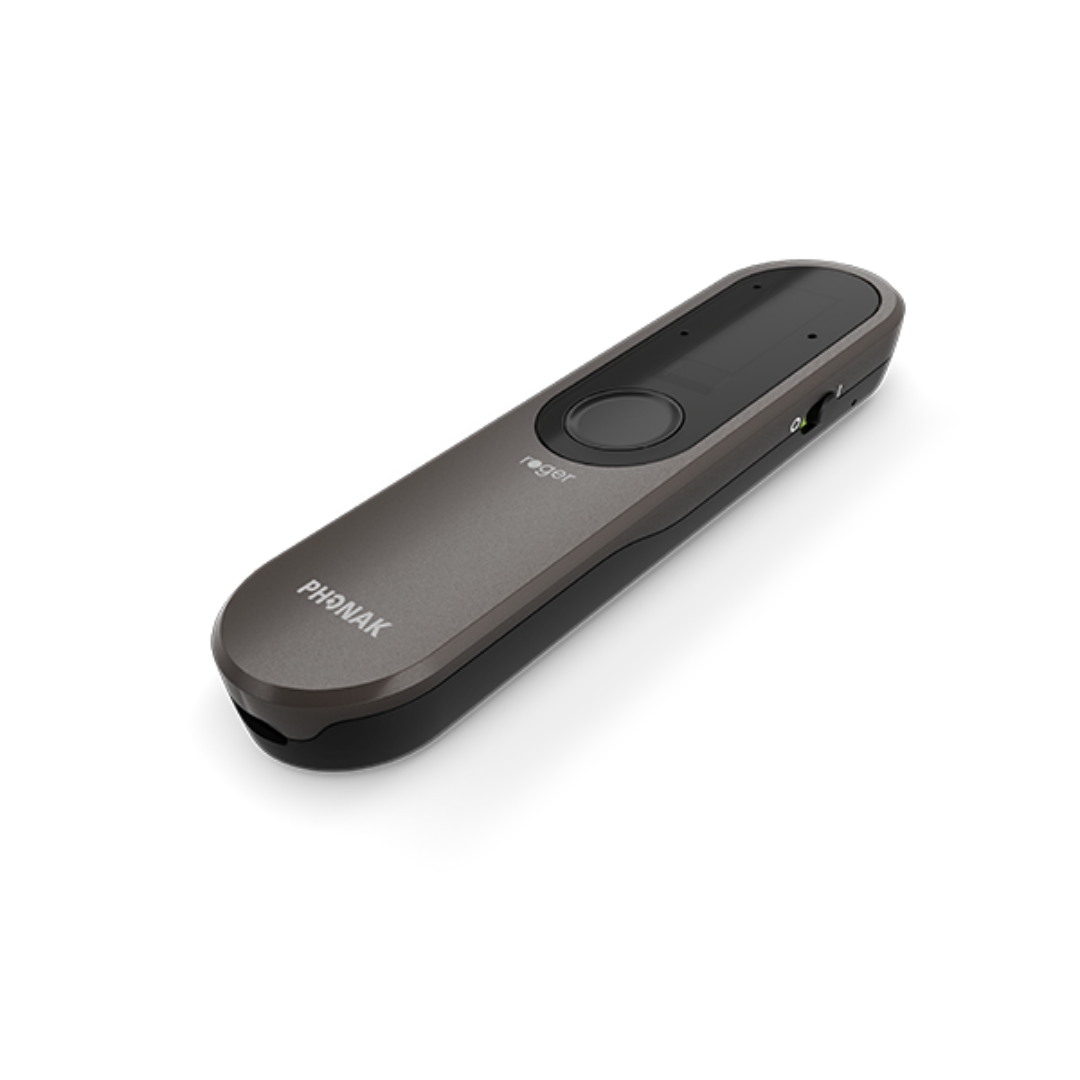
Phonak Roger On Sphere
Hear people across a table or across the room, and send TV or computer sound to hearing devices with a Roger receiver.
What Roger On Sphere does
At dinner, set Roger On Sphere in the middle of the table. At a reception, point it at the person speaking. A presenter can also clip it to their shirt. Its microphones separate speech from background noise and send the result to your Roger-compatible hearing devices. The dock adds TV listening, and a USB cable turns the microphone into a headset for online calls.
Which hearing aids work with Phonak Roger On Sphere?
Microphone audio
- Phonak Audéo EON Sphere
Install or confirm Roger reception separately in each hearing device. Install a digital Roger receiver in each hearing device that will receive the microphone. The Sphere includes unlimited installations.
- Phonak Audéo EON R
Install or confirm Roger reception separately in each hearing device. Install a digital Roger receiver in each hearing device that will receive the microphone. The Sphere includes unlimited installations.
- Phonak Audéo Marvel R
Install or confirm Roger reception separately in each hearing device. Install a digital Roger receiver in each hearing device that will receive the microphone. The Sphere includes unlimited installations.
- Phonak Audéo Marvel RT
Hearing device with an installed RogerDirect receiver: Install or confirm Roger reception separately in each hearing device. Install a digital Roger receiver in each hearing device that will receive the microphone. The Sphere includes unlimited installations.
Roger NeckLoop with the hearing device’s telecoil program: Use a personal Roger NeckLoop and select the hearing aid’s T or MT program. The hearing device must have a telecoil fitted and its T or MT program enabled.
- Phonak Audéo Marvel 312
Install or confirm Roger reception separately in each hearing device. Install a digital Roger receiver in each hearing device that will receive the microphone. The Sphere includes unlimited installations.
- Phonak Audéo Marvel 312T
Hearing device with an installed RogerDirect receiver: Install or confirm Roger reception separately in each hearing device. Install a digital Roger receiver in each hearing device that will receive the microphone. The Sphere includes unlimited installations.
Roger NeckLoop with the hearing device’s telecoil program: Use a personal Roger NeckLoop and select the hearing aid’s T or MT program. The hearing device must have a telecoil fitted and its T or MT program enabled.
TV audio
- Phonak Audéo EON Sphere
Install or confirm Roger reception separately in each hearing device. TV listening also requires the powered dock and a compatible TV audio output. Install a digital Roger receiver in each hearing device that will receive the microphone. The Sphere includes unlimited installations. Use a powered Sphere-compatible dock with the TV’s optical or analog audio output.
- Phonak Audéo EON R
Install or confirm Roger reception separately in each hearing device. TV listening also requires the powered dock and a compatible TV audio output. Install a digital Roger receiver in each hearing device that will receive the microphone. The Sphere includes unlimited installations. Use a powered Sphere-compatible dock with the TV’s optical or analog audio output.
- Phonak Audéo Marvel R
Install or confirm Roger reception separately in each hearing device. TV listening also requires the powered dock and a compatible TV audio output. Install a digital Roger receiver in each hearing device that will receive the microphone. The Sphere includes unlimited installations. Use a powered Sphere-compatible dock with the TV’s optical or analog audio output.
- Phonak Audéo Marvel RT
Hearing device with an installed RogerDirect receiver: Install or confirm Roger reception separately in each hearing device. TV listening also requires the powered dock and a compatible TV audio output. Install a digital Roger receiver in each hearing device that will receive the microphone. The Sphere includes unlimited installations. Use a powered Sphere-compatible dock with the TV’s optical or analog audio output.
Roger NeckLoop with the hearing device’s telecoil program: Use a personal Roger NeckLoop and select the hearing aid’s T or MT program. TV listening also requires the powered dock and a compatible TV audio output. The hearing device must have a telecoil fitted and its T or MT program enabled. Use a powered Sphere-compatible dock with the TV’s optical or analog audio output.
- Phonak Audéo Marvel 312
Install or confirm Roger reception separately in each hearing device. TV listening also requires the powered dock and a compatible TV audio output. Install a digital Roger receiver in each hearing device that will receive the microphone. The Sphere includes unlimited installations. Use a powered Sphere-compatible dock with the TV’s optical or analog audio output.
- Phonak Audéo Marvel 312T
Hearing device with an installed RogerDirect receiver: Install or confirm Roger reception separately in each hearing device. TV listening also requires the powered dock and a compatible TV audio output. Install a digital Roger receiver in each hearing device that will receive the microphone. The Sphere includes unlimited installations. Use a powered Sphere-compatible dock with the TV’s optical or analog audio output.
Roger NeckLoop with the hearing device’s telecoil program: Use a personal Roger NeckLoop and select the hearing aid’s T or MT program. TV listening also requires the powered dock and a compatible TV audio output. The hearing device must have a telecoil fitted and its T or MT program enabled. Use a powered Sphere-compatible dock with the TV’s optical or analog audio output.
Choose the exact model printed on your hearing aids or paperwork. A family match does not establish support for every model in that family.
View documented devices and setups
- Phonak Audéo EON Sphere · Exact model
Hearing device with an installed RogerDirect receiver · microphone_audio
Install or confirm Roger reception separately in each hearing device.
Requires additional setupSource · 2026-11-18Install or confirm Roger reception separately in each hearing device.
- Install a digital Roger receiver in each hearing device that will receive the microphone. The Sphere includes unlimited installations.
- Phonak Audéo EON R · Exact model
Hearing device with an installed RogerDirect receiver · microphone_audio
Install or confirm Roger reception separately in each hearing device.
Requires additional setupSource · 2026-11-18Install or confirm Roger reception separately in each hearing device.
- Install a digital Roger receiver in each hearing device that will receive the microphone. The Sphere includes unlimited installations.
- Phonak Audéo Marvel R · Exact model
Hearing device with an installed RogerDirect receiver · microphone_audio
Install or confirm Roger reception separately in each hearing device.
Requires additional setupSource · 2026-11-18Install or confirm Roger reception separately in each hearing device.
- Install a digital Roger receiver in each hearing device that will receive the microphone. The Sphere includes unlimited installations.
- Phonak Audéo Marvel RT · Exact model
Hearing device with an installed RogerDirect receiver · microphone_audio
Install or confirm Roger reception separately in each hearing device.
Requires additional setupSource · 2026-11-18Install or confirm Roger reception separately in each hearing device.
- Install a digital Roger receiver in each hearing device that will receive the microphone. The Sphere includes unlimited installations.
- Phonak Audéo Marvel 312 · Exact model
Hearing device with an installed RogerDirect receiver · microphone_audio
Install or confirm Roger reception separately in each hearing device.
Requires additional setupSource · 2026-11-18Install or confirm Roger reception separately in each hearing device.
- Install a digital Roger receiver in each hearing device that will receive the microphone. The Sphere includes unlimited installations.
- Phonak Audéo Marvel 312T · Exact model
Hearing device with an installed RogerDirect receiver · microphone_audio
Install or confirm Roger reception separately in each hearing device.
Requires additional setupSource · 2026-11-18Install or confirm Roger reception separately in each hearing device.
- Install a digital Roger receiver in each hearing device that will receive the microphone. The Sphere includes unlimited installations.
- Phonak Audéo Marvel 13T · Exact model
Hearing device with an installed RogerDirect receiver · microphone_audio
Install or confirm Roger reception separately in each hearing device.
Requires additional setupSource · 2026-11-18Install or confirm Roger reception separately in each hearing device.
- Install a digital Roger receiver in each hearing device that will receive the microphone. The Sphere includes unlimited installations.
- Phonak Bolero M M · Exact model
Hearing device with an installed RogerDirect receiver · microphone_audio
Install or confirm Roger reception separately in each hearing device.
Requires additional setupSource · 2026-11-18Install or confirm Roger reception separately in each hearing device.
- Install a digital Roger receiver in each hearing device that will receive the microphone. The Sphere includes unlimited installations.
- Phonak Bolero M PR · Exact model
Hearing device with an installed RogerDirect receiver · microphone_audio
Install or confirm Roger reception separately in each hearing device.
Requires additional setupSource · 2026-11-18Install or confirm Roger reception separately in each hearing device.
- Install a digital Roger receiver in each hearing device that will receive the microphone. The Sphere includes unlimited installations.
- Phonak Virto M M-312 · Exact model
Hearing device with an installed RogerDirect receiver · microphone_audio
Install or confirm Roger reception separately in each hearing device.
Requires additional setupSource · 2026-11-18Install or confirm Roger reception separately in each hearing device.
- Install a digital Roger receiver in each hearing device that will receive the microphone. The Sphere includes unlimited installations.
- Phonak Naída M SP · Exact model
Hearing device with an installed RogerDirect receiver · microphone_audio
Install or confirm Roger reception separately in each hearing device.
Requires additional setupSource · 2026-11-18Install or confirm Roger reception separately in each hearing device.
- Install a digital Roger receiver in each hearing device that will receive the microphone. The Sphere includes unlimited installations.
- Phonak Audéo Paradise 13T · Exact model
Hearing device with an installed RogerDirect receiver · microphone_audio
Install or confirm Roger reception separately in each hearing device.
Requires additional setupSource · 2026-11-18Install or confirm Roger reception separately in each hearing device.
- Install a digital Roger receiver in each hearing device that will receive the microphone. The Sphere includes unlimited installations.
- Phonak Audéo Paradise 312 · Exact model
Hearing device with an installed RogerDirect receiver · microphone_audio
Install or confirm Roger reception separately in each hearing device.
Requires additional setupSource · 2026-11-18Install or confirm Roger reception separately in each hearing device.
- Install a digital Roger receiver in each hearing device that will receive the microphone. The Sphere includes unlimited installations.
- Phonak Audéo Paradise RT · Exact model
Hearing device with an installed RogerDirect receiver · microphone_audio
Install or confirm Roger reception separately in each hearing device.
Requires additional setupSource · 2026-11-18Install or confirm Roger reception separately in each hearing device.
- Install a digital Roger receiver in each hearing device that will receive the microphone. The Sphere includes unlimited installations.
- Phonak Audéo Paradise R · Exact model
Hearing device with an installed RogerDirect receiver · microphone_audio
Install or confirm Roger reception separately in each hearing device.
Requires additional setupSource · 2026-11-18Install or confirm Roger reception separately in each hearing device.
- Install a digital Roger receiver in each hearing device that will receive the microphone. The Sphere includes unlimited installations.
- Phonak Naída Paradise P-PR · Exact model
Hearing device with an installed RogerDirect receiver · microphone_audio
Install or confirm Roger reception separately in each hearing device.
Requires additional setupSource · 2026-11-18Install or confirm Roger reception separately in each hearing device.
- Install a digital Roger receiver in each hearing device that will receive the microphone. The Sphere includes unlimited installations.
- Phonak Naída Paradise P-UP · Exact model
Hearing device with an installed RogerDirect receiver · microphone_audio
Install or confirm Roger reception separately in each hearing device.
Requires additional setupSource · 2026-11-18Install or confirm Roger reception separately in each hearing device.
- Install a digital Roger receiver in each hearing device that will receive the microphone. The Sphere includes unlimited installations.
- Phonak Virto Paradise 312 · Exact model
Hearing device with an installed RogerDirect receiver · microphone_audio
Install or confirm Roger reception separately in each hearing device.
Requires additional setupSource · 2026-11-18Install or confirm Roger reception separately in each hearing device.
- Install a digital Roger receiver in each hearing device that will receive the microphone. The Sphere includes unlimited installations.
- Phonak Audéo Lumity R · Exact model
Hearing device with an installed RogerDirect receiver · microphone_audio
Install or confirm Roger reception separately in each hearing device.
Requires additional setupSource · 2026-11-18Install or confirm Roger reception separately in each hearing device.
- Install a digital Roger receiver in each hearing device that will receive the microphone. The Sphere includes unlimited installations.
- Phonak Audéo Lumity RT · Exact model
Hearing device with an installed RogerDirect receiver · microphone_audio
Install or confirm Roger reception separately in each hearing device.
Requires additional setupSource · 2026-11-18Install or confirm Roger reception separately in each hearing device.
- Install a digital Roger receiver in each hearing device that will receive the microphone. The Sphere includes unlimited installations.
- Phonak Audéo Lumity Life · Exact model
Hearing device with an installed RogerDirect receiver · microphone_audio
Install or confirm Roger reception separately in each hearing device.
Requires additional setupSource · 2026-11-18Install or confirm Roger reception separately in each hearing device.
- Install a digital Roger receiver in each hearing device that will receive the microphone. The Sphere includes unlimited installations.
- Phonak Audéo Lumity L-312 · Exact model
Hearing device with an installed RogerDirect receiver · microphone_audio
Install or confirm Roger reception separately in each hearing device.
Requires additional setupSource · 2026-11-18Install or confirm Roger reception separately in each hearing device.
- Install a digital Roger receiver in each hearing device that will receive the microphone. The Sphere includes unlimited installations.
- Phonak Naída Lumity P-PR · Exact model
Hearing device with an installed RogerDirect receiver · microphone_audio
Install or confirm Roger reception separately in each hearing device.
Requires additional setupSource · 2026-11-18Install or confirm Roger reception separately in each hearing device.
- Install a digital Roger receiver in each hearing device that will receive the microphone. The Sphere includes unlimited installations.
- Phonak Naída Lumity P-UP · Exact model
Hearing device with an installed RogerDirect receiver · microphone_audio
Install or confirm Roger reception separately in each hearing device.
Requires additional setupSource · 2026-11-18Install or confirm Roger reception separately in each hearing device.
- Install a digital Roger receiver in each hearing device that will receive the microphone. The Sphere includes unlimited installations.
- Phonak Audéo Infinio Ultra R · Exact model
Hearing device with an installed RogerDirect receiver · microphone_audio
Install or confirm Roger reception separately in each hearing device.
Requires additional setupSource · 2026-11-18Install or confirm Roger reception separately in each hearing device.
- Install a digital Roger receiver in each hearing device that will receive the microphone. The Sphere includes unlimited installations.
- Phonak Audéo Infinio Ultra Sphere · Exact model
Hearing device with an installed RogerDirect receiver · microphone_audio
Install or confirm Roger reception separately in each hearing device.
Requires additional setupSource · 2026-11-18Install or confirm Roger reception separately in each hearing device.
- Install a digital Roger receiver in each hearing device that will receive the microphone. The Sphere includes unlimited installations.
- Phonak Virto Infinio R · Exact model
Hearing device with an installed RogerDirect receiver · microphone_audio
Install or confirm Roger reception separately in each hearing device.
Requires additional setupSource · 2026-11-19Install or confirm Roger reception separately in each hearing device.
- Install a digital Roger receiver in each hearing device that will receive the microphone. The Sphere includes unlimited installations.
- Unitron Moxi Vivante RT · Exact model
Hearing device with an installed RogerDirect receiver · microphone_audio
Install or confirm Roger reception separately in each hearing device.
Requires additional setupSource · 2026-11-19Install or confirm Roger reception separately in each hearing device.
- Install a digital Roger receiver in each hearing device that will receive the microphone. The Sphere includes unlimited installations.
- Unitron Moxi Vivante R · Exact model
Hearing device with an installed RogerDirect receiver · microphone_audio
Install or confirm Roger reception separately in each hearing device.
Requires additional setupSource · 2026-11-19Install or confirm Roger reception separately in each hearing device.
- Install a digital Roger receiver in each hearing device that will receive the microphone. The Sphere includes unlimited installations.
- Phonak Virto Infinio 10 NW O · Exact model
Roger NeckLoop with the hearing device’s telecoil program · microphone_audio
Use a Roger NeckLoop with the optional fitted and enabled telecoil.
Requires additional setupSource · 2026-11-19Use a Roger NeckLoop with the optional fitted and enabled telecoil.
- The hearing device must have a telecoil fitted and its T or MT program enabled.
- Phonak Virto Infinio Titanium · Exact model
Roger NeckLoop with the hearing device’s telecoil program · microphone_audio
Use a Roger NeckLoop with the optional fitted and enabled telecoil.
Requires additional setupSource · 2026-11-19Use a Roger NeckLoop with the optional fitted and enabled telecoil.
- The hearing device must have a telecoil fitted and its T or MT program enabled.
- Phonak Audéo B 312T · Exact model
Roger NeckLoop with the hearing device’s telecoil program · microphone_audio
Use a personal Roger NeckLoop and select the hearing aid’s T or MT program.
Requires additional setupSource · 2026-11-18Use a personal Roger NeckLoop and select the hearing aid’s T or MT program.
- The hearing device must have a telecoil fitted and its T or MT program enabled.
- Phonak Audéo B 13 · Exact model
Roger NeckLoop with the hearing device’s telecoil program · microphone_audio
Use a personal Roger NeckLoop and select the hearing aid’s T or MT program.
Requires additional setupSource · 2026-11-18Use a personal Roger NeckLoop and select the hearing aid’s T or MT program.
- The hearing device must have a telecoil fitted and its T or MT program enabled.
- Phonak Audéo Marvel RT · Exact model
Roger NeckLoop with the hearing device’s telecoil program · microphone_audio
Use a personal Roger NeckLoop and select the hearing aid’s T or MT program.
Requires additional setupSource · 2026-11-18Use a personal Roger NeckLoop and select the hearing aid’s T or MT program.
- The hearing device must have a telecoil fitted and its T or MT program enabled.
- Phonak Audéo Marvel 312T · Exact model
Roger NeckLoop with the hearing device’s telecoil program · microphone_audio
Use a personal Roger NeckLoop and select the hearing aid’s T or MT program.
Requires additional setupSource · 2026-11-18Use a personal Roger NeckLoop and select the hearing aid’s T or MT program.
- The hearing device must have a telecoil fitted and its T or MT program enabled.
- Phonak Audéo Marvel 13T · Exact model
Roger NeckLoop with the hearing device’s telecoil program · microphone_audio
Use a personal Roger NeckLoop and select the hearing aid’s T or MT program.
Requires additional setupSource · 2026-11-18Use a personal Roger NeckLoop and select the hearing aid’s T or MT program.
- The hearing device must have a telecoil fitted and its T or MT program enabled.
- Phonak Bolero M M · Exact model
Roger NeckLoop with the hearing device’s telecoil program · microphone_audio
Use a personal Roger NeckLoop and select the hearing aid’s T or MT program.
Requires additional setupSource · 2026-11-18Use a personal Roger NeckLoop and select the hearing aid’s T or MT program.
- The hearing device must have a telecoil fitted and its T or MT program enabled.
- Phonak Naída M SP · Exact model
Roger NeckLoop with the hearing device’s telecoil program · microphone_audio
Use a personal Roger NeckLoop and select the hearing aid’s T or MT program.
Requires additional setupSource · 2026-11-18Use a personal Roger NeckLoop and select the hearing aid’s T or MT program.
- The hearing device must have a telecoil fitted and its T or MT program enabled.
- Phonak Audéo Paradise 13T · Exact model
Roger NeckLoop with the hearing device’s telecoil program · microphone_audio
Use a personal Roger NeckLoop and select the hearing aid’s T or MT program.
Requires additional setupSource · 2026-11-18Use a personal Roger NeckLoop and select the hearing aid’s T or MT program.
- The hearing device must have a telecoil fitted and its T or MT program enabled.
- Phonak Audéo Paradise RT · Exact model
Roger NeckLoop with the hearing device’s telecoil program · microphone_audio
Use a personal Roger NeckLoop and select the hearing aid’s T or MT program.
Requires additional setupSource · 2026-11-18Use a personal Roger NeckLoop and select the hearing aid’s T or MT program.
- The hearing device must have a telecoil fitted and its T or MT program enabled.
- Phonak Naída Paradise P-UP · Exact model
Roger NeckLoop with the hearing device’s telecoil program · microphone_audio
Use a personal Roger NeckLoop and select the hearing aid’s T or MT program.
Requires additional setupSource · 2026-11-18Use a personal Roger NeckLoop and select the hearing aid’s T or MT program.
- The hearing device must have a telecoil fitted and its T or MT program enabled.
- Phonak Audéo B R · Exact model
Roger X connected through a compatible ComPilot streamer · microphone_audio
A separate Roger X plugs into a compatible ComPilot or ComPilot II paired with the aids.
Requires additional setupSource · 2026-11-18A separate Roger X plugs into a compatible ComPilot or ComPilot II paired with the aids.
- Use a paired Phonak ComPilot II streamer. A model-compatible ComPilot is another documented option.
- Connect a Roger X receiver to the required accessory input.
- Phonak Audéo B 10 · Exact model
Roger X connected through a compatible ComPilot streamer · microphone_audio
A separate Roger X plugs into a compatible ComPilot or ComPilot II paired with the aids.
Requires additional setupSource · 2026-11-18A separate Roger X plugs into a compatible ComPilot or ComPilot II paired with the aids.
- Use a paired Phonak ComPilot II streamer. A model-compatible ComPilot is another documented option.
- Connect a Roger X receiver to the required accessory input.
- Phonak Audéo B 312 · Exact model
Roger X connected through a compatible ComPilot streamer · microphone_audio
A separate Roger X plugs into a compatible ComPilot or ComPilot II paired with the aids.
Requires additional setupSource · 2026-11-18A separate Roger X plugs into a compatible ComPilot or ComPilot II paired with the aids.
- Use a paired Phonak ComPilot II streamer. A model-compatible ComPilot is another documented option.
- Connect a Roger X receiver to the required accessory input.
- Phonak Audéo B 312T · Exact model
Roger X connected through a compatible ComPilot streamer · microphone_audio
A separate Roger X plugs into a compatible ComPilot or ComPilot II paired with the aids.
Requires additional setupSource · 2026-11-18A separate Roger X plugs into a compatible ComPilot or ComPilot II paired with the aids.
- Use a paired Phonak ComPilot II streamer. A model-compatible ComPilot is another documented option.
- Connect a Roger X receiver to the required accessory input.
- Phonak Audéo B 13 · Exact model
Model-specific external Roger receiver · microphone_audio
Attach the matching Roger 18 to this Audéo B-13.
Requires additional setupSource · 2026-11-18Attach the matching Roger 18 to this Audéo B-13.
- Use the Roger 18 receiver made for the Audéo B-13.
- Phonak Naída B B-UP · Exact model
Model-specific external Roger receiver · microphone_audio
Attach a Roger 19 receiver to the Naída B-UP.
Requires additional setupSource · 2026-11-18Attach a Roger 19 receiver to the Naída B-UP.
- Use the Roger 19 receiver made for the Naída B-UP.
- Phonak Naída B B-SP · Exact model
Model-specific external Roger receiver · microphone_audio
Attach the matching Roger 18 to the Naída B-SP.
Requires additional setupSource · 2026-11-18Attach the matching Roger 18 to the Naída B-SP.
- Use the Roger 18 receiver made for the Naída B-SP.
- Cochlear Baha® 5 · Exact model
Roger X connected through Cochlear Mini Microphone 2+ · microphone_audio
Connect a Roger X to a Cochlear Wireless Mini Microphone 2+ paired with the sound processor.
Requires additional setupSource · 2026-11-18Connect a Roger X to a Cochlear Wireless Mini Microphone 2+ paired with the sound processor.
- Connect a Roger X receiver to the required accessory input.
- Connect the Roger X to a Cochlear Wireless Mini Microphone 2+ paired with the sound processor.
- Cochlear Nucleus Kanso · Exact model
Roger X connected through Cochlear Mini Microphone 2+ · microphone_audio
Connect a Roger X to a Cochlear Wireless Mini Microphone 2+ paired with the sound processor.
Requires additional setupSource · 2026-11-18Connect a Roger X to a Cochlear Wireless Mini Microphone 2+ paired with the sound processor.
- Connect a Roger X receiver to the required accessory input.
- Connect the Roger X to a Cochlear Wireless Mini Microphone 2+ paired with the sound processor.
- Cochlear Nucleus® 7 · Exact model
Roger X connected through Cochlear Mini Microphone 2+ · microphone_audio
Connect a Roger X to a Cochlear Wireless Mini Microphone 2+ paired with the sound processor.
Requires additional setupSource · 2026-11-18Connect a Roger X to a Cochlear Wireless Mini Microphone 2+ paired with the sound processor.
- Connect a Roger X receiver to the required accessory input.
- Connect the Roger X to a Cochlear Wireless Mini Microphone 2+ paired with the sound processor.
- Cochlear Kanso® 2 · Exact model
Roger X connected through Cochlear Mini Microphone 2+ · microphone_audio
Connect a Roger X to a Cochlear Wireless Mini Microphone 2+ paired with the sound processor.
Requires additional setupSource · 2026-11-18Connect a Roger X to a Cochlear Wireless Mini Microphone 2+ paired with the sound processor.
- Connect a Roger X receiver to the required accessory input.
- Connect the Roger X to a Cochlear Wireless Mini Microphone 2+ paired with the sound processor.
- Cochlear Nucleus® 8 · Exact model
Roger X connected through Cochlear Mini Microphone 2+ · microphone_audio
Connect a Roger X to a Cochlear Wireless Mini Microphone 2+ paired with the sound processor.
Requires additional setupSource · 2026-11-18Connect a Roger X to a Cochlear Wireless Mini Microphone 2+ paired with the sound processor.
- Connect a Roger X receiver to the required accessory input.
- Connect the Roger X to a Cochlear Wireless Mini Microphone 2+ paired with the sound processor.
- Cochlear Osia® 2 · Exact model
Roger X connected through Cochlear Mini Microphone 2+ · microphone_audio
Connect a Roger X to a Cochlear Wireless Mini Microphone 2+ paired with the sound processor.
Requires additional setupSource · 2026-11-18Connect a Roger X to a Cochlear Wireless Mini Microphone 2+ paired with the sound processor.
- Connect a Roger X receiver to the required accessory input.
- Connect the Roger X to a Cochlear Wireless Mini Microphone 2+ paired with the sound processor.
- Cochlear Nucleus® 7 · Exact model
Model-specific external Roger receiver · microphone_audio
Use the Roger 20 receiver made for Nucleus 7 or 8.
Requires additional setupSource · 2026-11-18Use the Roger 20 receiver made for Nucleus 7 or 8.
- Configure Roger input on the processor with the model-specific Roger 20 attached.
- Cochlear Nucleus® 8 · Exact model
Model-specific external Roger receiver · microphone_audio
Use the Roger 20 receiver made for Nucleus 7 or 8.
Requires additional setupSource · 2026-11-18Use the Roger 20 receiver made for Nucleus 7 or 8.
- Configure Roger input on the processor with the model-specific Roger 20 attached.
- Cochlear Nucleus® 6 Sound Processor · Exact model
Model-specific external Roger receiver · microphone_audio
Fit a Roger 14 receiver to the Nucleus 6 processor.
Requires additional setupSource · 2026-11-18Fit a Roger 14 receiver to the Nucleus 6 processor.
- Configure the processor to receive sound through its attached Roger 14.
- Phonak Audéo EON Sphere · Exact model
Hearing device with an installed RogerDirect receiver · tv_audio
Install or confirm Roger reception separately in each hearing device. TV listening also requires the powered dock and a compatible TV audio output.
Requires additional setupSource · 2026-11-18Install or confirm Roger reception separately in each hearing device. TV listening also requires the powered dock and a compatible TV audio output.
- Install a digital Roger receiver in each hearing device that will receive the microphone. The Sphere includes unlimited installations.
- Use a powered Sphere-compatible dock with the TV’s optical or analog audio output.
- Phonak Audéo EON Sphere · Exact model
Two RogerDirect devices with stereo enabled in myRogerMic · stereo_audio
Use a compatible pair with RogerDirect activated on both sides and enable stereo in myRogerMic.
Requires additional setupSource · 2026-11-18Use a compatible pair with RogerDirect activated on both sides and enable stereo in myRogerMic.
- Install a digital Roger receiver in each hearing device that will receive the microphone. The Sphere includes unlimited installations.
- Use two compatible RogerDirect devices in table or wide pointing mode.
- Enable stereo in the optional myRogerMic app.
- Phonak Audéo EON R · Exact model
Hearing device with an installed RogerDirect receiver · tv_audio
Install or confirm Roger reception separately in each hearing device. TV listening also requires the powered dock and a compatible TV audio output.
Requires additional setupSource · 2026-11-18Install or confirm Roger reception separately in each hearing device. TV listening also requires the powered dock and a compatible TV audio output.
- Install a digital Roger receiver in each hearing device that will receive the microphone. The Sphere includes unlimited installations.
- Use a powered Sphere-compatible dock with the TV’s optical or analog audio output.
- Phonak Audéo EON R · Exact model
Two RogerDirect devices with stereo enabled in myRogerMic · stereo_audio
Use a compatible pair with RogerDirect activated on both sides and enable stereo in myRogerMic.
Requires additional setupSource · 2026-11-18Use a compatible pair with RogerDirect activated on both sides and enable stereo in myRogerMic.
- Install a digital Roger receiver in each hearing device that will receive the microphone. The Sphere includes unlimited installations.
- Use two compatible RogerDirect devices in table or wide pointing mode.
- Enable stereo in the optional myRogerMic app.
- Phonak Audéo Marvel R · Exact model
Hearing device with an installed RogerDirect receiver · tv_audio
Install or confirm Roger reception separately in each hearing device. TV listening also requires the powered dock and a compatible TV audio output.
Requires additional setupSource · 2026-11-18Install or confirm Roger reception separately in each hearing device. TV listening also requires the powered dock and a compatible TV audio output.
- Install a digital Roger receiver in each hearing device that will receive the microphone. The Sphere includes unlimited installations.
- Use a powered Sphere-compatible dock with the TV’s optical or analog audio output.
- Phonak Audéo Marvel R · Exact model
Two RogerDirect devices with stereo enabled in myRogerMic · stereo_audio
Use a compatible pair with RogerDirect activated on both sides and enable stereo in myRogerMic.
Requires additional setupSource · 2026-11-18Use a compatible pair with RogerDirect activated on both sides and enable stereo in myRogerMic.
- Install a digital Roger receiver in each hearing device that will receive the microphone. The Sphere includes unlimited installations.
- Use two compatible RogerDirect devices in table or wide pointing mode.
- Enable stereo in the optional myRogerMic app.
- Phonak Audéo Marvel RT · Exact model
Hearing device with an installed RogerDirect receiver · tv_audio
Install or confirm Roger reception separately in each hearing device. TV listening also requires the powered dock and a compatible TV audio output.
Requires additional setupSource · 2026-11-18Install or confirm Roger reception separately in each hearing device. TV listening also requires the powered dock and a compatible TV audio output.
- Install a digital Roger receiver in each hearing device that will receive the microphone. The Sphere includes unlimited installations.
- Use a powered Sphere-compatible dock with the TV’s optical or analog audio output.
- Phonak Audéo Marvel RT · Exact model
Two RogerDirect devices with stereo enabled in myRogerMic · stereo_audio
Use a compatible pair with RogerDirect activated on both sides and enable stereo in myRogerMic.
Requires additional setupSource · 2026-11-18Use a compatible pair with RogerDirect activated on both sides and enable stereo in myRogerMic.
- Install a digital Roger receiver in each hearing device that will receive the microphone. The Sphere includes unlimited installations.
- Use two compatible RogerDirect devices in table or wide pointing mode.
- Enable stereo in the optional myRogerMic app.
- Phonak Audéo Marvel 312 · Exact model
Hearing device with an installed RogerDirect receiver · tv_audio
Install or confirm Roger reception separately in each hearing device. TV listening also requires the powered dock and a compatible TV audio output.
Requires additional setupSource · 2026-11-18Install or confirm Roger reception separately in each hearing device. TV listening also requires the powered dock and a compatible TV audio output.
- Install a digital Roger receiver in each hearing device that will receive the microphone. The Sphere includes unlimited installations.
- Use a powered Sphere-compatible dock with the TV’s optical or analog audio output.
- Phonak Audéo Marvel 312 · Exact model
Two RogerDirect devices with stereo enabled in myRogerMic · stereo_audio
Use a compatible pair with RogerDirect activated on both sides and enable stereo in myRogerMic.
Requires additional setupSource · 2026-11-18Use a compatible pair with RogerDirect activated on both sides and enable stereo in myRogerMic.
- Install a digital Roger receiver in each hearing device that will receive the microphone. The Sphere includes unlimited installations.
- Use two compatible RogerDirect devices in table or wide pointing mode.
- Enable stereo in the optional myRogerMic app.
- Phonak Audéo Marvel 312T · Exact model
Hearing device with an installed RogerDirect receiver · tv_audio
Install or confirm Roger reception separately in each hearing device. TV listening also requires the powered dock and a compatible TV audio output.
Requires additional setupSource · 2026-11-18Install or confirm Roger reception separately in each hearing device. TV listening also requires the powered dock and a compatible TV audio output.
- Install a digital Roger receiver in each hearing device that will receive the microphone. The Sphere includes unlimited installations.
- Use a powered Sphere-compatible dock with the TV’s optical or analog audio output.
- Phonak Audéo Marvel 312T · Exact model
Two RogerDirect devices with stereo enabled in myRogerMic · stereo_audio
Use a compatible pair with RogerDirect activated on both sides and enable stereo in myRogerMic.
Requires additional setupSource · 2026-11-18Use a compatible pair with RogerDirect activated on both sides and enable stereo in myRogerMic.
- Install a digital Roger receiver in each hearing device that will receive the microphone. The Sphere includes unlimited installations.
- Use two compatible RogerDirect devices in table or wide pointing mode.
- Enable stereo in the optional myRogerMic app.
- Phonak Audéo Marvel 13T · Exact model
Hearing device with an installed RogerDirect receiver · tv_audio
Install or confirm Roger reception separately in each hearing device. TV listening also requires the powered dock and a compatible TV audio output.
Requires additional setupSource · 2026-11-18Install or confirm Roger reception separately in each hearing device. TV listening also requires the powered dock and a compatible TV audio output.
- Install a digital Roger receiver in each hearing device that will receive the microphone. The Sphere includes unlimited installations.
- Use a powered Sphere-compatible dock with the TV’s optical or analog audio output.
- Phonak Audéo Marvel 13T · Exact model
Two RogerDirect devices with stereo enabled in myRogerMic · stereo_audio
Use a compatible pair with RogerDirect activated on both sides and enable stereo in myRogerMic.
Requires additional setupSource · 2026-11-18Use a compatible pair with RogerDirect activated on both sides and enable stereo in myRogerMic.
- Install a digital Roger receiver in each hearing device that will receive the microphone. The Sphere includes unlimited installations.
- Use two compatible RogerDirect devices in table or wide pointing mode.
- Enable stereo in the optional myRogerMic app.
- Phonak Bolero M M · Exact model
Hearing device with an installed RogerDirect receiver · tv_audio
Install or confirm Roger reception separately in each hearing device. TV listening also requires the powered dock and a compatible TV audio output.
Requires additional setupSource · 2026-11-18Install or confirm Roger reception separately in each hearing device. TV listening also requires the powered dock and a compatible TV audio output.
- Install a digital Roger receiver in each hearing device that will receive the microphone. The Sphere includes unlimited installations.
- Use a powered Sphere-compatible dock with the TV’s optical or analog audio output.
- Phonak Bolero M M · Exact model
Two RogerDirect devices with stereo enabled in myRogerMic · stereo_audio
Use a compatible pair with RogerDirect activated on both sides and enable stereo in myRogerMic.
Requires additional setupSource · 2026-11-18Use a compatible pair with RogerDirect activated on both sides and enable stereo in myRogerMic.
- Install a digital Roger receiver in each hearing device that will receive the microphone. The Sphere includes unlimited installations.
- Use two compatible RogerDirect devices in table or wide pointing mode.
- Enable stereo in the optional myRogerMic app.
- Phonak Bolero M PR · Exact model
Hearing device with an installed RogerDirect receiver · tv_audio
Install or confirm Roger reception separately in each hearing device. TV listening also requires the powered dock and a compatible TV audio output.
Requires additional setupSource · 2026-11-18Install or confirm Roger reception separately in each hearing device. TV listening also requires the powered dock and a compatible TV audio output.
- Install a digital Roger receiver in each hearing device that will receive the microphone. The Sphere includes unlimited installations.
- Use a powered Sphere-compatible dock with the TV’s optical or analog audio output.
- Phonak Bolero M PR · Exact model
Two RogerDirect devices with stereo enabled in myRogerMic · stereo_audio
Use a compatible pair with RogerDirect activated on both sides and enable stereo in myRogerMic.
Requires additional setupSource · 2026-11-18Use a compatible pair with RogerDirect activated on both sides and enable stereo in myRogerMic.
- Install a digital Roger receiver in each hearing device that will receive the microphone. The Sphere includes unlimited installations.
- Use two compatible RogerDirect devices in table or wide pointing mode.
- Enable stereo in the optional myRogerMic app.
- Phonak Virto M M-312 · Exact model
Hearing device with an installed RogerDirect receiver · tv_audio
Install or confirm Roger reception separately in each hearing device. TV listening also requires the powered dock and a compatible TV audio output.
Requires additional setupSource · 2026-11-18Install or confirm Roger reception separately in each hearing device. TV listening also requires the powered dock and a compatible TV audio output.
- Install a digital Roger receiver in each hearing device that will receive the microphone. The Sphere includes unlimited installations.
- Use a powered Sphere-compatible dock with the TV’s optical or analog audio output.
- Phonak Virto M M-312 · Exact model
Two RogerDirect devices with stereo enabled in myRogerMic · stereo_audio
Use a compatible pair with RogerDirect activated on both sides and enable stereo in myRogerMic.
Requires additional setupSource · 2026-11-18Use a compatible pair with RogerDirect activated on both sides and enable stereo in myRogerMic.
- Install a digital Roger receiver in each hearing device that will receive the microphone. The Sphere includes unlimited installations.
- Use two compatible RogerDirect devices in table or wide pointing mode.
- Enable stereo in the optional myRogerMic app.
- Phonak Naída M SP · Exact model
Hearing device with an installed RogerDirect receiver · tv_audio
Install or confirm Roger reception separately in each hearing device. TV listening also requires the powered dock and a compatible TV audio output.
Requires additional setupSource · 2026-11-18Install or confirm Roger reception separately in each hearing device. TV listening also requires the powered dock and a compatible TV audio output.
- Install a digital Roger receiver in each hearing device that will receive the microphone. The Sphere includes unlimited installations.
- Use a powered Sphere-compatible dock with the TV’s optical or analog audio output.
- Phonak Naída M SP · Exact model
Two RogerDirect devices with stereo enabled in myRogerMic · stereo_audio
Use a compatible pair with RogerDirect activated on both sides and enable stereo in myRogerMic.
Requires additional setupSource · 2026-11-18Use a compatible pair with RogerDirect activated on both sides and enable stereo in myRogerMic.
- Install a digital Roger receiver in each hearing device that will receive the microphone. The Sphere includes unlimited installations.
- Use two compatible RogerDirect devices in table or wide pointing mode.
- Enable stereo in the optional myRogerMic app.
- Phonak Audéo Paradise 13T · Exact model
Hearing device with an installed RogerDirect receiver · tv_audio
Install or confirm Roger reception separately in each hearing device. TV listening also requires the powered dock and a compatible TV audio output.
Requires additional setupSource · 2026-11-18Install or confirm Roger reception separately in each hearing device. TV listening also requires the powered dock and a compatible TV audio output.
- Install a digital Roger receiver in each hearing device that will receive the microphone. The Sphere includes unlimited installations.
- Use a powered Sphere-compatible dock with the TV’s optical or analog audio output.
- Phonak Audéo Paradise 13T · Exact model
Two RogerDirect devices with stereo enabled in myRogerMic · stereo_audio
Use a compatible pair with RogerDirect activated on both sides and enable stereo in myRogerMic.
Requires additional setupSource · 2026-11-18Use a compatible pair with RogerDirect activated on both sides and enable stereo in myRogerMic.
- Install a digital Roger receiver in each hearing device that will receive the microphone. The Sphere includes unlimited installations.
- Use two compatible RogerDirect devices in table or wide pointing mode.
- Enable stereo in the optional myRogerMic app.
- Phonak Audéo Paradise 312 · Exact model
Hearing device with an installed RogerDirect receiver · tv_audio
Install or confirm Roger reception separately in each hearing device. TV listening also requires the powered dock and a compatible TV audio output.
Requires additional setupSource · 2026-11-18Install or confirm Roger reception separately in each hearing device. TV listening also requires the powered dock and a compatible TV audio output.
- Install a digital Roger receiver in each hearing device that will receive the microphone. The Sphere includes unlimited installations.
- Use a powered Sphere-compatible dock with the TV’s optical or analog audio output.
- Phonak Audéo Paradise 312 · Exact model
Two RogerDirect devices with stereo enabled in myRogerMic · stereo_audio
Use a compatible pair with RogerDirect activated on both sides and enable stereo in myRogerMic.
Requires additional setupSource · 2026-11-18Use a compatible pair with RogerDirect activated on both sides and enable stereo in myRogerMic.
- Install a digital Roger receiver in each hearing device that will receive the microphone. The Sphere includes unlimited installations.
- Use two compatible RogerDirect devices in table or wide pointing mode.
- Enable stereo in the optional myRogerMic app.
- Phonak Audéo Paradise RT · Exact model
Hearing device with an installed RogerDirect receiver · tv_audio
Install or confirm Roger reception separately in each hearing device. TV listening also requires the powered dock and a compatible TV audio output.
Requires additional setupSource · 2026-11-18Install or confirm Roger reception separately in each hearing device. TV listening also requires the powered dock and a compatible TV audio output.
- Install a digital Roger receiver in each hearing device that will receive the microphone. The Sphere includes unlimited installations.
- Use a powered Sphere-compatible dock with the TV’s optical or analog audio output.
- Phonak Audéo Paradise RT · Exact model
Two RogerDirect devices with stereo enabled in myRogerMic · stereo_audio
Use a compatible pair with RogerDirect activated on both sides and enable stereo in myRogerMic.
Requires additional setupSource · 2026-11-18Use a compatible pair with RogerDirect activated on both sides and enable stereo in myRogerMic.
- Install a digital Roger receiver in each hearing device that will receive the microphone. The Sphere includes unlimited installations.
- Use two compatible RogerDirect devices in table or wide pointing mode.
- Enable stereo in the optional myRogerMic app.
- Phonak Audéo Paradise R · Exact model
Hearing device with an installed RogerDirect receiver · tv_audio
Install or confirm Roger reception separately in each hearing device. TV listening also requires the powered dock and a compatible TV audio output.
Requires additional setupSource · 2026-11-18Install or confirm Roger reception separately in each hearing device. TV listening also requires the powered dock and a compatible TV audio output.
- Install a digital Roger receiver in each hearing device that will receive the microphone. The Sphere includes unlimited installations.
- Use a powered Sphere-compatible dock with the TV’s optical or analog audio output.
- Phonak Audéo Paradise R · Exact model
Two RogerDirect devices with stereo enabled in myRogerMic · stereo_audio
Use a compatible pair with RogerDirect activated on both sides and enable stereo in myRogerMic.
Requires additional setupSource · 2026-11-18Use a compatible pair with RogerDirect activated on both sides and enable stereo in myRogerMic.
- Install a digital Roger receiver in each hearing device that will receive the microphone. The Sphere includes unlimited installations.
- Use two compatible RogerDirect devices in table or wide pointing mode.
- Enable stereo in the optional myRogerMic app.
- Phonak Naída Paradise P-PR · Exact model
Hearing device with an installed RogerDirect receiver · tv_audio
Install or confirm Roger reception separately in each hearing device. TV listening also requires the powered dock and a compatible TV audio output.
Requires additional setupSource · 2026-11-18Install or confirm Roger reception separately in each hearing device. TV listening also requires the powered dock and a compatible TV audio output.
- Install a digital Roger receiver in each hearing device that will receive the microphone. The Sphere includes unlimited installations.
- Use a powered Sphere-compatible dock with the TV’s optical or analog audio output.
- Phonak Naída Paradise P-PR · Exact model
Two RogerDirect devices with stereo enabled in myRogerMic · stereo_audio
Use a compatible pair with RogerDirect activated on both sides and enable stereo in myRogerMic.
Requires additional setupSource · 2026-11-18Use a compatible pair with RogerDirect activated on both sides and enable stereo in myRogerMic.
- Install a digital Roger receiver in each hearing device that will receive the microphone. The Sphere includes unlimited installations.
- Use two compatible RogerDirect devices in table or wide pointing mode.
- Enable stereo in the optional myRogerMic app.
- Phonak Naída Paradise P-UP · Exact model
Hearing device with an installed RogerDirect receiver · tv_audio
Install or confirm Roger reception separately in each hearing device. TV listening also requires the powered dock and a compatible TV audio output.
Requires additional setupSource · 2026-11-18Install or confirm Roger reception separately in each hearing device. TV listening also requires the powered dock and a compatible TV audio output.
- Install a digital Roger receiver in each hearing device that will receive the microphone. The Sphere includes unlimited installations.
- Use a powered Sphere-compatible dock with the TV’s optical or analog audio output.
- Phonak Naída Paradise P-UP · Exact model
Two RogerDirect devices with stereo enabled in myRogerMic · stereo_audio
Use a compatible pair with RogerDirect activated on both sides and enable stereo in myRogerMic.
Requires additional setupSource · 2026-11-18Use a compatible pair with RogerDirect activated on both sides and enable stereo in myRogerMic.
- Install a digital Roger receiver in each hearing device that will receive the microphone. The Sphere includes unlimited installations.
- Use two compatible RogerDirect devices in table or wide pointing mode.
- Enable stereo in the optional myRogerMic app.
- Phonak Virto Paradise 312 · Exact model
Hearing device with an installed RogerDirect receiver · tv_audio
Install or confirm Roger reception separately in each hearing device. TV listening also requires the powered dock and a compatible TV audio output.
Requires additional setupSource · 2026-11-18Install or confirm Roger reception separately in each hearing device. TV listening also requires the powered dock and a compatible TV audio output.
- Install a digital Roger receiver in each hearing device that will receive the microphone. The Sphere includes unlimited installations.
- Use a powered Sphere-compatible dock with the TV’s optical or analog audio output.
- Phonak Virto Paradise 312 · Exact model
Two RogerDirect devices with stereo enabled in myRogerMic · stereo_audio
Use a compatible pair with RogerDirect activated on both sides and enable stereo in myRogerMic.
Requires additional setupSource · 2026-11-18Use a compatible pair with RogerDirect activated on both sides and enable stereo in myRogerMic.
- Install a digital Roger receiver in each hearing device that will receive the microphone. The Sphere includes unlimited installations.
- Use two compatible RogerDirect devices in table or wide pointing mode.
- Enable stereo in the optional myRogerMic app.
- Phonak Audéo Lumity R · Exact model
Hearing device with an installed RogerDirect receiver · tv_audio
Install or confirm Roger reception separately in each hearing device. TV listening also requires the powered dock and a compatible TV audio output.
Requires additional setupSource · 2026-11-18Install or confirm Roger reception separately in each hearing device. TV listening also requires the powered dock and a compatible TV audio output.
- Install a digital Roger receiver in each hearing device that will receive the microphone. The Sphere includes unlimited installations.
- Use a powered Sphere-compatible dock with the TV’s optical or analog audio output.
- Phonak Audéo Lumity R · Exact model
Two RogerDirect devices with stereo enabled in myRogerMic · stereo_audio
Use a compatible pair with RogerDirect activated on both sides and enable stereo in myRogerMic.
Requires additional setupSource · 2026-11-18Use a compatible pair with RogerDirect activated on both sides and enable stereo in myRogerMic.
- Install a digital Roger receiver in each hearing device that will receive the microphone. The Sphere includes unlimited installations.
- Use two compatible RogerDirect devices in table or wide pointing mode.
- Enable stereo in the optional myRogerMic app.
- Phonak Audéo Lumity RT · Exact model
Hearing device with an installed RogerDirect receiver · tv_audio
Install or confirm Roger reception separately in each hearing device. TV listening also requires the powered dock and a compatible TV audio output.
Requires additional setupSource · 2026-11-18Install or confirm Roger reception separately in each hearing device. TV listening also requires the powered dock and a compatible TV audio output.
- Install a digital Roger receiver in each hearing device that will receive the microphone. The Sphere includes unlimited installations.
- Use a powered Sphere-compatible dock with the TV’s optical or analog audio output.
- Phonak Audéo Lumity RT · Exact model
Two RogerDirect devices with stereo enabled in myRogerMic · stereo_audio
Use a compatible pair with RogerDirect activated on both sides and enable stereo in myRogerMic.
Requires additional setupSource · 2026-11-18Use a compatible pair with RogerDirect activated on both sides and enable stereo in myRogerMic.
- Install a digital Roger receiver in each hearing device that will receive the microphone. The Sphere includes unlimited installations.
- Use two compatible RogerDirect devices in table or wide pointing mode.
- Enable stereo in the optional myRogerMic app.
- Phonak Audéo Lumity Life · Exact model
Hearing device with an installed RogerDirect receiver · tv_audio
Install or confirm Roger reception separately in each hearing device. TV listening also requires the powered dock and a compatible TV audio output.
Requires additional setupSource · 2026-11-18Install or confirm Roger reception separately in each hearing device. TV listening also requires the powered dock and a compatible TV audio output.
- Install a digital Roger receiver in each hearing device that will receive the microphone. The Sphere includes unlimited installations.
- Use a powered Sphere-compatible dock with the TV’s optical or analog audio output.
- Phonak Audéo Lumity Life · Exact model
Two RogerDirect devices with stereo enabled in myRogerMic · stereo_audio
Use a compatible pair with RogerDirect activated on both sides and enable stereo in myRogerMic.
Requires additional setupSource · 2026-11-18Use a compatible pair with RogerDirect activated on both sides and enable stereo in myRogerMic.
- Install a digital Roger receiver in each hearing device that will receive the microphone. The Sphere includes unlimited installations.
- Use two compatible RogerDirect devices in table or wide pointing mode.
- Enable stereo in the optional myRogerMic app.
- Phonak Audéo Lumity L-312 · Exact model
Hearing device with an installed RogerDirect receiver · tv_audio
Install or confirm Roger reception separately in each hearing device. TV listening also requires the powered dock and a compatible TV audio output.
Requires additional setupSource · 2026-11-18Install or confirm Roger reception separately in each hearing device. TV listening also requires the powered dock and a compatible TV audio output.
- Install a digital Roger receiver in each hearing device that will receive the microphone. The Sphere includes unlimited installations.
- Use a powered Sphere-compatible dock with the TV’s optical or analog audio output.
- Phonak Audéo Lumity L-312 · Exact model
Two RogerDirect devices with stereo enabled in myRogerMic · stereo_audio
Use a compatible pair with RogerDirect activated on both sides and enable stereo in myRogerMic.
Requires additional setupSource · 2026-11-18Use a compatible pair with RogerDirect activated on both sides and enable stereo in myRogerMic.
- Install a digital Roger receiver in each hearing device that will receive the microphone. The Sphere includes unlimited installations.
- Use two compatible RogerDirect devices in table or wide pointing mode.
- Enable stereo in the optional myRogerMic app.
- Phonak Naída Lumity P-PR · Exact model
Hearing device with an installed RogerDirect receiver · tv_audio
Install or confirm Roger reception separately in each hearing device. TV listening also requires the powered dock and a compatible TV audio output.
Requires additional setupSource · 2026-11-18Install or confirm Roger reception separately in each hearing device. TV listening also requires the powered dock and a compatible TV audio output.
- Install a digital Roger receiver in each hearing device that will receive the microphone. The Sphere includes unlimited installations.
- Use a powered Sphere-compatible dock with the TV’s optical or analog audio output.
- Phonak Naída Lumity P-PR · Exact model
Two RogerDirect devices with stereo enabled in myRogerMic · stereo_audio
Use a compatible pair with RogerDirect activated on both sides and enable stereo in myRogerMic.
Requires additional setupSource · 2026-11-18Use a compatible pair with RogerDirect activated on both sides and enable stereo in myRogerMic.
- Install a digital Roger receiver in each hearing device that will receive the microphone. The Sphere includes unlimited installations.
- Use two compatible RogerDirect devices in table or wide pointing mode.
- Enable stereo in the optional myRogerMic app.
- Phonak Naída Lumity P-UP · Exact model
Hearing device with an installed RogerDirect receiver · tv_audio
Install or confirm Roger reception separately in each hearing device. TV listening also requires the powered dock and a compatible TV audio output.
Requires additional setupSource · 2026-11-18Install or confirm Roger reception separately in each hearing device. TV listening also requires the powered dock and a compatible TV audio output.
- Install a digital Roger receiver in each hearing device that will receive the microphone. The Sphere includes unlimited installations.
- Use a powered Sphere-compatible dock with the TV’s optical or analog audio output.
- Phonak Naída Lumity P-UP · Exact model
Two RogerDirect devices with stereo enabled in myRogerMic · stereo_audio
Use a compatible pair with RogerDirect activated on both sides and enable stereo in myRogerMic.
Requires additional setupSource · 2026-11-18Use a compatible pair with RogerDirect activated on both sides and enable stereo in myRogerMic.
- Install a digital Roger receiver in each hearing device that will receive the microphone. The Sphere includes unlimited installations.
- Use two compatible RogerDirect devices in table or wide pointing mode.
- Enable stereo in the optional myRogerMic app.
- Phonak Audéo Infinio Ultra R · Exact model
Hearing device with an installed RogerDirect receiver · tv_audio
Install or confirm Roger reception separately in each hearing device. TV listening also requires the powered dock and a compatible TV audio output.
Requires additional setupSource · 2026-11-18Install or confirm Roger reception separately in each hearing device. TV listening also requires the powered dock and a compatible TV audio output.
- Install a digital Roger receiver in each hearing device that will receive the microphone. The Sphere includes unlimited installations.
- Use a powered Sphere-compatible dock with the TV’s optical or analog audio output.
- Phonak Audéo Infinio Ultra R · Exact model
Two RogerDirect devices with stereo enabled in myRogerMic · stereo_audio
Use a compatible pair with RogerDirect activated on both sides and enable stereo in myRogerMic.
Requires additional setupSource · 2026-11-18Use a compatible pair with RogerDirect activated on both sides and enable stereo in myRogerMic.
- Install a digital Roger receiver in each hearing device that will receive the microphone. The Sphere includes unlimited installations.
- Use two compatible RogerDirect devices in table or wide pointing mode.
- Enable stereo in the optional myRogerMic app.
- Phonak Audéo Infinio Ultra Sphere · Exact model
Hearing device with an installed RogerDirect receiver · tv_audio
Install or confirm Roger reception separately in each hearing device. TV listening also requires the powered dock and a compatible TV audio output.
Requires additional setupSource · 2026-11-18Install or confirm Roger reception separately in each hearing device. TV listening also requires the powered dock and a compatible TV audio output.
- Install a digital Roger receiver in each hearing device that will receive the microphone. The Sphere includes unlimited installations.
- Use a powered Sphere-compatible dock with the TV’s optical or analog audio output.
- Phonak Audéo Infinio Ultra Sphere · Exact model
Two RogerDirect devices with stereo enabled in myRogerMic · stereo_audio
Use a compatible pair with RogerDirect activated on both sides and enable stereo in myRogerMic.
Requires additional setupSource · 2026-11-18Use a compatible pair with RogerDirect activated on both sides and enable stereo in myRogerMic.
- Install a digital Roger receiver in each hearing device that will receive the microphone. The Sphere includes unlimited installations.
- Use two compatible RogerDirect devices in table or wide pointing mode.
- Enable stereo in the optional myRogerMic app.
- Phonak Virto Infinio R · Exact model
Hearing device with an installed RogerDirect receiver · tv_audio
Install or confirm Roger reception separately in each hearing device. TV listening also requires the powered dock and a compatible TV audio output.
Requires additional setupSource · 2026-11-19Install or confirm Roger reception separately in each hearing device. TV listening also requires the powered dock and a compatible TV audio output.
- Install a digital Roger receiver in each hearing device that will receive the microphone. The Sphere includes unlimited installations.
- Use a powered Sphere-compatible dock with the TV’s optical or analog audio output.
- Phonak Virto Infinio R · Exact model
Two RogerDirect devices with stereo enabled in myRogerMic · stereo_audio
Use a compatible pair with RogerDirect activated on both sides and enable stereo in myRogerMic.
Requires additional setupSource · 2026-11-19Use a compatible pair with RogerDirect activated on both sides and enable stereo in myRogerMic.
- Install a digital Roger receiver in each hearing device that will receive the microphone. The Sphere includes unlimited installations.
- Use two compatible RogerDirect devices in table or wide pointing mode.
- Enable stereo in the optional myRogerMic app.
- Unitron Moxi Vivante RT · Exact model
Hearing device with an installed RogerDirect receiver · tv_audio
Install or confirm Roger reception separately in each hearing device. TV listening also requires the powered dock and a compatible TV audio output.
Requires additional setupSource · 2026-11-19Install or confirm Roger reception separately in each hearing device. TV listening also requires the powered dock and a compatible TV audio output.
- Install a digital Roger receiver in each hearing device that will receive the microphone. The Sphere includes unlimited installations.
- Use a powered Sphere-compatible dock with the TV’s optical or analog audio output.
- Unitron Moxi Vivante RT · Exact model
Two RogerDirect devices with stereo enabled in myRogerMic · stereo_audio
Use a compatible pair with RogerDirect activated on both sides and enable stereo in myRogerMic.
Requires additional setupSource · 2026-11-19Use a compatible pair with RogerDirect activated on both sides and enable stereo in myRogerMic.
- Install a digital Roger receiver in each hearing device that will receive the microphone. The Sphere includes unlimited installations.
- Use two compatible RogerDirect devices in table or wide pointing mode.
- Enable stereo in the optional myRogerMic app.
- Unitron Moxi Vivante R · Exact model
Hearing device with an installed RogerDirect receiver · tv_audio
Install or confirm Roger reception separately in each hearing device. TV listening also requires the powered dock and a compatible TV audio output.
Requires additional setupSource · 2026-11-19Install or confirm Roger reception separately in each hearing device. TV listening also requires the powered dock and a compatible TV audio output.
- Install a digital Roger receiver in each hearing device that will receive the microphone. The Sphere includes unlimited installations.
- Use a powered Sphere-compatible dock with the TV’s optical or analog audio output.
- Unitron Moxi Vivante R · Exact model
Two RogerDirect devices with stereo enabled in myRogerMic · stereo_audio
Use a compatible pair with RogerDirect activated on both sides and enable stereo in myRogerMic.
Requires additional setupSource · 2026-11-19Use a compatible pair with RogerDirect activated on both sides and enable stereo in myRogerMic.
- Install a digital Roger receiver in each hearing device that will receive the microphone. The Sphere includes unlimited installations.
- Use two compatible RogerDirect devices in table or wide pointing mode.
- Enable stereo in the optional myRogerMic app.
- Phonak Virto Infinio 10 NW O · Exact model
Roger NeckLoop with the hearing device’s telecoil program · tv_audio
Use a Roger NeckLoop with the optional fitted and enabled telecoil. TV listening also requires the powered dock and a compatible TV audio output.
Requires additional setupSource · 2026-11-19Use a Roger NeckLoop with the optional fitted and enabled telecoil. TV listening also requires the powered dock and a compatible TV audio output.
- The hearing device must have a telecoil fitted and its T or MT program enabled.
- Use a powered Sphere-compatible dock with the TV’s optical or analog audio output.
- Phonak Virto Infinio Titanium · Exact model
Roger NeckLoop with the hearing device’s telecoil program · tv_audio
Use a Roger NeckLoop with the optional fitted and enabled telecoil. TV listening also requires the powered dock and a compatible TV audio output.
Requires additional setupSource · 2026-11-19Use a Roger NeckLoop with the optional fitted and enabled telecoil. TV listening also requires the powered dock and a compatible TV audio output.
- The hearing device must have a telecoil fitted and its T or MT program enabled.
- Use a powered Sphere-compatible dock with the TV’s optical or analog audio output.
- Phonak Audéo B 312T · Exact model
Roger NeckLoop with the hearing device’s telecoil program · tv_audio
Use a personal Roger NeckLoop and select the hearing aid’s T or MT program. TV listening also requires the powered dock and a compatible TV audio output.
Requires additional setupSource · 2026-11-18Use a personal Roger NeckLoop and select the hearing aid’s T or MT program. TV listening also requires the powered dock and a compatible TV audio output.
- The hearing device must have a telecoil fitted and its T or MT program enabled.
- Use a powered Sphere-compatible dock with the TV’s optical or analog audio output.
- Phonak Audéo B 13 · Exact model
Roger NeckLoop with the hearing device’s telecoil program · tv_audio
Use a personal Roger NeckLoop and select the hearing aid’s T or MT program. TV listening also requires the powered dock and a compatible TV audio output.
Requires additional setupSource · 2026-11-18Use a personal Roger NeckLoop and select the hearing aid’s T or MT program. TV listening also requires the powered dock and a compatible TV audio output.
- The hearing device must have a telecoil fitted and its T or MT program enabled.
- Use a powered Sphere-compatible dock with the TV’s optical or analog audio output.
- Phonak Audéo Marvel RT · Exact model
Roger NeckLoop with the hearing device’s telecoil program · tv_audio
Use a personal Roger NeckLoop and select the hearing aid’s T or MT program. TV listening also requires the powered dock and a compatible TV audio output.
Requires additional setupSource · 2026-11-18Use a personal Roger NeckLoop and select the hearing aid’s T or MT program. TV listening also requires the powered dock and a compatible TV audio output.
- The hearing device must have a telecoil fitted and its T or MT program enabled.
- Use a powered Sphere-compatible dock with the TV’s optical or analog audio output.
- Phonak Audéo Marvel 312T · Exact model
Roger NeckLoop with the hearing device’s telecoil program · tv_audio
Use a personal Roger NeckLoop and select the hearing aid’s T or MT program. TV listening also requires the powered dock and a compatible TV audio output.
Requires additional setupSource · 2026-11-18Use a personal Roger NeckLoop and select the hearing aid’s T or MT program. TV listening also requires the powered dock and a compatible TV audio output.
- The hearing device must have a telecoil fitted and its T or MT program enabled.
- Use a powered Sphere-compatible dock with the TV’s optical or analog audio output.
- Phonak Audéo Marvel 13T · Exact model
Roger NeckLoop with the hearing device’s telecoil program · tv_audio
Use a personal Roger NeckLoop and select the hearing aid’s T or MT program. TV listening also requires the powered dock and a compatible TV audio output.
Requires additional setupSource · 2026-11-18Use a personal Roger NeckLoop and select the hearing aid’s T or MT program. TV listening also requires the powered dock and a compatible TV audio output.
- The hearing device must have a telecoil fitted and its T or MT program enabled.
- Use a powered Sphere-compatible dock with the TV’s optical or analog audio output.
- Phonak Bolero M M · Exact model
Roger NeckLoop with the hearing device’s telecoil program · tv_audio
Use a personal Roger NeckLoop and select the hearing aid’s T or MT program. TV listening also requires the powered dock and a compatible TV audio output.
Requires additional setupSource · 2026-11-18Use a personal Roger NeckLoop and select the hearing aid’s T or MT program. TV listening also requires the powered dock and a compatible TV audio output.
- The hearing device must have a telecoil fitted and its T or MT program enabled.
- Use a powered Sphere-compatible dock with the TV’s optical or analog audio output.
- Phonak Naída M SP · Exact model
Roger NeckLoop with the hearing device’s telecoil program · tv_audio
Use a personal Roger NeckLoop and select the hearing aid’s T or MT program. TV listening also requires the powered dock and a compatible TV audio output.
Requires additional setupSource · 2026-11-18Use a personal Roger NeckLoop and select the hearing aid’s T or MT program. TV listening also requires the powered dock and a compatible TV audio output.
- The hearing device must have a telecoil fitted and its T or MT program enabled.
- Use a powered Sphere-compatible dock with the TV’s optical or analog audio output.
- Phonak Audéo Paradise 13T · Exact model
Roger NeckLoop with the hearing device’s telecoil program · tv_audio
Use a personal Roger NeckLoop and select the hearing aid’s T or MT program. TV listening also requires the powered dock and a compatible TV audio output.
Requires additional setupSource · 2026-11-18Use a personal Roger NeckLoop and select the hearing aid’s T or MT program. TV listening also requires the powered dock and a compatible TV audio output.
- The hearing device must have a telecoil fitted and its T or MT program enabled.
- Use a powered Sphere-compatible dock with the TV’s optical or analog audio output.
- Phonak Audéo Paradise RT · Exact model
Roger NeckLoop with the hearing device’s telecoil program · tv_audio
Use a personal Roger NeckLoop and select the hearing aid’s T or MT program. TV listening also requires the powered dock and a compatible TV audio output.
Requires additional setupSource · 2026-11-18Use a personal Roger NeckLoop and select the hearing aid’s T or MT program. TV listening also requires the powered dock and a compatible TV audio output.
- The hearing device must have a telecoil fitted and its T or MT program enabled.
- Use a powered Sphere-compatible dock with the TV’s optical or analog audio output.
- Phonak Naída Paradise P-UP · Exact model
Roger NeckLoop with the hearing device’s telecoil program · tv_audio
Use a personal Roger NeckLoop and select the hearing aid’s T or MT program. TV listening also requires the powered dock and a compatible TV audio output.
Requires additional setupSource · 2026-11-18Use a personal Roger NeckLoop and select the hearing aid’s T or MT program. TV listening also requires the powered dock and a compatible TV audio output.
- The hearing device must have a telecoil fitted and its T or MT program enabled.
- Use a powered Sphere-compatible dock with the TV’s optical or analog audio output.
- Phonak Audéo B R · Exact model
Roger X connected through a compatible ComPilot streamer · tv_audio
A separate Roger X plugs into a compatible ComPilot or ComPilot II paired with the aids. TV listening also requires the powered dock and a compatible TV audio output.
Requires additional setupSource · 2026-11-18A separate Roger X plugs into a compatible ComPilot or ComPilot II paired with the aids. TV listening also requires the powered dock and a compatible TV audio output.
- Use a paired Phonak ComPilot II streamer. A model-compatible ComPilot is another documented option.
- Connect a Roger X receiver to the required accessory input.
- Use a powered Sphere-compatible dock with the TV’s optical or analog audio output.
- Phonak Audéo B 10 · Exact model
Roger X connected through a compatible ComPilot streamer · tv_audio
A separate Roger X plugs into a compatible ComPilot or ComPilot II paired with the aids. TV listening also requires the powered dock and a compatible TV audio output.
Requires additional setupSource · 2026-11-18A separate Roger X plugs into a compatible ComPilot or ComPilot II paired with the aids. TV listening also requires the powered dock and a compatible TV audio output.
- Use a paired Phonak ComPilot II streamer. A model-compatible ComPilot is another documented option.
- Connect a Roger X receiver to the required accessory input.
- Use a powered Sphere-compatible dock with the TV’s optical or analog audio output.
- Phonak Audéo B 312 · Exact model
Roger X connected through a compatible ComPilot streamer · tv_audio
A separate Roger X plugs into a compatible ComPilot or ComPilot II paired with the aids. TV listening also requires the powered dock and a compatible TV audio output.
Requires additional setupSource · 2026-11-18A separate Roger X plugs into a compatible ComPilot or ComPilot II paired with the aids. TV listening also requires the powered dock and a compatible TV audio output.
- Use a paired Phonak ComPilot II streamer. A model-compatible ComPilot is another documented option.
- Connect a Roger X receiver to the required accessory input.
- Use a powered Sphere-compatible dock with the TV’s optical or analog audio output.
- Phonak Audéo B 312T · Exact model
Roger X connected through a compatible ComPilot streamer · tv_audio
A separate Roger X plugs into a compatible ComPilot or ComPilot II paired with the aids. TV listening also requires the powered dock and a compatible TV audio output.
Requires additional setupSource · 2026-11-18A separate Roger X plugs into a compatible ComPilot or ComPilot II paired with the aids. TV listening also requires the powered dock and a compatible TV audio output.
- Use a paired Phonak ComPilot II streamer. A model-compatible ComPilot is another documented option.
- Connect a Roger X receiver to the required accessory input.
- Use a powered Sphere-compatible dock with the TV’s optical or analog audio output.
- Phonak Audéo B 13 · Exact model
Model-specific external Roger receiver · tv_audio
Attach the matching Roger 18 to this Audéo B-13. TV listening also requires the powered dock and a compatible TV audio output.
Requires additional setupSource · 2026-11-18Attach the matching Roger 18 to this Audéo B-13. TV listening also requires the powered dock and a compatible TV audio output.
- Use the Roger 18 receiver made for the Audéo B-13.
- Use a powered Sphere-compatible dock with the TV’s optical or analog audio output.
- Phonak Naída B B-UP · Exact model
Model-specific external Roger receiver · tv_audio
Attach a Roger 19 receiver to the Naída B-UP. TV listening also requires the powered dock and a compatible TV audio output.
Requires additional setupSource · 2026-11-18Attach a Roger 19 receiver to the Naída B-UP. TV listening also requires the powered dock and a compatible TV audio output.
- Use the Roger 19 receiver made for the Naída B-UP.
- Use a powered Sphere-compatible dock with the TV’s optical or analog audio output.
- Phonak Naída B B-SP · Exact model
Model-specific external Roger receiver · tv_audio
Attach the matching Roger 18 to the Naída B-SP. TV listening also requires the powered dock and a compatible TV audio output.
Requires additional setupSource · 2026-11-18Attach the matching Roger 18 to the Naída B-SP. TV listening also requires the powered dock and a compatible TV audio output.
- Use the Roger 18 receiver made for the Naída B-SP.
- Use a powered Sphere-compatible dock with the TV’s optical or analog audio output.
- Cochlear Baha® 5 · Exact model
Roger X connected through Cochlear Mini Microphone 2+ · tv_audio
Connect a Roger X to a Cochlear Wireless Mini Microphone 2+ paired with the sound processor. TV listening also requires the powered dock and a compatible TV audio output.
Requires additional setupSource · 2026-11-18Connect a Roger X to a Cochlear Wireless Mini Microphone 2+ paired with the sound processor. TV listening also requires the powered dock and a compatible TV audio output.
- Connect a Roger X receiver to the required accessory input.
- Connect the Roger X to a Cochlear Wireless Mini Microphone 2+ paired with the sound processor.
- Use a powered Sphere-compatible dock with the TV’s optical or analog audio output.
- Cochlear Nucleus Kanso · Exact model
Roger X connected through Cochlear Mini Microphone 2+ · tv_audio
Connect a Roger X to a Cochlear Wireless Mini Microphone 2+ paired with the sound processor. TV listening also requires the powered dock and a compatible TV audio output.
Requires additional setupSource · 2026-11-18Connect a Roger X to a Cochlear Wireless Mini Microphone 2+ paired with the sound processor. TV listening also requires the powered dock and a compatible TV audio output.
- Connect a Roger X receiver to the required accessory input.
- Connect the Roger X to a Cochlear Wireless Mini Microphone 2+ paired with the sound processor.
- Use a powered Sphere-compatible dock with the TV’s optical or analog audio output.
- Cochlear Nucleus® 7 · Exact model
Roger X connected through Cochlear Mini Microphone 2+ · tv_audio
Connect a Roger X to a Cochlear Wireless Mini Microphone 2+ paired with the sound processor. TV listening also requires the powered dock and a compatible TV audio output.
Requires additional setupSource · 2026-11-18Connect a Roger X to a Cochlear Wireless Mini Microphone 2+ paired with the sound processor. TV listening also requires the powered dock and a compatible TV audio output.
- Connect a Roger X receiver to the required accessory input.
- Connect the Roger X to a Cochlear Wireless Mini Microphone 2+ paired with the sound processor.
- Use a powered Sphere-compatible dock with the TV’s optical or analog audio output.
- Cochlear Kanso® 2 · Exact model
Roger X connected through Cochlear Mini Microphone 2+ · tv_audio
Connect a Roger X to a Cochlear Wireless Mini Microphone 2+ paired with the sound processor. TV listening also requires the powered dock and a compatible TV audio output.
Requires additional setupSource · 2026-11-18Connect a Roger X to a Cochlear Wireless Mini Microphone 2+ paired with the sound processor. TV listening also requires the powered dock and a compatible TV audio output.
- Connect a Roger X receiver to the required accessory input.
- Connect the Roger X to a Cochlear Wireless Mini Microphone 2+ paired with the sound processor.
- Use a powered Sphere-compatible dock with the TV’s optical or analog audio output.
- Cochlear Nucleus® 8 · Exact model
Roger X connected through Cochlear Mini Microphone 2+ · tv_audio
Connect a Roger X to a Cochlear Wireless Mini Microphone 2+ paired with the sound processor. TV listening also requires the powered dock and a compatible TV audio output.
Requires additional setupSource · 2026-11-18Connect a Roger X to a Cochlear Wireless Mini Microphone 2+ paired with the sound processor. TV listening also requires the powered dock and a compatible TV audio output.
- Connect a Roger X receiver to the required accessory input.
- Connect the Roger X to a Cochlear Wireless Mini Microphone 2+ paired with the sound processor.
- Use a powered Sphere-compatible dock with the TV’s optical or analog audio output.
- Cochlear Osia® 2 · Exact model
Roger X connected through Cochlear Mini Microphone 2+ · tv_audio
Connect a Roger X to a Cochlear Wireless Mini Microphone 2+ paired with the sound processor. TV listening also requires the powered dock and a compatible TV audio output.
Requires additional setupSource · 2026-11-18Connect a Roger X to a Cochlear Wireless Mini Microphone 2+ paired with the sound processor. TV listening also requires the powered dock and a compatible TV audio output.
- Connect a Roger X receiver to the required accessory input.
- Connect the Roger X to a Cochlear Wireless Mini Microphone 2+ paired with the sound processor.
- Use a powered Sphere-compatible dock with the TV’s optical or analog audio output.
- Cochlear Nucleus® 7 · Exact model
Model-specific external Roger receiver · tv_audio
Use the Roger 20 receiver made for Nucleus 7 or 8. TV listening also requires the powered dock and a compatible TV audio output.
Requires additional setupSource · 2026-11-18Use the Roger 20 receiver made for Nucleus 7 or 8. TV listening also requires the powered dock and a compatible TV audio output.
- Configure Roger input on the processor with the model-specific Roger 20 attached.
- Use a powered Sphere-compatible dock with the TV’s optical or analog audio output.
- Cochlear Nucleus® 8 · Exact model
Model-specific external Roger receiver · tv_audio
Use the Roger 20 receiver made for Nucleus 7 or 8. TV listening also requires the powered dock and a compatible TV audio output.
Requires additional setupSource · 2026-11-18Use the Roger 20 receiver made for Nucleus 7 or 8. TV listening also requires the powered dock and a compatible TV audio output.
- Configure Roger input on the processor with the model-specific Roger 20 attached.
- Use a powered Sphere-compatible dock with the TV’s optical or analog audio output.
- Cochlear Nucleus® 6 Sound Processor · Exact model
Model-specific external Roger receiver · tv_audio
Fit a Roger 14 receiver to the Nucleus 6 processor. TV listening also requires the powered dock and a compatible TV audio output.
Requires additional setupSource · 2026-11-18Fit a Roger 14 receiver to the Nucleus 6 processor. TV listening also requires the powered dock and a compatible TV audio output.
- Configure the processor to receive sound through its attached Roger 14.
- Use a powered Sphere-compatible dock with the TV’s optical or analog audio output.
Documented features
Listening and control
- Mute accessory microphone
- Hold the function button for two seconds to mute or unmute a single microphoneDocumentation · 2026-11-18
- Audio bandwidth
- 100 Hz to 7.3 kHzDocumentation · 2026-11-19
- Automatic mode switching
- The microphone switches between table, pointing and presenter use according to its position. The function button also lets you lock a mode.Documentation · 2026-11-18
- Saved microphone settings
- Save a custom microphone mode · With conditions
Create the mode in the optional myRogerMic app.
Setup: Optional myRogerMic app on a Bluetooth LE phone
Documentation · 2026-11-19 - Directional microphone
- Point the microphone at the person speakingDocumentation · 2026-11-18
- Manual listening direction
- Select one or more directions at the table · With conditions
Use the optional myRogerMic app to steer the beam.
Setup: Optional myRogerMic app on a Bluetooth LE phone
Documentation · 2026-11-18 - Remote-microphone runtime
- About 8 hours with RogerDirect
Setup: Hearing device with an installed RogerDirect receiver
Documentation · 2026-11-19 - Remote-microphone runtime
- About 6 hours with an external Roger receiver
Setup: Hearing device with a compatible external Roger receiver
Documentation · 2026-11-19 - Built-in microphone count
- Three microphone elementsDocumentation · 2026-11-19
- Microphone modes
- Table, Pointing, Presenter, Wide pointing (enabled in myRogerMic)Documentation · 2026-11-19
- Maximum microphones per network
- Up to 10 microphones in a network
Setup: Network of compatible Roger microphones
Documentation · 2026-11-19 - Multiple microphones
- Up to ten compatible Roger microphones can share a network, including Roger On, Select and Table Mic versions. Sphere can operate on the table or be worn by a talker.Documentation · 2026-11-19
- Table mode in a microphone network
- Table or presenter mode available in a microphone network · With conditions
Connect compatible Roger microphones. Handheld pointing mode is unavailable while linked in this network.
Setup: Network of compatible Roger microphones
Documentation · 2026-11-18 - Noise management
- An onboard neural network separates speech from noise continuously. The microphone also selects a directional beam and adjusts gain as the ambient noise changes.Documentation · 2026-11-19
- On-device AI speech separation
- Always-on speech separation in the microphone itselfDocumentation · 2026-11-19
- Own-voice attenuation
- Turn down pickup of your own voice at a table · With conditions
Face the USB port toward you and reduce the rear-facing beam in myRogerMic.
Setup: Optional myRogerMic app on a Bluetooth LE phone
Documentation · 2026-11-18 - Passing the microphone
- Give the microphone to the next speaker to clip on within 8 inches of their mouth. Between seated speakers, it can stay in the middle of the table.Documentation · 2026-11-18
- Microphone placement
- At a table, place it in the middle. For pointing, aim at the speaker’s mouth and keep the microphone openings clear. For a presenter, clip it within 8 inches of their mouth.Documentation · 2026-11-18
- Remote microphone
- Worn, handheld or on a tableDocumentation · 2026-11-18
- Stream volume control
- Press + or − on the dock to change the incoming audio level. For a directly connected audio device, adjust the source volume.Documentation · 2026-11-18
- Table microphone mode
- Place flat in the center of a groupDocumentation · 2026-11-18
- Volume control
- Dock buttons adjust the TV stream · With conditions
Use the docking station with a connected audio source.
Setup: Powered Roger On Sphere TV dock
Documentation · 2026-11-18
Connections
- Analog audio input
- 3.5 mm headphone output via the audio cableDocumentation · 2026-11-18
- Companion app control
- The optional myRogerMic app steers beams, selects microphone modes, controls mute, enables stereo or wide pointing, and displays battery status.Documentation · 2026-11-18
- Supported codecs
- Stereo PCM and Dolby Digital for optical audio into the dock
Setup: Powered Roger On Sphere TV dock
Documentation · 2026-11-19 - No Auracast broadcasting
- Uses proprietary Roger wireless audioDocumentation · 2026-11-19
- Automatic streaming start
- A docked microphone automatically sends the TV audio when the TV starts playing.
Setup: Powered Roger On Sphere TV dock
Documentation · 2026-11-18 - Bilateral and unilateral use
- With a pair of compatible RogerDirect hearing devices, stereo lets you hear the direction of a talker in table and wide pointing modes. · With conditions
Enable stereo in myRogerMic and face the USB port toward you on the table.
Setup: Two RogerDirect devices with stereo enabled in myRogerMic
Documentation · 2026-11-18 - Call controls
- Start the online call on the computer, Mute or unmute your outgoing microphone in the calling app
Setup: USB audio device or computer
Documentation · 2026-11-18 - Call microphone path
- The Roger microphone picks up your voice and sends it back through the USB cable. Clip it to your shirt for the best voice pickup.
Setup: USB audio device or computer
Documentation · 2026-11-18 - No coaxial digital input
- Coaxial digital audio input unavailable on the dock
Setup: Powered Roger On Sphere TV dock
Documentation · 2026-11-19 - Computer audio
- Use the supplied USB cable to hear computer audio, or to hear and speak during an online call.
Setup: USB audio device or computer
Documentation · 2026-11-18 - Connection priority
- Press and hold the center button for two seconds to use a single microphone and mute the other network microphones. Hold again to restore the network.
Setup: Network of compatible Roger microphones
Documentation · 2026-11-18 - Firmware updates
- If a reset fails to restore operation, Phonak directs users to a hearing care professional to check for a software update.Documentation · 2026-11-18
- No HDMI ARC input
- HDMI ARC input unavailable on the dock
Setup: Powered Roger On Sphere TV dock
Documentation · 2026-11-19 - No HDMI eARC input
- HDMI eARC input unavailable on the dock
Setup: Powered Roger On Sphere TV dock
Documentation · 2026-11-19 - Link to hearing aids
- RogerDirect with installed digital receiver, External personal Roger receiverDocumentation · 2026-11-19
- Accessory-to-hearing-aid range
- Up to 25 m (80 ft) with clear line of sightDocumentation · 2026-11-19
- Audio input selection
- Dock the microphone for TV, or plug in the USB or analog cable for a portable audio source. USB playback starts streaming automatically.Documentation · 2026-11-18
- Analog input details
- Connect the microphone to a headphone output using its USB-to-3.5 mm analog cable. The dock also accepts analog or optical sound at its combined input. Maximum analog input is 1 Vrms.Documentation · 2026-11-19
- Optical audio formats
- Stereo PCM, Dolby Digital
Setup: Powered Roger On Sphere TV dock
Documentation · 2026-11-19 - Optical audio input
- Optical (Toslink) · With conditions
Requires the docking station.
Setup: Powered Roger On Sphere TV dock
Documentation · 2026-11-19 - Hearing-aid pairing method
- Turn on both devices, hold them within 4 inches (10 cm), and press the Connect button on Roger On Sphere. Check the screen for confirmation.Documentation · 2026-11-18
- Hands-free phone calls
- Online calls using the microphone as a wired headset · With conditions
Use a compatible digital USB connection for the online call. Phonak demonstrates computer calling and also describes USB headset mode on a compatible smartphone.
Setup: USB audio device or computer
Documentation · 2026-11-19 - Phone requirements
- The myRogerMic control app uses a Bluetooth Low Energy phone. Audio streaming from a smartphone uses its USB audio connection or a compatible headphone output.Documentation · 2026-11-18
- Phone requirements
- For app control on Android, use a Google Mobile Services-certified phone with Android 10 or later and Bluetooth 4.2 with Low Energy support. The US App Store requires iOS 16.4 or later on iPhone.
Setup: Optional myRogerMic app on a Bluetooth LE phone
Documentation · 2026-11-19 - Professional setup
- A hearing care professional can set up RogerDirect in advance. Phonak also provides instructions for installing receivers yourself.Documentation · 2026-11-19
- Receiver licenses supplied
- Unlimited digital receiver installationsDocumentation · 2026-11-19
- Receiver requirements
- Install the digital receiver in each RogerDirect device, or attach/use the personal Roger receiver specified for that hearing device. SoundField receivers are excluded.Documentation · 2026-11-19
- Reconnection behavior
- A receiver or microphone already connected to this network stays linked after restarting. Pressing Connect for eight seconds clears the network.Documentation · 2026-11-18
- Simultaneous listeners
- Phonak specifies an unlimited number of connected personal Roger receivers. Each listener needs a compatible receiver.Documentation · 2026-11-19
- Simultaneous source connections
- During TV streaming the microphone mutes automatically. Switch it on and press the function button to hear the TV and the Roger microphone together.
Setup: Powered Roger On Sphere TV dock
Documentation · 2026-11-18 - Stereo streaming
- Spatial stereo for table and wide pointing modes · With conditions
Requires a pair of compatible RogerDirect hearing devices and stereo enabled in myRogerMic. This rating covers microphone listening.
Setup: Two RogerDirect devices with stereo enabled in myRogerMic
Documentation · 2026-11-18 - Stopping TV streaming
- Switch off the TV or lift the microphone out of the dock to end transmission.
Setup: Powered Roger On Sphere TV dock
Documentation · 2026-11-18 - Telecoil use
- The optional Roger NeckLoop receives the radio signal and sends it to a hearing device’s telecoil. The loop is worn by the listener. · With conditions
Requires the Roger NeckLoop and an enabled telecoil program.
Setup: Roger NeckLoop with the hearing device’s telecoil program
Documentation · 2026-11-18 - No telecoil input
- No loop audio input on the microphoneDocumentation · 2026-11-19
- TV audio streaming
- TV sound through the dock · With conditions
Use the powered dock with an optical or compatible analog TV output.
Setup: Powered Roger On Sphere TV dock
Documentation · 2026-11-18 - Required TV settings
- Use the TV’s optical audio output with stereo PCM or Dolby Digital, or use a compatible analog output.
Setup: Powered Roger On Sphere TV dock
Documentation · 2026-11-19 - Independent TV stream volume
- The dock’s + and − buttons set the level of TV audio sent to the Roger receivers.
Setup: Powered Roger On Sphere TV dock
Documentation · 2026-11-18 - USB audio input
- Digital USB audio in and two-way USB headset audioDocumentation · 2026-11-19
- Wireless range extender
- Extend the wireless link from the microphone to the hearing device · With conditions
Turn on Range Extender in myRogerMic. Phonak does not give a separate distance rating here.
Setup: Optional myRogerMic app on a Bluetooth LE phone
Documentation · 2026-11-19 - Wireless transmission delay
- Less than 20 ms for Roger wireless transportDocumentation · 2026-11-19
Power and charging
- Replaceable accessory battery
- User-replaceable battery with a matching Phonak replacementDocumentation · 2026-11-18
- Accessory battery type
- Rechargeable lithium-ion, 300 mAh, 3.7 V.Documentation · 2026-11-19
- Accessory charge time
- About 3 hours to full with the supplied charger (80% after 1 hour)
Setup: Charging with the supplied power adapter
Documentation · 2026-11-18 - Rechargeable accessory battery
- Rechargeable lithium-ion batteryDocumentation · 2026-11-19
- Battery status reporting
- The screen shows full, midway and empty battery icons. The battery icon moves during charging and stops when full. The app also shows battery status.Documentation · 2026-11-18
- Electrical input requirements
- Power adapter accepts 100–240 V AC, 50/60 Hz. Output is 5 V DC, 0.5–1 A. Use the original Phonak supply.Documentation · 2026-11-18
- Power adapter included
- Power adapter included in the dock kit
Setup: Powered Roger On Sphere TV dock
Documentation · 2026-11-19 - Power connector
- USB-C on the microphone and dock. The microphone also charges when seated in its powered dock.Documentation · 2026-11-19
- USB-C power input
- USB-C on the microphone and dockDocumentation · 2026-11-19
- Use while charging
- Docked TV streaming while powered · With conditions
Use the powered docking station for TV audio. A separate rating for handheld operation during charging is unavailable.
Setup: Powered Roger On Sphere TV dock
Documentation · 2026-11-18
Design and everyday use
- Control accessibility
- The physical function button locks the pickup mode or mutes the microphone. myRogerMic offers the same mode and mute controls on a phone.Documentation · 2026-11-18
- Dimensions
- 112 × 28.4 × 14.3 mm (length × width × height)Documentation · 2026-11-19
- Included items
- Roger On Sphere microphone, Docking station, Power adapter, USB cable, Optical audio cable, Analog audio cable, Lanyard, Protective sleeve · With conditions
These are the contents of the dock kit. The user guide also describes a package sold without a dock.
Setup: Powered Roger On Sphere TV dock
Documentation · 2026-11-19 - Ingress protection rating
- IP54. Protected against dust and splashes. Keep out of water.Documentation · 2026-11-19
- Routine maintenance
- Use a dry lint-free cloth. Clean and dry the microphone after exposure to moisture or dust, keep dock openings clear, and recharge at least every three months during storage.Documentation · 2026-11-18
- Operating conditions
- 32–113°F (0–45°C), below 90% relative humidity without condensation.Documentation · 2026-11-19
- Physical controls
- On/off slider, Function button for modes and mute, Rear Connect button, Dock volume buttonsDocumentation · 2026-11-18
- Regional variants
- Graphite Grey and Velvet Black are available. The owner manual distinguishes packages with and without a dock. Confirm the seller’s bundle.Documentation · 2026-11-19
- Replacement parts
- User-replaceable Phonak lithium-ion battery from a hearing care professional or authorized distributorDocumentation · 2026-11-18
- Required extras
- External personal Roger receiver that fits the hearing device, Matching shoe or streamer where the device requires it · With conditions
Applies to hearing devices without RogerDirect. Receiver hardware and the input connection vary by model.
Setup: Hearing device with a compatible external Roger receiver
Documentation · 2026-11-18 - Repair and service options
- Contact the hearing care professional for repairs. Phonak specifies at least five years of service following phase-out.Documentation · 2026-11-18
- Status indicators
- Microphone mode, Mode lock, Battery and charging icons, Connection feedback, Call or audio input icon, Mute and radio statusDocumentation · 2026-11-18
- Storage conditions
- −4 to 140°F (−20 to 60°C) for up to one week, −4 to 113°F (−20 to 45°C) for up to three months, or −4 to 77°F (−20 to 25°C) for up to a year. Keep humidity below 90% without condensation.Documentation · 2026-11-19
- Warranty terms
- One-year limited international warranty from purchase for manufacturing or material defects with proof of purchase. Ask the seller about local terms and exclusions.Documentation · 2026-11-18
- Wearing and placement options
- Shirt clip, LanyardDocumentation · 2026-11-18
- Weight
- 41 gDocumentation · 2026-11-19
How to set up Phonak Roger On Sphere
Charge the microphone. If your hearing devices have RogerDirect, follow the receiver setup guide to install a receiver in each device that needs one. For an external receiver, attach or wear the receiver specified for your model and select its listening program. Switch both devices on, bring them within 4 inches and press Connect on the back of the microphone. Put the microphone on the table, point it at the speaker or clip it within 8 inches of their mouth.
What to check before buying
Check the receiving hardware for your exact hearing device. Wireless stereo listening requires two RogerDirect devices and the myRogerMic app. In a network with other Roger microphones, Sphere can sit on a table or be worn by a speaker. Handheld pointing is available when used on its own. Check whether your package includes the TV dock.
Following a group or hearing one partner
For a walk with one person, Phonak PartnerMic clips to their shirt and pairs directly with compatible Phonak hearing aids. At a group dinner, you can leave Roger On Sphere in the middle of the table and use its app to choose which seats to listen to. Each hearing device needs a compatible Roger receiver.
SourceListening through a full day of meetings
For a day of meetings, Roger Table Mic 3 runs for about 16 hours and its remote lets you choose a shorter or longer pickup range at the table. Both microphones work with compatible personal Roger receivers. Roger On Sphere can also be worn by a presenter or aimed at one speaker. Phonak rates it for about eight hours with RogerDirect or six with an external receiver.
SourceUsing more than one microphone around a table
If your meetings grew beyond one table, the original 2021 Roger On had to be worn by a speaker when linked with other Roger microphones. Roger On Sphere can stay on the table in that same kind of network. You can link up to ten compatible microphones and mix tabletop positions with worn microphones.
SourceConnect TV sound through the dock
Connect the dock to power and to the TV’s optical output. A compatible analog output also works. Set the microphone in the dock and turn on the TV. Use the dock’s volume buttons to set your listening level. Lift out the microphone to stop.
SourceLet both ears locate the speaker
With two compatible RogerDirect hearing devices, enable stereo in the myRogerMic app. Put the microphone on the table with its USB port facing you. You can also use stereo when wide pointing is enabled.
SourceCheck the receiving path before you buy
An eligible RogerDirect device can receive a digital receiver installation from this microphone. Other hearing devices may need an external receiver matched to their audio shoe, streamer or telecoil. Roger SoundField receivers are excluded.
SourceWhat Phonak measured in noise
Phonak played speech and café noise through speakers and recorded the microphone output through a Roger NeckLoop. At one noisy table setting, Roger On Sphere produced 3 dB more output signal-to-noise improvement than Roger On 3. The result describes that recording setup. Individual listeners were not tested in that comparison.
SourceCompanion apps
Related accessories
Other devices named in the documentation
These names have not been matched to an exact device in our catalog. They do not create verified matches in the finder.
Checking current offers…
Documentation checked Nov 19, 2026