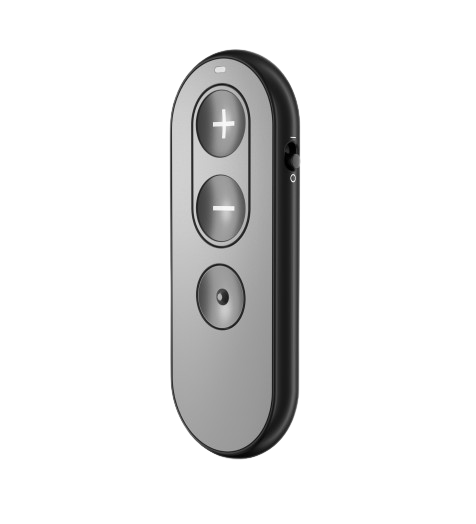
Sennheiser Easy Line Remote Control
Adjust compatible Sennheiser hearing aids with physical volume and program buttons.
What Easy Line Remote Control does
Change volume and listening programs with three physical buttons. The remote controls one or two paired Sonite hearing aids and gives a short green light to confirm a button press. It uses a replaceable coin battery.
Which hearing aids work with Sennheiser Easy Line Remote Control?
Remote control
- Sennheiser Sonite Rise
Exact Sonite Rise model named in the US Sennheiser accessory chart.
Choose the exact model printed on your hearing aids or paperwork. A family match does not establish support for every model in that family.
View documented devices and setups
- Sennheiser Sonite Rise · Exact model
Pair compatible Sennheiser Sonite hearing aids directly · remote_control
Exact Sonite Rise model named in the US Sennheiser accessory chart.
Documented supportSource · 2026-11-18Exact Sonite Rise model named in the US Sennheiser accessory chart.
Documented features
Listening and control
- Remote carry options
- Handheld remote
An included clip, case, or lanyard is not documented.
Documentation · 2026-11-18 - Independent ear control
- The paired hearing aids change together.
No left/right ear selection is offered.
Documentation · 2026-11-18 - Control confirmation
- Green indicator confirms a button press. A hearing-aid beep may confirm program selection when configured.Documentation · 2026-11-18
- No control lock
The side slider powers the remote on and off. There is no button lock in the control diagram.
Documentation · 2026-11-18- Return to default settings
- Hold plus and program for more than 10 seconds to clear pairing.
Green confirms a reset.
Documentation · 2026-11-18 - Cannot mute the hearing aid microphones
The documented three buttons control hearing-aid volume and programs. There is no mute control.
Documentation · 2026-11-18- Change hearing-aid programs
- Supported
Press the round program button for the next configured program.
Documentation · 2026-11-18 - Remote pairing capacity
- One or two individual hearing aids in one fitting.
No quick switching among multiple fittings is documented.
Documentation · 2026-11-18 - Volume control
- Supported
Press plus or minus. Changes apply to both paired hearing aids.
Documentation · 2026-11-18
Connections
- Companion app control
- Easy Line Remote is an alternate way to adjust the hearing-aid programs and volume.
The physical remote is independently paired and does not need the app.
Documentation · 2026-11-18 - Bilateral and unilateral use
- Controls one hearing aid or both paired aids together.
The same volume and program changes are applied to both sides.
Documentation · 2026-11-18 - Link to hearing aids
- Direct 2.4–2.48 GHz wireless remote commands
The current Sonite charts name the exact remote.
Documentation · 2026-11-18 - Hearing-aid pairing method
- Restart the aids. In the three-minute pairing window put aids within 6 inches. Hold plus while turning on the remote and release at blinking blue.
A steady green light confirms each aid. Press minus to stop looking for a second aid if you use one.
Documentation · 2026-11-18 - Professional setup
- Pair at home using the buttons. A provider fits and can print your exact programs.Documentation · 2026-11-18
- Receiver requirements
- Integrated compatible receiver in paired Sonite hearing aids.
No phone or intermediary adapter is in the required setup.
Documentation · 2026-11-18 - Reconnection behavior
- Automatically reconnects to the paired hearing aids after setup.Documentation · 2026-11-18
- Remembered hearing-aid pairings
- 2 devices
Two individual hearing aids in one fitting. A saved second fitting is not shown.
Documentation · 2026-11-18
Power and charging
- Replaceable accessory battery
- SupportedDocumentation · 2026-11-18
- Accessory battery type
- One lithium CR2032 coin cell.Documentation · 2026-11-18
- No rechargeable accessory battery
The installed CR2032 is replaced.
Documentation · 2026-11-18- Battery status reporting
- Solid orange for a low battery. If the remote is powered on and shows no light when pressed, check the battery.Documentation · 2026-11-18
Design and everyday use
- Control accessibility
- Three large buttons, side power slider and a visible confirmation light.
Hearing-aid program feedback sounds depend on configuration.
Documentation · 2026-11-18 - Included items
- Installed CR2032 cell with protective tab
The first use directions say to remove the tab.
Documentation · 2026-11-18 - Routine maintenance
- Clean with a lint-free cloth, preferably dry. Keep moisture, strong heat and dirt away.Documentation · 2026-11-18
- Operating conditions
- 32–104°F (0–40°C)
Keep the remote dry and away from excess heat.
Documentation · 2026-11-18 - Physical controls
- Plus volume button, Minus volume button, Round program button, Side power slider, Battery compartment, Indicator lightDocumentation · 2026-11-18
- Regional variants
- Sennheiser US Sonite listing links the Easy Line Remote Control guide 029-6388-02. Brio lists its own named Easy Line item 1427638.
An older Phonak remote weakness does not automatically apply to Sonite hardware or rule out an Easy Line edition.
Documentation · 2026-11-18 - Replacement parts
- CR2032 lithium button battery
Close the compartment securely and dispose of depleted batteries safely.
Documentation · 2026-11-18 - Required extras
- Compatible Sennheiser Sonite hearing aids, Replacement CR2032 coin cell as needed
No smartphone is needed to issue the documented volume and program changes.
Documentation · 2026-11-18 - Repair and service options
- Replace the coin battery yourself. Contact your hearing care provider if resetting or re-pairing fails.Documentation · 2026-11-18
- Status indicators
- Green for start, successful pairing, button confirmation or reset, Blinking blue during pairing, Orange when the battery is low, Red for errors or unsuccessful pairingDocumentation · 2026-11-18
- Storage conditions
- −4–140°F (−20–60°C)
Keep dry. Check the manual if storing the remote for a long period.
Documentation · 2026-11-18 - Warranty terms
- One-year limited international Sonova warranty for qualifying manufacturing or material defects with proof of purchase.
Ask the hearing care provider about local terms.
Documentation · 2026-11-18
How to set up Sennheiser Easy Line Remote Control
Pull out the battery tab. Restart your hearing aids and put them within 6 inches of the remote. While holding plus, slide the remote on and release the button when the light blinks blue. Wait for steady green. If you use one aid and the blue light starts again, press minus to finish.
What to check before buying
The remote changes both hearing aids together. It has no screen or button for selecting just one ear. It steps through the programs configured in your hearing aids.
Confirms a button press with a light
When you change a setting on compatible Sonite hearing aids, the Easy Line remote flashes a light. A remote with a screen can tell you more. For example, the ReSound Unite Remote Control 2 shows the current volume and program and can adjust each ear separately on supported ReSound aids.
SourceFinish pairing with one hearing aid
If the remote flashes blue again after the first aid pairs, press minus to finish. If you need to pair both aids, let it keep searching for the second. To start over, hold plus and the program button together for more than 10 seconds.
SourceCompanion apps
Related accessories
Other devices named in the documentation
These names have not been matched to an exact device in our catalog. They do not create verified matches in the finder.
Checking current offers…
Documentation checked Nov 18, 2026