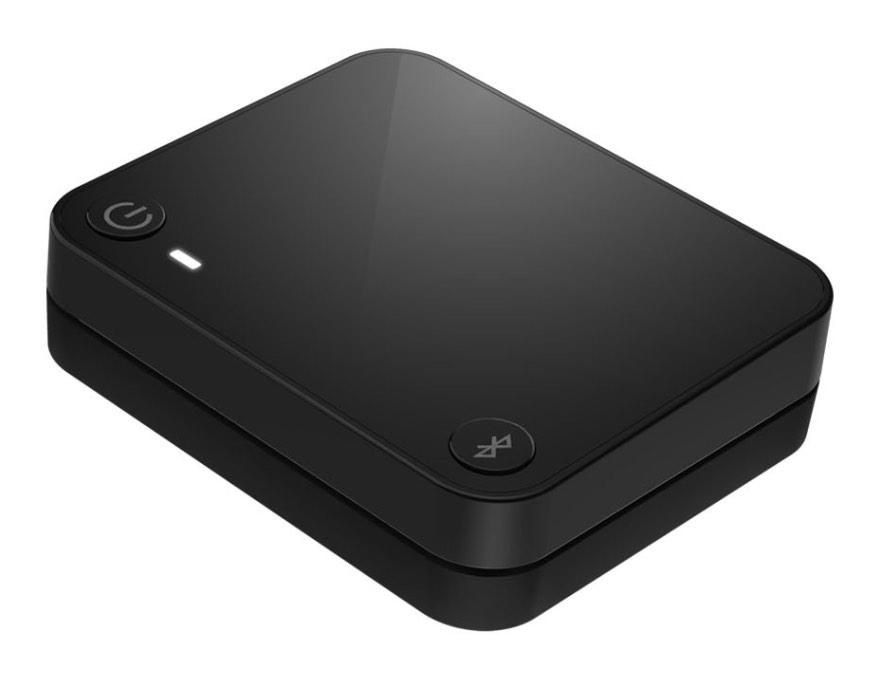
Starkey StarLink Edge TV Streamer
Send TV sound directly to compatible hearing aids from an optical or analog audio output, with a separate Auracast broadcast available to compatible receivers.
What StarLink Edge TV Streamer does
Connect the StarLink Edge TV Streamer to your TV’s optical or analog audio output to send the sound directly to compatible hearing aids. With compatible wireless Starkey aids, you can pair by pressing the button on the streamer, then start the audio in My Starkey or with a configured hearing aid or remote control. Some aids can start automatically when the TV is turned on. Other compatible Auracast receivers can join the password-protected broadcast. A TV that already broadcasts Auracast may let compatible aids join directly.
Which hearing aids work with Starkey StarLink Edge TV Streamer?
TV audio
- Starkey Edge AI · Family-level evidence. Confirm your exact hearing-aid model before buying.
Direct pairing with compatible wireless hearing aids: Wireless Edge AI family with direct pairing. Verify individual style and firmware for special features. Pair the compatible wireless hearing aid directly with the powered StarLink Edge TV Streamer.
Password-protected Auracast broadcast: Only compatible wireless models and current software. The broadcaster’s specific stream must be joined with its code. Use hearing aid firmware that enables reception of supported Auracast broadcasts. Starkey does not specify a minimum version in the cited documentation. Choose the streamer in an Auracast broadcast finder and enter the eight-digit code under the unit.
- Starkey Omega AI · Family-level evidence. Confirm your exact hearing-aid model before buying.
Direct pairing with compatible wireless hearing aids: Original wireless Omega AI family. Its dated government guide names the Edge TV Streamer. Current Fall 2026 lineup materials omit the entire original Omega AI row. Pair the compatible wireless hearing aid directly with the powered StarLink Edge TV Streamer.
Password-protected Auracast broadcast: Only compatible wireless models and current software. The broadcaster’s specific stream must be joined with its code. Use hearing aid firmware that enables reception of supported Auracast broadcasts. Starkey does not specify a minimum version in the cited documentation. Choose the streamer in an Auracast broadcast finder and enter the eight-digit code under the unit.
- Starkey Omega AI+ · Family-level evidence. Confirm your exact hearing-aid model before buying.
Direct pairing with compatible wireless hearing aids: Wireless Omega AI+ family with direct pairing. Omega AI+ NW styles are excluded separately. Pair the compatible wireless hearing aid directly with the powered StarLink Edge TV Streamer.
Password-protected Auracast broadcast: Only compatible wireless models and current software. The broadcaster’s specific stream must be joined with its code. Use hearing aid firmware that enables reception of supported Auracast broadcasts. Starkey does not specify a minimum version in the cited documentation. Choose the streamer in an Auracast broadcast finder and enter the eight-digit code under the unit.
- Starkey Edge AI mRIC R
- Starkey Edge AI RIC 312
- Starkey Edge AI RIC RT
Choose the exact model printed on your hearing aids or paperwork. A family match does not establish support for every model in that family.
View documented devices and setups
- Starkey Edge AI · Family
Direct pairing with compatible wireless hearing aids · tv_audio
Wireless Edge AI family with direct pairing. Verify individual style and firmware for special features.
Requires additional setupSource · 2026-11-18Family-level evidence. Confirm your exact hearing-aid model before buying.
Wireless Edge AI family with direct pairing. Verify individual style and firmware for special features.
- Pair the compatible wireless hearing aid directly with the powered StarLink Edge TV Streamer.
- Starkey Omega AI · Family
Direct pairing with compatible wireless hearing aids · tv_audio
Original wireless Omega AI family. Its dated government guide names the Edge TV Streamer. Current Fall 2026 lineup materials omit the entire original Omega AI row.
Requires additional setupSource · 2026-11-18Family-level evidence. Confirm your exact hearing-aid model before buying.
Original wireless Omega AI family. Its dated government guide names the Edge TV Streamer. Current Fall 2026 lineup materials omit the entire original Omega AI row.
- Pair the compatible wireless hearing aid directly with the powered StarLink Edge TV Streamer.
- Starkey Omega AI+ · Family
Direct pairing with compatible wireless hearing aids · tv_audio
Wireless Omega AI+ family with direct pairing. Omega AI+ NW styles are excluded separately.
Requires additional setupSource · 2026-11-18Family-level evidence. Confirm your exact hearing-aid model before buying.
Wireless Omega AI+ family with direct pairing. Omega AI+ NW styles are excluded separately.
- Pair the compatible wireless hearing aid directly with the powered StarLink Edge TV Streamer.
- Starkey Edge AI mRIC R · Exact model
Direct pairing with compatible wireless hearing aids · tv_audio
Documented supportSource · 2026-11-18 - Starkey Edge AI RIC 312 · Exact model
Direct pairing with compatible wireless hearing aids · tv_audio
Documented supportSource · 2026-11-18 - Starkey Edge AI RIC RT · Exact model
Direct pairing with compatible wireless hearing aids · tv_audio
Documented supportSource · 2026-11-18 - Starkey Omega AI mRIC R · Exact model
Direct pairing with compatible wireless hearing aids · tv_audio
Documented supportSource · 2026-11-18 - Starkey Omega AI RIC 312 · Exact model
Direct pairing with compatible wireless hearing aids · tv_audio
Documented supportSource · 2026-11-18 - Starkey Omega AI RIC RT · Exact model
Direct pairing with compatible wireless hearing aids · tv_audio
Documented supportSource · 2026-11-18 - Starkey Omega AI+ CIC · Exact model
Direct pairing with compatible wireless hearing aids · tv_audio
Documented supportSource · 2026-11-18 - Starkey Omega AI+ ITC R · Exact model
Direct pairing with compatible wireless hearing aids · tv_audio
Documented supportSource · 2026-11-18 - Starkey Omega AI+ ITE R · Exact model
Direct pairing with compatible wireless hearing aids · tv_audio
Documented supportSource · 2026-11-18 - Starkey Omega AI+ mRIC R · Exact model
Direct pairing with compatible wireless hearing aids · tv_audio
Documented supportSource · 2026-11-18 - Starkey Omega AI+ RIC 312 · Exact model
Direct pairing with compatible wireless hearing aids · tv_audio
Documented supportSource · 2026-11-18 - Starkey Omega AI+ RIC RT · Exact model
Direct pairing with compatible wireless hearing aids · tv_audio
Documented supportSource · 2026-11-18 - Starkey Edge AI · Family
Password-protected Auracast broadcast · tv_audio
Only compatible wireless models and current software. The broadcaster’s specific stream must be joined with its code.
Requires additional setupSource · 2026-11-18Family-level evidence. Confirm your exact hearing-aid model before buying.
Only compatible wireless models and current software. The broadcaster’s specific stream must be joined with its code.
- Use hearing aid firmware that enables reception of supported Auracast broadcasts. Starkey does not specify a minimum version in the cited documentation.
- Choose the streamer in an Auracast broadcast finder and enter the eight-digit code under the unit.
- Starkey Omega AI · Family
Password-protected Auracast broadcast · tv_audio
Only compatible wireless models and current software. The broadcaster’s specific stream must be joined with its code.
Requires additional setupSource · 2026-11-18Family-level evidence. Confirm your exact hearing-aid model before buying.
Only compatible wireless models and current software. The broadcaster’s specific stream must be joined with its code.
- Use hearing aid firmware that enables reception of supported Auracast broadcasts. Starkey does not specify a minimum version in the cited documentation.
- Choose the streamer in an Auracast broadcast finder and enter the eight-digit code under the unit.
- Starkey Omega AI+ · Family
Password-protected Auracast broadcast · tv_audio
Only compatible wireless models and current software. The broadcaster’s specific stream must be joined with its code.
Requires additional setupSource · 2026-11-18Family-level evidence. Confirm your exact hearing-aid model before buying.
Only compatible wireless models and current software. The broadcaster’s specific stream must be joined with its code.
- Use hearing aid firmware that enables reception of supported Auracast broadcasts. Starkey does not specify a minimum version in the cited documentation.
- Choose the streamer in an Auracast broadcast finder and enter the eight-digit code under the unit.
- Starkey Omega AI+ IIC NW · Exact model
Direct pairing with compatible wireless hearing aids · tv_audio
Starkey identifies this as a non-wireless Omega AI+ model. It cannot receive the wireless television stream.
Documented as incompatibleSource · 2026-11-18 - Starkey Omega AI+ IIC NW · Exact model
Password-protected Auracast broadcast · tv_audio
Starkey identifies this as a non-wireless Omega AI+ model. It cannot receive the wireless television stream.
Documented as incompatibleSource · 2026-11-18 - Starkey Omega AI+ CIC NW · Exact model
Direct pairing with compatible wireless hearing aids · tv_audio
Starkey identifies this as a non-wireless Omega AI+ model. It cannot receive the wireless television stream.
Documented as incompatibleSource · 2026-11-18 - Starkey Omega AI+ CIC NW · Exact model
Password-protected Auracast broadcast · tv_audio
Starkey identifies this as a non-wireless Omega AI+ model. It cannot receive the wireless television stream.
Documented as incompatibleSource · 2026-11-18 - Starkey Omega AI+ CIC R NW · Exact model
Direct pairing with compatible wireless hearing aids · tv_audio
Starkey identifies this as a non-wireless Omega AI+ model. It cannot receive the wireless television stream.
Documented as incompatibleSource · 2026-11-18 - Starkey Omega AI+ CIC R NW · Exact model
Password-protected Auracast broadcast · tv_audio
Starkey identifies this as a non-wireless Omega AI+ model. It cannot receive the wireless television stream.
Documented as incompatibleSource · 2026-11-18 - Starkey Genesis AI · Family
Direct pairing with compatible wireless hearing aids · tv_audio
Starkey maps wireless Genesis AI to the earlier StarLink TV Streamer and leaves its Edge TV Streamer cell blank.
Documented as incompatibleSource · 2026-11-18Family-level evidence. Confirm your exact hearing-aid model before buying.
Documented features
Connections
- Analog audio input
- SupportedDocumentation · 2026-11-18
- Companion app control
- Use My Starkey for paired streaming control
The app controls the hearing aids. It can start or stop the stream and adjust volume. A configured hearing aid control or remote can also start or stop the stream.
Setup: Direct pairing with compatible wireless hearing aids
Documentation · 2026-11-18 - Companion app control
- Use Auracast Assistant on supported Starkey aids
The app searches for supported broadcasts and prompts for a password. Starkey announced this app option in January 2026. Confirm current app and hearing aid software for your exact model.
Setup: Password-protected Auracast broadcast
Documentation · 2026-11-18 - No audio passthrough
- No audio output for passthrough
The complete rear-panel diagram shows the power jack and two audio inputs. It has no audio output jack.
Documentation · 2026-11-18 - Auracast broadcasting
- Supported · With conditions
The receiver must support password-protected broadcasts.
Setup: Password-protected Auracast broadcast
Documentation · 2026-11-18 - Automatic streaming start
- Manual start from My Starkey or a programmed control
Use a configured hearing aid gesture or compatible remote Favorite button as an alternative to the app.
Setup: Direct pairing with compatible wireless hearing aids
Documentation · 2026-11-18 - Automatic streaming start
- Starts when the TV and streamer are powered on · With conditions
Available on select paired hearing aids. Ask the provider to verify your exact hearing aid and software combination.
Setup: Auto Stream Start on select paired Starkey aids
Documentation · 2026-11-18 - Automatic streaming start
- Audio starts after you join the broadcast
Select the broadcast and enter the code when prompted.
Setup: Password-protected Auracast broadcast
Documentation · 2026-11-18 - Bilateral and unilateral use
- Pairs one or two compatible hearing aids
The streamer detects monaural or binaural fittings. Follow the manual’s receiving-aid steps for CROS. Mixed models and stereo assignment remain unverified.
Setup: Direct pairing with compatible wireless hearing aids
Documentation · 2026-11-18 - No coaxial digital input
The digital input is optical TOSLINK. The complete port diagram shows no coaxial digital jack.
Documentation · 2026-11-18- Computer audio
- Connect a computer using a supported wired audio output
Starkey names computers as audio sources. The documented connections are optical TOSLINK or analog 3.5 mm via the matching cable. A call microphone path is not documented.
Documentation · 2026-11-18 - Connection priority
- Incoming phone calls interrupt the paired TV stream
The September 2025 QuickTIP reports automatic resume after a direct phone call. The earlier 2024 guidance called for manual restart. If the stream stays off, restart it with the app or your configured control.
Setup: Direct pairing with compatible wireless hearing aids
Documentation · 2026-11-18 - No HDMI ARC input
The complete input diagram shows optical TOSLINK and 3.5 mm analog audio inputs only.
Documentation · 2026-11-18- No HDMI eARC input
The complete input diagram shows optical TOSLINK and 3.5 mm analog audio inputs only.
Documentation · 2026-11-18- Link to hearing aids
- Bluetooth LE Audio via Starkey’s direct pairing process
Direct pairing is documented for eligible wireless models and families.
Setup: Direct pairing with compatible wireless hearing aids
Documentation · 2026-11-18 - Link to hearing aids
- Bluetooth LE Audio with Auracast broadcast
Select the streamer’s protected broadcast with a compatible finder.
Setup: Password-protected Auracast broadcast
Documentation · 2026-11-18 - Accessory-to-hearing-aid range
- 15 m
Manufacturer claim of up to 15 m (about 50 ft). Line of sight gives the best performance. Walls, furniture and interference can reduce usable range.
Setup: Direct pairing with compatible wireless hearing aids
Documentation · 2026-11-18 - Analog input details
- 3.5 mm analog input via a stereo RCA-to-3.5 mm cable
Connect red and white RCA plugs to the source’s matching outputs. The Edge documents do not specify input sensitivity or whether a variable headphone output is suitable.
Setup: TV or other source connected by analog 3.5 mm
Documentation · 2026-11-18 - Multiple TV adapters
- Up to 10 TV streamers per hearing aid set
The technical sheet gives this limit for Edge TV Streamers. The Edge-specific sources do not explain switching or naming more than one.
Setup: Direct pairing with compatible wireless hearing aids
Documentation · 2026-11-18 - Optical audio formats
- Stereo PCM
Set the TV to stereo PCM. The newer manual mentions Dolby Audio in troubleshooting, but Dolby support is not confirmed.
Setup: TV or other source connected by optical TOSLINK
Documentation · 2026-11-18 - Optical audio input
- Supported
Set the optical output to stereo PCM.
Documentation · 2026-11-18 - Hearing-aid pairing method
- Restart aids, bring them within 6 inches (15 cm), then press Pair
Temporarily disable phone Bluetooth and turn off other paired accessories. Rechargeable aids go in their charger for three seconds. Replaceable-battery aids enter a three-minute pairing window after opening and closing the battery door. For CROS keep the transmitter off and turn on the receiving aid only.
Setup: Direct pairing with compatible wireless hearing aids
Documentation · 2026-11-18 - Hearing-aid pairing method
- Select TV-XXXXXX and enter the eight-digit code
The specific broadcast name and code are printed on the underside. Playback begins once the receiver joins.
Setup: Password-protected Auracast broadcast
Documentation · 2026-11-18 - Professional setup
- Pro Fit can pair and customize the stream
Pairing can be done at home. A hearing care professional can set mic level and streaming tone in Pro Fit or configure a hearing aid gesture and compatible remote Favorite button.
Setup: Direct pairing with compatible wireless hearing aids
Documentation · 2026-11-18 - Receiver requirements
- Compatible wireless hearing aid with built-in receive capability
Pairs directly to the hearing aid.
Setup: Direct pairing with compatible wireless hearing aids
Documentation · 2026-11-18 - Receiver requirements
- Auracast receiver and compatible broadcast finder
The finder helps the receiver join using the code on the streamer.
Setup: Password-protected Auracast broadcast
Documentation · 2026-11-18 - Reconnection behavior
- Previous pairing is retained
The aids and streamer recognize each other after initial pairing. This does not establish how long every current model can be out of range before manual restart.
Setup: Direct pairing with compatible wireless hearing aids
Documentation · 2026-11-18 - Reconnection behavior
- Select and join the stream for each session
Starkey’s alternate receiver instructions specify repeated selection. The broadcast begins after joining.
Setup: Password-protected Auracast broadcast
Documentation · 2026-11-18 - Simultaneous listeners
- Unlimited compatible listeners, according to Starkey
All listeners receive the same source audio. This is a manufacturer claim about concurrent listening.
Documentation · 2026-11-18 - Stopping TV streaming
- Stop from the app, a programmed control, or by switching off the streamer
Use a configured hearing aid gesture or compatible remote Favorite button if available. Incoming calls can also interrupt TV audio.
Setup: Direct pairing with compatible wireless hearing aids
Documentation · 2026-11-18 - Stopping TV streaming
- Stop or leave the Auracast broadcast using the compatible finder
My Starkey documents temporary pause and disconnect for supported broadcasts. Controls on other receivers can vary.
Setup: Password-protected Auracast broadcast
Documentation · 2026-11-18 - TV audio streaming
- SupportedDocumentation · 2026-11-18
- TV audio streaming
- Supported · With conditions
Requires an Auracast receiver that supports the protected broadcast and a compatible way to join it.
Setup: Password-protected Auracast broadcast
Documentation · 2026-11-18 - Required TV settings
- Select the TV’s optical audio output and stereo PCM
If there is no sound, confirm the cable is connected to audio out. For lip-sync issues, check the TV or source for a timing adjustment.
Setup: TV or other source connected by optical TOSLINK
Documentation · 2026-11-18 - Independent TV stream volume
- Adjust streaming volume on the hearing aids, app, or configured remote
This changes the wearer’s stream level. Whether the TV keeps its speakers active depends on the TV and its settings.
Setup: Direct pairing with compatible wireless hearing aids
Documentation · 2026-11-18 - TV/environment balance
- Set the hearing aid microphone level while streaming
A professional adjusts it in Pro Fit. Pro Fit also offers Equalized, Treble Boost, Bass Boost, and Overall Boost streaming sound settings.
Setup: Direct pairing with compatible wireless hearing aids
Documentation · 2026-11-18 - TV/environment balance
- Adjust the stream and hearing aid microphone in My Starkey
Applies to eligible Starkey hearing aids using the Auracast Assistant.
Setup: Password-protected Auracast broadcast
Documentation · 2026-11-18 - No USB audio input
The complete port diagram labels USB-C as the power supply jack and shows separate optical and analog audio inputs.
Documentation · 2026-11-18
Power and charging
- Electrical input requirements
- 100–240 V AC, 50–60 Hz at the external supply
Starkey lists the wall adapter’s mains input. USB output voltage, current and USB Power Delivery requirements are not stated.
Documentation · 2026-11-18 - Power adapter included
- Supported · With conditions
Reported for the Netherlands SKU P00004316. U.S. box contents are unconfirmed.
Setup: Netherlands retail package P00004316
Documentation · 2026-11-18 - Power connector
- USB-C power input
Connect the supplied or manufacturer-specified wall adapter to the USB-C power jack.
Documentation · 2026-11-18 - USB-C power input
- Supported
Use the wall power adapter. The USB-C port is the power supply jack.
Documentation · 2026-11-18
Design and everyday use
- Control accessibility
- Separate power and Pair buttons with printed symbols and a nearby status light
The manual shows labeled controls and a color-based indicator. It does not describe tactile differentiation or audible feedback.
Documentation · 2026-11-18 - Dimensions
- 67 × 51.5 × 18.2 mm
Starkey lists the dimensions in this order. It does not label the axes or describe any separate base.
Documentation · 2026-11-18 - Included items
- StarLink Edge TV Streamer, Power adapter, Optical TOSLINK cable, 3.5 mm-to-RCA cable, User manual · With conditions
Box contents reported by the Netherlands seller for SKU P00004316. Confirm the contents with your seller if buying another regional package.
Setup: Netherlands retail package P00004316
Documentation · 2026-11-18 - Ingress protection rating
- Tested to IP5X dust level
Starkey reports dust testing at IP5X without formal IP certification. Keep the streamer dry.
Documentation · 2026-11-18 - Routine maintenance
- Wipe with a damp cloth moistened with soapy water
Keep the box dry. Do not open or modify it.
Documentation · 2026-11-18 - Operating conditions
- Indoor use at 32–104°F (0–40°C)
Keep dry. The manual does not give a separate operating humidity range.
Documentation · 2026-11-18 - Physical controls
- Power button, Pair button
Top-side controls. Use the hearing aids, app, or configured remote to adjust the streamed sound.
Documentation · 2026-11-18 - Regional variants
- Model 810 for North America and model 811 for other markets
Starkey documents 21 dBm and 10 dBm maximum radiated power, respectively. Confirm approval and package or plug contents in the country of purchase.
Documentation · 2026-11-18 - Required extras
- Compatible hearing aids, TV or other source with a supported audio output, Wall outlet
Check your source’s audio output and whether the matching cable is included.
Documentation · 2026-11-18 - Required extras
- Compatible Auracast receiver, Compatible broadcast finder, Wired audio source, Wall outlet
The broadcast finder is used to select the stream and enter its code.
Setup: Password-protected Auracast broadcast
Documentation · 2026-11-18 - Repair and service options
- Contact your hearing care professional for service
The box has no user-serviceable parts. Starkey’s U.S. repair form has a StarLink accessory service category. The expected five-year service life is not a warranty term.
Documentation · 2026-11-18 - Status indicators
- White for power on or standby, Green for pairing and confirmation, Blue for streaming, Red for shutdown, a pairing failure or an error, No light when off
Green turns solid briefly for each paired aid. A persistent red light can indicate an error and calls for a power reset.
Documentation · 2026-11-18 - Storage conditions
- −40 to 140°F (−40 to 60°C) at 10–95% relative humidity
Applies to storage and transport. The manual lists an air-pressure range of 70–106 kPa.
Documentation · 2026-11-18 - Weight
- 34.5 g
Published streamer weight. The manufacturer does not state whether cables entered the measurement.
Documentation · 2026-11-18
How to set up Starkey StarLink Edge TV Streamer
Plug the power adapter into a wall outlet and the streamer’s USB-C power jack. Remove the caps from the optical cable and connect the TV’s optical audio output to the streamer. Set the TV to stereo PCM. For analog, connect the TV’s left and right RCA audio outputs to the streamer’s 3.5 mm input with the appropriate cable. For paired Starkey streaming, temporarily turn off your phone’s Bluetooth and other paired accessories. Restart the hearing aids, place them within 6 inches of the powered streamer, and press its Pair button within three minutes. A solid green light briefly confirms each paired aid. Re-enable the phone connection and choose the streamer in My Starkey, or use a configured control. For Auracast, use a compatible broadcast finder to select the name and enter the eight-digit code printed under the streamer.
What to check before buying
Check the exact wireless hearing aid style before buying. The older StarLink TV Streamer serves a different set of Starkey aids. TVs with HDMI-only audio output need a separate path that supplies a supported signal. Use stereo PCM for optical setup. Ask your hearing care professional about Auto Stream compatibility and configured controls. Starkey claims up to 50 feet of streaming range. Walls and furniture can shorten it.
Uses the newer Starkey hearing-aid connection
If you’re replacing a TV streamer, start with the model of hearing aid you wear. Starkey lists the Edge streamer for compatible wireless Edge AI and Omega AI+ aids. For earlier models such as Genesis AI and G Series AI, the corresponding accessory is the earlier StarLink TV Streamer.
SourceRestart the hearing aids for direct pairing
To pair the Edge streamer directly, restart your compatible Starkey aids close to the box. For comparison, the ReSound TV Streamer+ offers OneTouch Pairing with compatible Vivia and Nexia aids, which can stay on during pairing. This difference concerns the initial direct connection. Both streamers also offer Auracast for receivers that support it.
SourceConnect the TV and pair your hearing aids
Use the TV’s audio output, choose stereo PCM for optical, and plug in the streamer’s wall adapter. Restart the hearing aids with phone Bluetooth and other paired accessories temporarily off. With the aids out of your ears and within 6 inches of the streamer, press Pair while the aids are in pairing mode. For a CROS setup, power down both devices and turn on only the receiving hearing aid for pairing.
SourceStart a paired stream
Use the streaming controls in My Starkey, a programmed hearing aid gesture, or the Favorite button on a compatible remote if your hearing care professional has configured it. Auto Stream Start is available on select paired hearing aids when the streamer and TV are on. A blue light shows streaming. If the light is blue and you hear nothing, move closer and try starting the stream manually.
SourceJoin the Auracast broadcast
Open an Auracast broadcast finder for your compatible receiver, choose the name printed under the streamer, and enter its eight-digit code. Audio begins after the receiver joins. Starkey’s instructions for other compatible receivers say to select the broadcast for each listening session.
SourceCheck TV audio settings and placement
If you hear no audio via optical, set the TV to stereo PCM and confirm the cable is connected to an audio output. If the sound and picture are out of sync, try a different supported output or source and check that device for an audio delay setting. If streaming cuts out, move closer, remove obstructions or turn the streamer slightly.
SourceCompanion apps
Related accessories
Other devices named in the documentation
These names have not been matched to an exact device in our catalog. They do not create verified matches in the finder.
Checking current offers…
Documentation checked Nov 18, 2026