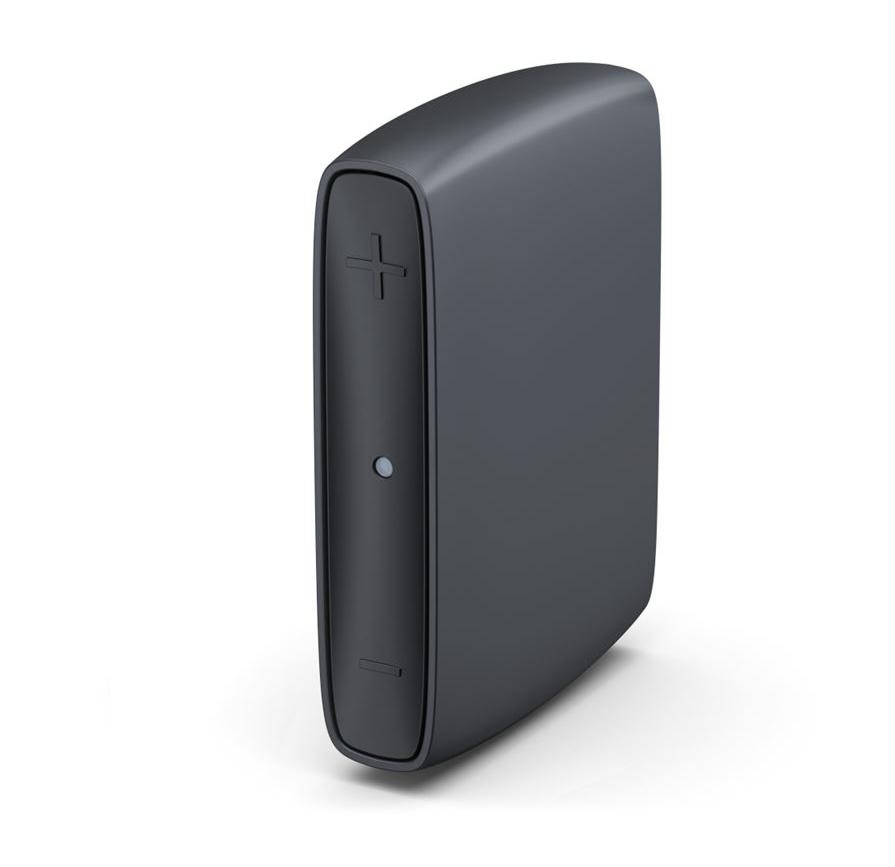
ReSound TV Streamer+
Hear TV dialogue and other home audio through compatible hearing aids while everyone else uses the room speakers when the TV supports both outputs.
What ReSound TV Streamer+ does
The ReSound TV Streamer+ sends sound from a TV, stereo or computer to compatible hearing aids. The TV connects by optical or analog audio cable. The streamer gets power through USB-C and sends the wired source audio wirelessly to the listener. A paired hearing-aid setup lets you choose your listening level, and Auracast broadcast mode lets several compatible receivers listen together.
Which hearing aids work with ReSound TV Streamer+?
TV audio
- ReSound Nexia · Family-level evidence. Confirm your exact hearing-aid model before buying.
ReSound documents this family. Wireless models only. Pair directly using the procedure in the TV Streamer+ manual. Verify custom, CROS and implant configurations separately. Pair the powered TV Streamer+ directly with the compatible hearing aid(s).
- ReSound Vivia · Family-level evidence. Confirm your exact hearing-aid model before buying.
ReSound documents this family. Wireless models only. Pair directly using the procedure in the TV Streamer+ manual. Verify custom, CROS and implant configurations separately. Pair the powered TV Streamer+ directly with the compatible hearing aid(s).
- ReSound Savi · Family-level evidence. Confirm your exact hearing-aid model before buying.
ReSound documents this family. Wireless models only. Pair directly using the procedure in the TV Streamer+ manual. Verify custom, CROS and implant configurations separately. Pair the powered TV Streamer+ directly with the compatible hearing aid(s).
- ReSound Enzo IA · Family-level evidence. Confirm your exact hearing-aid model before buying.
ReSound documents this family. Wireless models only. Pair directly using the procedure in the TV Streamer+ manual. Verify custom, CROS and implant configurations separately. Pair the powered TV Streamer+ directly with the compatible hearing aid(s).
- ReSound Sensia · Family-level evidence. Confirm your exact hearing-aid model before buying.
ReSound documents this family. Wireless models only. Pair directly using the procedure in the TV Streamer+ manual. Verify custom, CROS and implant configurations separately. Pair the powered TV Streamer+ directly with the compatible hearing aid(s).
- ReSound Enzo IA BTE
ReSound lists the TV-Streamer+ for its ENZO IA BTE lineup. Pair the hearing aid directly; implant-side support requires separate documentation. Pair the powered TV Streamer+ directly with the compatible hearing aid(s).
Choose the exact model printed on your hearing aids or paperwork. A family match does not establish support for every model in that family.
View documented devices and setups
- ReSound Nexia · Family
Direct pairing to compatible hearing aids · tv_audio
ReSound documents this family. Wireless models only. Pair directly using the procedure in the TV Streamer+ manual. Verify custom, CROS and implant configurations separately.
Requires additional setupSource · 2026-11-18Family-level evidence. Confirm your exact hearing-aid model before buying.
ReSound documents this family. Wireless models only. Pair directly using the procedure in the TV Streamer+ manual. Verify custom, CROS and implant configurations separately.
- Pair the powered TV Streamer+ directly with the compatible hearing aid(s).
- ReSound Vivia · Family
Direct pairing to compatible hearing aids · tv_audio
ReSound documents this family. Wireless models only. Pair directly using the procedure in the TV Streamer+ manual. Verify custom, CROS and implant configurations separately.
Requires additional setupSource · 2026-11-18Family-level evidence. Confirm your exact hearing-aid model before buying.
ReSound documents this family. Wireless models only. Pair directly using the procedure in the TV Streamer+ manual. Verify custom, CROS and implant configurations separately.
- Pair the powered TV Streamer+ directly with the compatible hearing aid(s).
- ReSound Savi · Family
Direct pairing to compatible hearing aids · tv_audio
ReSound documents this family. Wireless models only. Pair directly using the procedure in the TV Streamer+ manual. Verify custom, CROS and implant configurations separately.
Requires additional setupSource · 2026-11-18Family-level evidence. Confirm your exact hearing-aid model before buying.
ReSound documents this family. Wireless models only. Pair directly using the procedure in the TV Streamer+ manual. Verify custom, CROS and implant configurations separately.
- Pair the powered TV Streamer+ directly with the compatible hearing aid(s).
- ReSound Enzo IA · Family
Direct pairing to compatible hearing aids · tv_audio
ReSound documents this family. Wireless models only. Pair directly using the procedure in the TV Streamer+ manual. Verify custom, CROS and implant configurations separately.
Requires additional setupSource · 2026-11-18Family-level evidence. Confirm your exact hearing-aid model before buying.
ReSound documents this family. Wireless models only. Pair directly using the procedure in the TV Streamer+ manual. Verify custom, CROS and implant configurations separately.
- Pair the powered TV Streamer+ directly with the compatible hearing aid(s).
- ReSound Sensia · Family
Direct pairing to compatible hearing aids · tv_audio
ReSound documents this family. Wireless models only. Pair directly using the procedure in the TV Streamer+ manual. Verify custom, CROS and implant configurations separately.
Requires additional setupSource · 2026-11-18Family-level evidence. Confirm your exact hearing-aid model before buying.
ReSound documents this family. Wireless models only. Pair directly using the procedure in the TV Streamer+ manual. Verify custom, CROS and implant configurations separately.
- Pair the powered TV Streamer+ directly with the compatible hearing aid(s).
- ReSound Enzo IA BTE · Exact model
Direct pairing to compatible hearing aids · tv_audio
ReSound lists the TV-Streamer+ for its ENZO IA BTE lineup. Pair the hearing aid directly; implant-side support requires separate documentation.
Requires additional setupSource · 2026-11-18ReSound lists the TV-Streamer+ for its ENZO IA BTE lineup. Pair the hearing aid directly; implant-side support requires separate documentation.
- Pair the powered TV Streamer+ directly with the compatible hearing aid(s).
- ReSound Nexia CIC · Exact model
Direct pairing to compatible hearing aids · tv_audio
The Nexia CIC is explicitly documented as a non-wireless model. The streamer needs a wireless receiver in the hearing aid.
Documented as incompatibleSource · 2026-11-18 - ReSound Sensia CIC · Exact model
Direct pairing to compatible hearing aids · tv_audio
The Sensia CIC is explicitly documented as non-wireless. The streamer needs a wireless receiver in the hearing aid.
Documented as incompatibleSource · 2026-11-18
Documented features
Connections
- Analog audio input
- SupportedDocumentation · 2026-11-18
- Companion app control
- ReSound Smart 3D is optional for streaming. It can start and stop playback, adjust volume, and expose supported options for AutoStreaming, sound delay and Auracast.
Setup: Direct pairing to compatible hearing aids
Documentation · 2026-11-18 - Supported codecs
- Stereo PCM at 32, 44.1, or 48 kHz, AC-3 at 44.1 or 48 kHz
Setup: TV or other source with optical output
Documentation · 2026-11-18 - Supported codecs
- LC3 (Bluetooth LE Audio Auracast)
Setup: Auracast broadcast to compatible receivers
Documentation · 2026-11-18 - No audio passthrough
A soundbar needs a separate source/audio path.
Documentation · 2026-11-18- Auracast broadcasting
- Supported
The listener needs a receiver with working Auracast capability and a supported way to join the broadcast.
Setup: Auracast broadcast to compatible receivers
Documentation · 2026-11-18 - Automatic streaming start
- AutoStreaming is off by default. With it enabled, the paired stream starts when the hearing aids or streamer power on.
Setup: Direct pairing to compatible hearing aids
Documentation · 2026-11-18 - Bilateral and unilateral use
- Pair one hearing aid or a pair. For a pair, the second aid begins pairing automatically when the first succeeds.
Setup: Direct pairing to compatible hearing aids
Documentation · 2026-11-18 - Bluetooth profiles
- Auracast (Bluetooth LE Audio broadcast output)
Setup: Auracast broadcast to compatible receivers
Documentation · 2026-11-18 - No coaxial digital input
No direct coaxial S/PDIF input. Any external converter is separate equipment.
Documentation · 2026-11-18- Computer audio
- A computer with a compatible wired analog or optical audio output can send playback to the streamer.Documentation · 2026-11-18
- Connection priority
- Answering a call on the phone connected to the hearing aids pauses TV audio. The TV stream resumes after the call.
Phone separately connected to hearing aids.
Setup: Direct pairing to compatible hearing aids
Documentation · 2026-11-18 - Firmware updates
- The hearing-aid app may notify you of streamer updates. A fast green flash indicates an update in progress.Documentation · 2026-11-18
- No HDMI ARC input
No direct HDMI ARC input. Any external converter is separate equipment.
Documentation · 2026-11-18- No HDMI eARC input
No direct HDMI eARC input. Any external converter is separate equipment.
Documentation · 2026-11-18- Link to hearing aids
- GN direct hearing-aid pairing at 2.4 GHz
Setup: Direct pairing to compatible hearing aids
Documentation · 2026-11-18 - Link to hearing aids
- Bluetooth LE Audio Auracast broadcast
Setup: Auracast broadcast to compatible receivers
Documentation · 2026-11-18 - Accessory-to-hearing-aid range
- 7 m
GN does not require line of sight for the Plus. Exact Auracast coverage was not measured or specified separately.
Setup: Direct pairing to compatible hearing aids
Documentation · 2026-11-18 - Audio input selection
- The streamer recognizes the analog or optical plug inserted into its one 3.5 mm-format audio input.Documentation · 2026-11-18
- Analog input details
- Stereo 3.5 mm analog line input, wired from L/R RCA using the supplied cable; 16 mV–2 V RMS sensitivity.
Setup: TV or other source with analog L/R output
Documentation · 2026-11-18 - Multiple TV adapters
- GN lists up to eight TV Streamer+ units per binaural hearing-aid set.
Bilateral set per US/CA/VA datasheet. Model-specific limits or switching controls may differ.
Setup: Direct pairing to compatible hearing aids
Documentation · 2026-11-18 - Optical audio formats
- Stereo PCM at 32, 44.1, or 48 kHz, AC-3 at 44.1 or 48 kHz
Setup: TV or other source with optical output
Documentation · 2026-11-18 - Optical audio input
- SupportedDocumentation · 2026-11-18
- Hearing-aid pairing method
- Power both devices on, bring the aids within 5 cm, and briefly press the rear pairing button. The window lasts 3 minutes.
Setup: Direct pairing to compatible hearing aids
Documentation · 2026-11-18 - Professional setup
- The hearing care professional can configure hearing-aid button behavior and AutoStreaming.
Setup: Direct pairing to compatible hearing aids
Documentation · 2026-11-18 - Receiver requirements
- Compatible hearing aids use their built-in wireless receiver for direct pairing.
Check the exact wireless model; a general brand or Bluetooth match is insufficient.
Setup: Direct pairing to compatible hearing aids
Documentation · 2026-11-18 - Receiver requirements
- An Auracast-capable receiver and a supported broadcast selection method are required.
Some devices need a firmware update and an Auracast assistant.
Setup: Auracast broadcast to compatible receivers
Documentation · 2026-11-18 - Reconnection behavior
- Direct stream automatically resumes after returning into range within five minutes. Restart it from the hearing aids or app after a longer loss.
Setup: Direct pairing to compatible hearing aids
Documentation · 2026-11-18 - Simultaneous listeners
- Multiple compatible hearing aids can stream from the same TV Streamer+.
Setup: Direct pairing to compatible hearing aids
Documentation · 2026-11-18 - Simultaneous listeners
- GN specifies no listener-count limit in Auracast broadcast mode.
Setup: Auracast broadcast to compatible receivers
Documentation · 2026-11-18 - Simultaneous source connections
- One active wired source. The single audio jack detects either the optical or analog cable.Documentation · 2026-11-18
- Stereo streaming
- Supported
With suitable stereo input and bilateral receiver equipment; exact model-specific channel routing is unspecified.
Setup: Direct pairing to compatible hearing aids
Documentation · 2026-11-18 - Stereo streaming
- Supported · With conditions
With suitable input and stereo-capable Auracast receiver; individual hearing-aid handling varies.
Setup: Auracast broadcast to compatible receivers
Documentation · 2026-11-18 - Stopping TV streaming
- Press the configured hearing-aid button, end streaming in the app, or switch off the TV.
Setup: Direct pairing to compatible hearing aids
Documentation · 2026-11-18 - TV audio streaming
- SupportedDocumentation · 2026-11-18
- TV audio streaming
- Supported
Turn on Auracast broadcast mode and join with a compatible receiver.
Setup: Auracast broadcast to compatible receivers
Documentation · 2026-11-18 - Required TV settings
- Select an enabled optical audio output and choose stereo PCM at a supported rate if the TV’s output format can be changed.
If using AC-3, GN lists 44.1 or 48 kHz. No other optical format was verified.
Setup: TV or other source with optical output
Documentation · 2026-11-18 - Independent TV stream volume
- Compatible hearing-aid users can adjust their listening volume while others use the TV at their preferred room volume.
Use the hearing-aid or app controls for the wearer’s listening level.
Documentation · 2026-11-18 - TV speakers alongside streaming
- Others can listen through the room speakers when the TV keeps those speakers active alongside the connected output.
TV or audio system must support keeping the desired speakers active while feeding the selected optical or analog output.
Documentation · 2026-11-18 - TV/environment balance
- The normal direct stream mixes TV audio with sounds picked up by the aids. Adjust stream level using compatible controls or the optional app.
Setup: Direct pairing to compatible hearing aids
Documentation · 2026-11-18 - No USB audio input
The USB-A to USB-C cable supplies power. Use the shared analog/optical audio jack for sound.
Documentation · 2026-11-18- Wall mounting
- Attach to an upper or side edge of the TV’s rear panel with the supplied hook-and-loop strip after pairing and connecting cables.Documentation · 2026-11-18
Power and charging
- Electrical input requirements
- USB-compliant 5 V DC; 100 mA maximum consumptionDocumentation · 2026-11-18
- Power adapter not included
Standard US box; use a suitable separate USB power supply if necessary.
Documentation · 2026-11-18- Power connector
- USB-C on streamer, USB-A on the supplied power cableDocumentation · 2026-11-18
- USB-C power input
- SupportedDocumentation · 2026-11-18
Design and everyday use
- Control accessibility
- Front buttons have visible + and − markings; pairing confirmation also includes a trill in the hearing aid.Documentation · 2026-11-18
- Dimensions
- 70.6 × 49.5 × 15.7
Width × height × depth in the standing product orientation. GN’s manual labels these as length, height, and width respectively. Hook-and-loop/cable clearance is unspecified.
Documentation · 2026-11-18 - Included items
- TV Streamer+, Optical TOSLINK to mini-TOSLINK cable, Stereo RCA to 3.5 mm analog cable, USB-A to USB-C power cable, Hook-and-loop mounting tapeDocumentation · 2026-11-18
- Routine maintenance
- Wipe with a damp cloth; avoid alcohol and household cleaners. Unplug during extended non-use.Documentation · 2026-11-18
- Operating conditions
- 5–40 °C (41–104 °F); avoid rain, moisture and liquidsDocumentation · 2026-11-18
- Physical controls
- Front + and −: volume or lip-sync delay while in delay mode, Rear button: short press enters pairing; hold 10 seconds for delay mode, Volume + while plugging power in, held 10 seconds: factory resetDocumentation · 2026-11-18
- Regional variants
- US/Canada/VA manual and datasheet cover SAS-4; GN identifies standard 22926500, demonstration and VA kit codes, and an Amplifon-branded code.Documentation · 2026-11-18
- Required extras
- TV or source with compatible optical or stereo analog output, Compatible hearing aid or Auracast receiver, Suitable 5 V USB supply if the TV has no usable USB-A portDocumentation · 2026-11-18
- Repair and service options
- Contact the hearing care professional; only an authorized service center may repair it.Documentation · 2026-11-18
- Status indicators
- Rear white light: power, Front green steady: streaming, Front green off: standby, Front short flashes: pairing; steady for 3 seconds on success, Front fast flashes: firmware update; steady for 3 seconds on completion, Front long flashes: delay adjustment, Repeating three green flashes: possible software errorDocumentation · 2026-11-18
- Storage conditions
- −25 to 70 °C (−13 to 158 °F)Documentation · 2026-11-18
- Warranty terms
- 12-month GN manufacturer limited warranty from original purchase; local or provider extensions may apply.Documentation · 2026-11-18
- Wearing and placement options
- Hook-and-loop mounting strip for the back of the TV, Freestanding placement within cable reachDocumentation · 2026-11-18
- Weight
- 32 g
Bare streamer by datasheet context; cables and mounting tape not itemized in measurement.
Documentation · 2026-11-18
How to set up ReSound TV Streamer+
1. Connect the included USB-A to USB-C cable to the streamer and a 5 V USB supply. The rear power light turns white. 2. Connect the supplied optical cable from Digital Audio Out to the streamer’s shared audio jack, removing both protective caps. Use the supplied red/white RCA cable if the TV has analog audio outputs. 3. Turn on the streamer and hearing aids. Hold the aids within 2 inches (5 cm) and briefly press the rear pairing button. The front light flashes green as each aid pairs. Keep other hearing aids off or at least 3 feet (1 m) away. 4. Start the stream with a configured hearing-aid button or in the hearing-aid app. AutoStreaming is off by default. Position the streamer near the top or side edge on the back of the TV using the supplied hook-and-loop tape after setup.
What to check before buying
Check the exact hearing-aid model and the TV’s audio outputs before buying. The one audio jack accepts optical or analog cable connections. USB supplies power. TVs that disable their speakers or soundbar output when an external output is selected may need a different audio routing setup. GN rates the direct hearing-aid link at up to 7 meters (23 feet), depending on the aids, room layout and interference.
Adds a broadcast option for TV listeners
Compared with the earlier ReSound Unite TV Streamer 2, the ReSound TV Streamer+ gives listeners another way to hear the same TV. A nearby device that supports Auracast can join its broadcast. If you’re upgrading, also check the TV connection. The older streamer has a coaxial input, while the Plus takes analog or optical audio through a shared jack.
SourceA soundbar needs its own connection
If you use the ReSound TV Streamer+ alongside a soundbar, both need a connection to the audio source. Some hearing-aid streamers handle that differently. For example, the Oticon TV Adapter 3.0 for compatible Oticon aids has an optical output that passes TV audio to the soundbar.
SourceStart and stop the stream
Start TV audio with a configured hearing-aid button or the optional app. You can also enable AutoStreaming for power-on use. To stop, use the configured button, end the stream in the app, or switch the TV off. When your phone is already connected to the hearing aids, answering a call pauses TV audio and ending the call resumes it.
SourceCheck audio, pairing and lip sync
Start with the rear white power light, then check the TV audio output and seat the audio cable at both ends. For optical, remove both caps and use stereo PCM if the TV’s output format is adjustable. If voices and picture do not match, hold the rear button for ten seconds, adjust the delay with + or −, then hold the rear button for three seconds to leave delay mode.
SourceShared speakers depend on your TV
Check whether your TV can keep its internal speakers or soundbar active while sending audio to the streamer’s input cable. For an HDMI-only audio setup, you would need a separate way to obtain a compatible optical or analog output.
SourceCompanion apps
Related accessories
Other devices named in the documentation
These names have not been matched to an exact device in our catalog. They do not create verified matches in the finder.
Checking current offers…
Documentation checked Nov 18, 2026