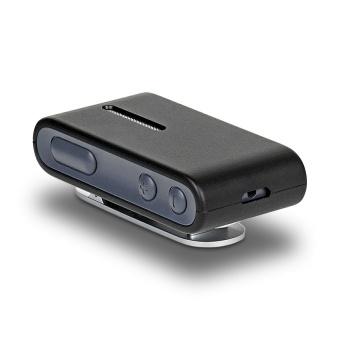
Oticon ConnectClip
A clip-on microphone and hands-free headset for compatible Oticon hearing aids.
What ConnectClip does
Your conversation partner wears ConnectClip so their voice streams directly to your hearing aids. Wear it yourself for hands-free Bluetooth calls or use it to stream music. Switch out of remote microphone mode to take a call. Between streams, its buttons let you adjust hearing-aid volume and change programs.
Which hearing aids work with Oticon ConnectClip?
Microphone audio
- Oticon Intent miniRITE R
Select ConnectClip remote-microphone mode and have the speaker wear the clip.
- Oticon Zeal
Select ConnectClip remote-microphone mode and have the speaker wear the clip.
- Oticon Reveal miniRITE R
Select ConnectClip remote-microphone mode and have the speaker wear the clip.
- Oticon Siya · Family-level evidence. Confirm your exact hearing-aid model before buying.
The fitted hearing aid must be the Oticon 2.4 GHz wireless version. Select ConnectClip remote-microphone mode and have the speaker wear the clip. Select ConnectClip remote-microphone mode and have the speaker wear the clip.
- Oticon Opn S · Family-level evidence. Confirm your exact hearing-aid model before buying.
The fitted hearing aid must be the Oticon 2.4 GHz wireless version. Select ConnectClip remote-microphone mode and have the speaker wear the clip. Select ConnectClip remote-microphone mode and have the speaker wear the clip.
- Oticon Xceed · Family-level evidence. Confirm your exact hearing-aid model before buying.
The fitted hearing aid must be the Oticon 2.4 GHz wireless version. Select ConnectClip remote-microphone mode and have the speaker wear the clip. Select ConnectClip remote-microphone mode and have the speaker wear the clip.
Remote control
- Oticon Intent miniRITE R
Stop streaming and use the clip’s idle hearing-aid controls.
- Oticon Zeal
Stop streaming and use the clip’s idle hearing-aid controls.
- Oticon Reveal miniRITE R
Stop streaming and use the clip’s idle hearing-aid controls.
- Oticon Siya · Family-level evidence. Confirm your exact hearing-aid model before buying.
The fitted hearing aid must be the Oticon 2.4 GHz wireless version. Stop streaming and use the clip’s idle hearing-aid controls. Stop streaming and use the clip’s idle hearing-aid controls.
- Oticon Opn S · Family-level evidence. Confirm your exact hearing-aid model before buying.
The fitted hearing aid must be the Oticon 2.4 GHz wireless version. Stop streaming and use the clip’s idle hearing-aid controls. Stop streaming and use the clip’s idle hearing-aid controls.
- Oticon Xceed · Family-level evidence. Confirm your exact hearing-aid model before buying.
The fitted hearing aid must be the Oticon 2.4 GHz wireless version. Stop streaming and use the clip’s idle hearing-aid controls. Stop streaming and use the clip’s idle hearing-aid controls.
Choose the exact model printed on your hearing aids or paperwork. A family match does not establish support for every model in that family.
View documented devices and setups
- Oticon Intent miniRITE R · Exact model
Partner wears ConnectClip in remote microphone mode · microphone_audio
Select ConnectClip remote-microphone mode and have the speaker wear the clip.
Requires additional setupSource · 2026-11-17Select ConnectClip remote-microphone mode and have the speaker wear the clip.
- Select ConnectClip remote-microphone mode and have the speaker wear the clip.
- Oticon Intent miniRITE R · Exact model
ConnectClip idle as the hearing-aid remote · remote_control
Stop streaming and use the clip’s idle hearing-aid controls.
Requires additional setupSource · 2026-11-17Stop streaming and use the clip’s idle hearing-aid controls.
- Stop streaming and use the clip’s idle hearing-aid controls.
- Oticon Intent miniRITE R · Exact model
Clip worn by listener and paired to a compatible Bluetooth mobile phone · phone_calls
Pair a mobile phone that supports the clip’s Bluetooth headset or hands-free profile.
Requires additional setupSource · 2026-11-17Pair a mobile phone that supports the clip’s Bluetooth headset or hands-free profile.
- Pair a mobile phone that supports the clip’s Bluetooth headset or hands-free profile.
- Oticon Intent miniRITE R · Exact model
Bluetooth A2DP music source paired to ConnectClip and a matching hearing-aid pair · stereo_audio
Pair an A2DP audio source and a compatible bilateral hearing-aid fitting for stereo.
Requires additional setupSource · 2026-11-17Pair an A2DP audio source and a compatible bilateral hearing-aid fitting for stereo.
- Pair an A2DP audio source and a compatible bilateral hearing-aid fitting for stereo.
- Oticon Intent miniRITE R · Exact model
Computer audio or calls using ConnectClip and a supported BTD 800-series USB dongle · computer_audio
Set computer sound input/output to the paired ConnectClip path. Oticon documents a BTD 800-series USB Bluetooth dongle where needed.
Requires additional setupSource · 2026-11-17Set computer sound input/output to the paired ConnectClip path. Oticon documents a BTD 800-series USB Bluetooth dongle where needed.
- Set computer sound input/output to the paired ConnectClip path. Oticon documents a BTD 800-series USB Bluetooth dongle where needed.
- Oticon Intent miniRITE R · Exact model
Analog landline through Phone Adapter 2.0 and ConnectClip firmware 1.1 or later · landline_calls
ConnectClip firmware 1.1 or later is required for Phone Adapter 2.0. Connect and pair Oticon Phone Adapter 2.0 to the analog landline and ConnectClip.
Requires additional setupSource · 2026-11-17ConnectClip firmware 1.1 or later is required for Phone Adapter 2.0. Connect and pair Oticon Phone Adapter 2.0 to the analog landline and ConnectClip.
- ConnectClip firmware 1.1 or later is required for Phone Adapter 2.0.
- Connect and pair Oticon Phone Adapter 2.0 to the analog landline and ConnectClip.
- Oticon Zeal · Exact model
Partner wears ConnectClip in remote microphone mode · microphone_audio
Select ConnectClip remote-microphone mode and have the speaker wear the clip.
Requires additional setupSource · 2026-11-17Select ConnectClip remote-microphone mode and have the speaker wear the clip.
- Select ConnectClip remote-microphone mode and have the speaker wear the clip.
- Oticon Zeal · Exact model
ConnectClip idle as the hearing-aid remote · remote_control
Stop streaming and use the clip’s idle hearing-aid controls.
Requires additional setupSource · 2026-11-17Stop streaming and use the clip’s idle hearing-aid controls.
- Stop streaming and use the clip’s idle hearing-aid controls.
- Oticon Zeal · Exact model
Clip worn by listener and paired to a compatible Bluetooth mobile phone · phone_calls
Pair a mobile phone that supports the clip’s Bluetooth headset or hands-free profile.
Requires additional setupSource · 2026-11-17Pair a mobile phone that supports the clip’s Bluetooth headset or hands-free profile.
- Pair a mobile phone that supports the clip’s Bluetooth headset or hands-free profile.
- Oticon Zeal · Exact model
Bluetooth A2DP music source paired to ConnectClip and a matching hearing-aid pair · stereo_audio
Pair an A2DP audio source and a compatible bilateral hearing-aid fitting for stereo.
Requires additional setupSource · 2026-11-17Pair an A2DP audio source and a compatible bilateral hearing-aid fitting for stereo.
- Pair an A2DP audio source and a compatible bilateral hearing-aid fitting for stereo.
- Oticon Zeal · Exact model
Computer audio or calls using ConnectClip and a supported BTD 800-series USB dongle · computer_audio
Set computer sound input/output to the paired ConnectClip path. Oticon documents a BTD 800-series USB Bluetooth dongle where needed.
Requires additional setupSource · 2026-11-17Set computer sound input/output to the paired ConnectClip path. Oticon documents a BTD 800-series USB Bluetooth dongle where needed.
- Set computer sound input/output to the paired ConnectClip path. Oticon documents a BTD 800-series USB Bluetooth dongle where needed.
- Oticon Zeal · Exact model
Analog landline through Phone Adapter 2.0 and ConnectClip firmware 1.1 or later · landline_calls
ConnectClip firmware 1.1 or later is required for Phone Adapter 2.0. Connect and pair Oticon Phone Adapter 2.0 to the analog landline and ConnectClip.
Requires additional setupSource · 2026-11-17ConnectClip firmware 1.1 or later is required for Phone Adapter 2.0. Connect and pair Oticon Phone Adapter 2.0 to the analog landline and ConnectClip.
- ConnectClip firmware 1.1 or later is required for Phone Adapter 2.0.
- Connect and pair Oticon Phone Adapter 2.0 to the analog landline and ConnectClip.
- Oticon Reveal miniRITE R · Exact model
Partner wears ConnectClip in remote microphone mode · microphone_audio
Select ConnectClip remote-microphone mode and have the speaker wear the clip.
Requires additional setupSource · 2026-11-17Select ConnectClip remote-microphone mode and have the speaker wear the clip.
- Select ConnectClip remote-microphone mode and have the speaker wear the clip.
- Oticon Reveal miniRITE R · Exact model
ConnectClip idle as the hearing-aid remote · remote_control
Stop streaming and use the clip’s idle hearing-aid controls.
Requires additional setupSource · 2026-11-17Stop streaming and use the clip’s idle hearing-aid controls.
- Stop streaming and use the clip’s idle hearing-aid controls.
- Oticon Reveal miniRITE R · Exact model
Clip worn by listener and paired to a compatible Bluetooth mobile phone · phone_calls
Pair a mobile phone that supports the clip’s Bluetooth headset or hands-free profile.
Requires additional setupSource · 2026-11-17Pair a mobile phone that supports the clip’s Bluetooth headset or hands-free profile.
- Pair a mobile phone that supports the clip’s Bluetooth headset or hands-free profile.
- Oticon Reveal miniRITE R · Exact model
Bluetooth A2DP music source paired to ConnectClip and a matching hearing-aid pair · stereo_audio
Pair an A2DP audio source and a compatible bilateral hearing-aid fitting for stereo.
Requires additional setupSource · 2026-11-17Pair an A2DP audio source and a compatible bilateral hearing-aid fitting for stereo.
- Pair an A2DP audio source and a compatible bilateral hearing-aid fitting for stereo.
- Oticon Reveal miniRITE R · Exact model
Computer audio or calls using ConnectClip and a supported BTD 800-series USB dongle · computer_audio
Set computer sound input/output to the paired ConnectClip path. Oticon documents a BTD 800-series USB Bluetooth dongle where needed.
Requires additional setupSource · 2026-11-17Set computer sound input/output to the paired ConnectClip path. Oticon documents a BTD 800-series USB Bluetooth dongle where needed.
- Set computer sound input/output to the paired ConnectClip path. Oticon documents a BTD 800-series USB Bluetooth dongle where needed.
- Oticon Reveal miniRITE R · Exact model
Analog landline through Phone Adapter 2.0 and ConnectClip firmware 1.1 or later · landline_calls
ConnectClip firmware 1.1 or later is required for Phone Adapter 2.0. Connect and pair Oticon Phone Adapter 2.0 to the analog landline and ConnectClip.
Requires additional setupSource · 2026-11-17ConnectClip firmware 1.1 or later is required for Phone Adapter 2.0. Connect and pair Oticon Phone Adapter 2.0 to the analog landline and ConnectClip.
- ConnectClip firmware 1.1 or later is required for Phone Adapter 2.0.
- Connect and pair Oticon Phone Adapter 2.0 to the analog landline and ConnectClip.
- Oticon Siya · Family
Partner wears ConnectClip in remote microphone mode · microphone_audio
The fitted hearing aid must be the Oticon 2.4 GHz wireless version. Select ConnectClip remote-microphone mode and have the speaker wear the clip.
Requires additional setupSource · 2026-11-17Family-level evidence. Confirm your exact hearing-aid model before buying.
The fitted hearing aid must be the Oticon 2.4 GHz wireless version. Select ConnectClip remote-microphone mode and have the speaker wear the clip.
- Select ConnectClip remote-microphone mode and have the speaker wear the clip.
- Oticon Siya · Family
ConnectClip idle as the hearing-aid remote · remote_control
The fitted hearing aid must be the Oticon 2.4 GHz wireless version. Stop streaming and use the clip’s idle hearing-aid controls.
Requires additional setupSource · 2026-11-17Family-level evidence. Confirm your exact hearing-aid model before buying.
The fitted hearing aid must be the Oticon 2.4 GHz wireless version. Stop streaming and use the clip’s idle hearing-aid controls.
- Stop streaming and use the clip’s idle hearing-aid controls.
- Oticon Siya · Family
Clip worn by listener and paired to a compatible Bluetooth mobile phone · phone_calls
The fitted hearing aid must be the Oticon 2.4 GHz wireless version. Pair a mobile phone that supports the clip’s Bluetooth headset or hands-free profile.
Requires additional setupSource · 2026-11-17Family-level evidence. Confirm your exact hearing-aid model before buying.
The fitted hearing aid must be the Oticon 2.4 GHz wireless version. Pair a mobile phone that supports the clip’s Bluetooth headset or hands-free profile.
- Pair a mobile phone that supports the clip’s Bluetooth headset or hands-free profile.
- Oticon Siya · Family
Bluetooth A2DP music source paired to ConnectClip and a matching hearing-aid pair · stereo_audio
The fitted hearing aid must be the Oticon 2.4 GHz wireless version. Pair an A2DP audio source and a compatible bilateral hearing-aid fitting for stereo.
Requires additional setupSource · 2026-11-17Family-level evidence. Confirm your exact hearing-aid model before buying.
The fitted hearing aid must be the Oticon 2.4 GHz wireless version. Pair an A2DP audio source and a compatible bilateral hearing-aid fitting for stereo.
- Pair an A2DP audio source and a compatible bilateral hearing-aid fitting for stereo.
- Oticon Opn S · Family
Partner wears ConnectClip in remote microphone mode · microphone_audio
The fitted hearing aid must be the Oticon 2.4 GHz wireless version. Select ConnectClip remote-microphone mode and have the speaker wear the clip.
Requires additional setupSource · 2026-11-17Family-level evidence. Confirm your exact hearing-aid model before buying.
The fitted hearing aid must be the Oticon 2.4 GHz wireless version. Select ConnectClip remote-microphone mode and have the speaker wear the clip.
- Select ConnectClip remote-microphone mode and have the speaker wear the clip.
- Oticon Opn S · Family
ConnectClip idle as the hearing-aid remote · remote_control
The fitted hearing aid must be the Oticon 2.4 GHz wireless version. Stop streaming and use the clip’s idle hearing-aid controls.
Requires additional setupSource · 2026-11-17Family-level evidence. Confirm your exact hearing-aid model before buying.
The fitted hearing aid must be the Oticon 2.4 GHz wireless version. Stop streaming and use the clip’s idle hearing-aid controls.
- Stop streaming and use the clip’s idle hearing-aid controls.
- Oticon Opn S · Family
Clip worn by listener and paired to a compatible Bluetooth mobile phone · phone_calls
The fitted hearing aid must be the Oticon 2.4 GHz wireless version. Pair a mobile phone that supports the clip’s Bluetooth headset or hands-free profile.
Requires additional setupSource · 2026-11-17Family-level evidence. Confirm your exact hearing-aid model before buying.
The fitted hearing aid must be the Oticon 2.4 GHz wireless version. Pair a mobile phone that supports the clip’s Bluetooth headset or hands-free profile.
- Pair a mobile phone that supports the clip’s Bluetooth headset or hands-free profile.
- Oticon Opn S · Family
Bluetooth A2DP music source paired to ConnectClip and a matching hearing-aid pair · stereo_audio
The fitted hearing aid must be the Oticon 2.4 GHz wireless version. Pair an A2DP audio source and a compatible bilateral hearing-aid fitting for stereo.
Requires additional setupSource · 2026-11-17Family-level evidence. Confirm your exact hearing-aid model before buying.
The fitted hearing aid must be the Oticon 2.4 GHz wireless version. Pair an A2DP audio source and a compatible bilateral hearing-aid fitting for stereo.
- Pair an A2DP audio source and a compatible bilateral hearing-aid fitting for stereo.
- Oticon Xceed · Family
Partner wears ConnectClip in remote microphone mode · microphone_audio
The fitted hearing aid must be the Oticon 2.4 GHz wireless version. Select ConnectClip remote-microphone mode and have the speaker wear the clip.
Requires additional setupSource · 2026-11-17Family-level evidence. Confirm your exact hearing-aid model before buying.
The fitted hearing aid must be the Oticon 2.4 GHz wireless version. Select ConnectClip remote-microphone mode and have the speaker wear the clip.
- Select ConnectClip remote-microphone mode and have the speaker wear the clip.
- Oticon Xceed · Family
ConnectClip idle as the hearing-aid remote · remote_control
The fitted hearing aid must be the Oticon 2.4 GHz wireless version. Stop streaming and use the clip’s idle hearing-aid controls.
Requires additional setupSource · 2026-11-17Family-level evidence. Confirm your exact hearing-aid model before buying.
The fitted hearing aid must be the Oticon 2.4 GHz wireless version. Stop streaming and use the clip’s idle hearing-aid controls.
- Stop streaming and use the clip’s idle hearing-aid controls.
- Oticon Xceed · Family
Clip worn by listener and paired to a compatible Bluetooth mobile phone · phone_calls
The fitted hearing aid must be the Oticon 2.4 GHz wireless version. Pair a mobile phone that supports the clip’s Bluetooth headset or hands-free profile.
Requires additional setupSource · 2026-11-17Family-level evidence. Confirm your exact hearing-aid model before buying.
The fitted hearing aid must be the Oticon 2.4 GHz wireless version. Pair a mobile phone that supports the clip’s Bluetooth headset or hands-free profile.
- Pair a mobile phone that supports the clip’s Bluetooth headset or hands-free profile.
- Oticon Xceed · Family
Bluetooth A2DP music source paired to ConnectClip and a matching hearing-aid pair · stereo_audio
The fitted hearing aid must be the Oticon 2.4 GHz wireless version. Pair an A2DP audio source and a compatible bilateral hearing-aid fitting for stereo.
Requires additional setupSource · 2026-11-17Family-level evidence. Confirm your exact hearing-aid model before buying.
The fitted hearing aid must be the Oticon 2.4 GHz wireless version. Pair an A2DP audio source and a compatible bilateral hearing-aid fitting for stereo.
- Pair an A2DP audio source and a compatible bilateral hearing-aid fitting for stereo.
- Oticon Ruby · Family
Partner wears ConnectClip in remote microphone mode · microphone_audio
The fitted hearing aid must be the Oticon 2.4 GHz wireless version. Select ConnectClip remote-microphone mode and have the speaker wear the clip.
Requires additional setupSource · 2026-11-17Family-level evidence. Confirm your exact hearing-aid model before buying.
The fitted hearing aid must be the Oticon 2.4 GHz wireless version. Select ConnectClip remote-microphone mode and have the speaker wear the clip.
- Select ConnectClip remote-microphone mode and have the speaker wear the clip.
- Oticon Ruby · Family
ConnectClip idle as the hearing-aid remote · remote_control
The fitted hearing aid must be the Oticon 2.4 GHz wireless version. Stop streaming and use the clip’s idle hearing-aid controls.
Requires additional setupSource · 2026-11-17Family-level evidence. Confirm your exact hearing-aid model before buying.
The fitted hearing aid must be the Oticon 2.4 GHz wireless version. Stop streaming and use the clip’s idle hearing-aid controls.
- Stop streaming and use the clip’s idle hearing-aid controls.
- Oticon Ruby · Family
Clip worn by listener and paired to a compatible Bluetooth mobile phone · phone_calls
The fitted hearing aid must be the Oticon 2.4 GHz wireless version. Pair a mobile phone that supports the clip’s Bluetooth headset or hands-free profile.
Requires additional setupSource · 2026-11-17Family-level evidence. Confirm your exact hearing-aid model before buying.
The fitted hearing aid must be the Oticon 2.4 GHz wireless version. Pair a mobile phone that supports the clip’s Bluetooth headset or hands-free profile.
- Pair a mobile phone that supports the clip’s Bluetooth headset or hands-free profile.
- Oticon Ruby · Family
Bluetooth A2DP music source paired to ConnectClip and a matching hearing-aid pair · stereo_audio
The fitted hearing aid must be the Oticon 2.4 GHz wireless version. Pair an A2DP audio source and a compatible bilateral hearing-aid fitting for stereo.
Requires additional setupSource · 2026-11-17Family-level evidence. Confirm your exact hearing-aid model before buying.
The fitted hearing aid must be the Oticon 2.4 GHz wireless version. Pair an A2DP audio source and a compatible bilateral hearing-aid fitting for stereo.
- Pair an A2DP audio source and a compatible bilateral hearing-aid fitting for stereo.
- Oticon More · Family
Partner wears ConnectClip in remote microphone mode · microphone_audio
The fitted hearing aid must be the Oticon 2.4 GHz wireless version. Select ConnectClip remote-microphone mode and have the speaker wear the clip.
Requires additional setupSource · 2026-11-17Family-level evidence. Confirm your exact hearing-aid model before buying.
The fitted hearing aid must be the Oticon 2.4 GHz wireless version. Select ConnectClip remote-microphone mode and have the speaker wear the clip.
- Select ConnectClip remote-microphone mode and have the speaker wear the clip.
- Oticon More · Family
ConnectClip idle as the hearing-aid remote · remote_control
The fitted hearing aid must be the Oticon 2.4 GHz wireless version. Stop streaming and use the clip’s idle hearing-aid controls.
Requires additional setupSource · 2026-11-17Family-level evidence. Confirm your exact hearing-aid model before buying.
The fitted hearing aid must be the Oticon 2.4 GHz wireless version. Stop streaming and use the clip’s idle hearing-aid controls.
- Stop streaming and use the clip’s idle hearing-aid controls.
- Oticon More · Family
Clip worn by listener and paired to a compatible Bluetooth mobile phone · phone_calls
The fitted hearing aid must be the Oticon 2.4 GHz wireless version. Pair a mobile phone that supports the clip’s Bluetooth headset or hands-free profile.
Requires additional setupSource · 2026-11-17Family-level evidence. Confirm your exact hearing-aid model before buying.
The fitted hearing aid must be the Oticon 2.4 GHz wireless version. Pair a mobile phone that supports the clip’s Bluetooth headset or hands-free profile.
- Pair a mobile phone that supports the clip’s Bluetooth headset or hands-free profile.
- Oticon More · Family
Bluetooth A2DP music source paired to ConnectClip and a matching hearing-aid pair · stereo_audio
The fitted hearing aid must be the Oticon 2.4 GHz wireless version. Pair an A2DP audio source and a compatible bilateral hearing-aid fitting for stereo.
Requires additional setupSource · 2026-11-17Family-level evidence. Confirm your exact hearing-aid model before buying.
The fitted hearing aid must be the Oticon 2.4 GHz wireless version. Pair an A2DP audio source and a compatible bilateral hearing-aid fitting for stereo.
- Pair an A2DP audio source and a compatible bilateral hearing-aid fitting for stereo.
- Oticon Zircon · Family
Partner wears ConnectClip in remote microphone mode · microphone_audio
The fitted hearing aid must be the Oticon 2.4 GHz wireless version. Select ConnectClip remote-microphone mode and have the speaker wear the clip.
Requires additional setupSource · 2026-11-17Family-level evidence. Confirm your exact hearing-aid model before buying.
The fitted hearing aid must be the Oticon 2.4 GHz wireless version. Select ConnectClip remote-microphone mode and have the speaker wear the clip.
- Select ConnectClip remote-microphone mode and have the speaker wear the clip.
- Oticon Zircon · Family
ConnectClip idle as the hearing-aid remote · remote_control
The fitted hearing aid must be the Oticon 2.4 GHz wireless version. Stop streaming and use the clip’s idle hearing-aid controls.
Requires additional setupSource · 2026-11-17Family-level evidence. Confirm your exact hearing-aid model before buying.
The fitted hearing aid must be the Oticon 2.4 GHz wireless version. Stop streaming and use the clip’s idle hearing-aid controls.
- Stop streaming and use the clip’s idle hearing-aid controls.
- Oticon Zircon · Family
Clip worn by listener and paired to a compatible Bluetooth mobile phone · phone_calls
The fitted hearing aid must be the Oticon 2.4 GHz wireless version. Pair a mobile phone that supports the clip’s Bluetooth headset or hands-free profile.
Requires additional setupSource · 2026-11-17Family-level evidence. Confirm your exact hearing-aid model before buying.
The fitted hearing aid must be the Oticon 2.4 GHz wireless version. Pair a mobile phone that supports the clip’s Bluetooth headset or hands-free profile.
- Pair a mobile phone that supports the clip’s Bluetooth headset or hands-free profile.
- Oticon Zircon · Family
Bluetooth A2DP music source paired to ConnectClip and a matching hearing-aid pair · stereo_audio
The fitted hearing aid must be the Oticon 2.4 GHz wireless version. Pair an A2DP audio source and a compatible bilateral hearing-aid fitting for stereo.
Requires additional setupSource · 2026-11-17Family-level evidence. Confirm your exact hearing-aid model before buying.
The fitted hearing aid must be the Oticon 2.4 GHz wireless version. Pair an A2DP audio source and a compatible bilateral hearing-aid fitting for stereo.
- Pair an A2DP audio source and a compatible bilateral hearing-aid fitting for stereo.
- Oticon Real · Family
Partner wears ConnectClip in remote microphone mode · microphone_audio
The fitted hearing aid must be the Oticon 2.4 GHz wireless version. Select ConnectClip remote-microphone mode and have the speaker wear the clip.
Requires additional setupSource · 2026-11-17Family-level evidence. Confirm your exact hearing-aid model before buying.
The fitted hearing aid must be the Oticon 2.4 GHz wireless version. Select ConnectClip remote-microphone mode and have the speaker wear the clip.
- Select ConnectClip remote-microphone mode and have the speaker wear the clip.
- Oticon Real · Family
ConnectClip idle as the hearing-aid remote · remote_control
The fitted hearing aid must be the Oticon 2.4 GHz wireless version. Stop streaming and use the clip’s idle hearing-aid controls.
Requires additional setupSource · 2026-11-17Family-level evidence. Confirm your exact hearing-aid model before buying.
The fitted hearing aid must be the Oticon 2.4 GHz wireless version. Stop streaming and use the clip’s idle hearing-aid controls.
- Stop streaming and use the clip’s idle hearing-aid controls.
- Oticon Real · Family
Clip worn by listener and paired to a compatible Bluetooth mobile phone · phone_calls
The fitted hearing aid must be the Oticon 2.4 GHz wireless version. Pair a mobile phone that supports the clip’s Bluetooth headset or hands-free profile.
Requires additional setupSource · 2026-11-17Family-level evidence. Confirm your exact hearing-aid model before buying.
The fitted hearing aid must be the Oticon 2.4 GHz wireless version. Pair a mobile phone that supports the clip’s Bluetooth headset or hands-free profile.
- Pair a mobile phone that supports the clip’s Bluetooth headset or hands-free profile.
- Oticon Real · Family
Bluetooth A2DP music source paired to ConnectClip and a matching hearing-aid pair · stereo_audio
The fitted hearing aid must be the Oticon 2.4 GHz wireless version. Pair an A2DP audio source and a compatible bilateral hearing-aid fitting for stereo.
Requires additional setupSource · 2026-11-17Family-level evidence. Confirm your exact hearing-aid model before buying.
The fitted hearing aid must be the Oticon 2.4 GHz wireless version. Pair an A2DP audio source and a compatible bilateral hearing-aid fitting for stereo.
- Pair an A2DP audio source and a compatible bilateral hearing-aid fitting for stereo.
- Oticon Opn miniRITE · Exact model
Partner wears ConnectClip in remote microphone mode · microphone_audio
Original Oticon Opn requires hearing-aid firmware 5.0 or later. Select ConnectClip remote-microphone mode and have the speaker wear the clip.
Requires additional setupSource · 2026-11-17Original Oticon Opn requires hearing-aid firmware 5.0 or later. Select ConnectClip remote-microphone mode and have the speaker wear the clip.
- Original Oticon Opn requires hearing-aid firmware 5.0 or later.
- Select ConnectClip remote-microphone mode and have the speaker wear the clip.
- Oticon Opn miniRITE · Exact model
ConnectClip idle as the hearing-aid remote · remote_control
Original Oticon Opn requires hearing-aid firmware 5.0 or later. Stop streaming and use the clip’s idle hearing-aid controls.
Requires additional setupSource · 2026-11-17Original Oticon Opn requires hearing-aid firmware 5.0 or later. Stop streaming and use the clip’s idle hearing-aid controls.
- Original Oticon Opn requires hearing-aid firmware 5.0 or later.
- Stop streaming and use the clip’s idle hearing-aid controls.
- Oticon Opn miniRITE · Exact model
Clip worn by listener and paired to a compatible Bluetooth mobile phone · phone_calls
Original Oticon Opn requires hearing-aid firmware 5.0 or later. Pair a mobile phone that supports the clip’s Bluetooth headset or hands-free profile.
Requires additional setupSource · 2026-11-17Original Oticon Opn requires hearing-aid firmware 5.0 or later. Pair a mobile phone that supports the clip’s Bluetooth headset or hands-free profile.
- Original Oticon Opn requires hearing-aid firmware 5.0 or later.
- Pair a mobile phone that supports the clip’s Bluetooth headset or hands-free profile.
- Oticon Opn miniRITE · Exact model
Bluetooth A2DP music source paired to ConnectClip and a matching hearing-aid pair · stereo_audio
Original Oticon Opn requires hearing-aid firmware 5.0 or later. Pair an A2DP audio source and a compatible bilateral hearing-aid fitting for stereo.
Requires additional setupSource · 2026-11-17Original Oticon Opn requires hearing-aid firmware 5.0 or later. Pair an A2DP audio source and a compatible bilateral hearing-aid fitting for stereo.
- Original Oticon Opn requires hearing-aid firmware 5.0 or later.
- Pair an A2DP audio source and a compatible bilateral hearing-aid fitting for stereo.
- Oticon Opn miniRITE-T · Exact model
Partner wears ConnectClip in remote microphone mode · microphone_audio
Original Oticon Opn requires hearing-aid firmware 5.0 or later. Select ConnectClip remote-microphone mode and have the speaker wear the clip.
Requires additional setupSource · 2026-11-17Original Oticon Opn requires hearing-aid firmware 5.0 or later. Select ConnectClip remote-microphone mode and have the speaker wear the clip.
- Original Oticon Opn requires hearing-aid firmware 5.0 or later.
- Select ConnectClip remote-microphone mode and have the speaker wear the clip.
- Oticon Opn miniRITE-T · Exact model
ConnectClip idle as the hearing-aid remote · remote_control
Original Oticon Opn requires hearing-aid firmware 5.0 or later. Stop streaming and use the clip’s idle hearing-aid controls.
Requires additional setupSource · 2026-11-17Original Oticon Opn requires hearing-aid firmware 5.0 or later. Stop streaming and use the clip’s idle hearing-aid controls.
- Original Oticon Opn requires hearing-aid firmware 5.0 or later.
- Stop streaming and use the clip’s idle hearing-aid controls.
- Oticon Opn miniRITE-T · Exact model
Clip worn by listener and paired to a compatible Bluetooth mobile phone · phone_calls
Original Oticon Opn requires hearing-aid firmware 5.0 or later. Pair a mobile phone that supports the clip’s Bluetooth headset or hands-free profile.
Requires additional setupSource · 2026-11-17Original Oticon Opn requires hearing-aid firmware 5.0 or later. Pair a mobile phone that supports the clip’s Bluetooth headset or hands-free profile.
- Original Oticon Opn requires hearing-aid firmware 5.0 or later.
- Pair a mobile phone that supports the clip’s Bluetooth headset or hands-free profile.
- Oticon Opn miniRITE-T · Exact model
Bluetooth A2DP music source paired to ConnectClip and a matching hearing-aid pair · stereo_audio
Original Oticon Opn requires hearing-aid firmware 5.0 or later. Pair an A2DP audio source and a compatible bilateral hearing-aid fitting for stereo.
Requires additional setupSource · 2026-11-17Original Oticon Opn requires hearing-aid firmware 5.0 or later. Pair an A2DP audio source and a compatible bilateral hearing-aid fitting for stereo.
- Original Oticon Opn requires hearing-aid firmware 5.0 or later.
- Pair an A2DP audio source and a compatible bilateral hearing-aid fitting for stereo.
- Oticon Opn BTE13 PP · Exact model
Partner wears ConnectClip in remote microphone mode · microphone_audio
Oticon troubleshooting calls for firmware 6.0 or later for original Opn BTE Plus Power. Select ConnectClip remote-microphone mode and have the speaker wear the clip.
Requires additional setupSource · 2026-11-17Oticon troubleshooting calls for firmware 6.0 or later for original Opn BTE Plus Power. Select ConnectClip remote-microphone mode and have the speaker wear the clip.
- Oticon troubleshooting calls for firmware 6.0 or later for original Opn BTE Plus Power.
- Select ConnectClip remote-microphone mode and have the speaker wear the clip.
- Oticon Opn BTE13 PP · Exact model
ConnectClip idle as the hearing-aid remote · remote_control
Oticon troubleshooting calls for firmware 6.0 or later for original Opn BTE Plus Power. Stop streaming and use the clip’s idle hearing-aid controls.
Requires additional setupSource · 2026-11-17Oticon troubleshooting calls for firmware 6.0 or later for original Opn BTE Plus Power. Stop streaming and use the clip’s idle hearing-aid controls.
- Oticon troubleshooting calls for firmware 6.0 or later for original Opn BTE Plus Power.
- Stop streaming and use the clip’s idle hearing-aid controls.
- Oticon Opn BTE13 PP · Exact model
Clip worn by listener and paired to a compatible Bluetooth mobile phone · phone_calls
Oticon troubleshooting calls for firmware 6.0 or later for original Opn BTE Plus Power. Pair a mobile phone that supports the clip’s Bluetooth headset or hands-free profile.
Requires additional setupSource · 2026-11-17Oticon troubleshooting calls for firmware 6.0 or later for original Opn BTE Plus Power. Pair a mobile phone that supports the clip’s Bluetooth headset or hands-free profile.
- Oticon troubleshooting calls for firmware 6.0 or later for original Opn BTE Plus Power.
- Pair a mobile phone that supports the clip’s Bluetooth headset or hands-free profile.
- Oticon Opn BTE13 PP · Exact model
Bluetooth A2DP music source paired to ConnectClip and a matching hearing-aid pair · stereo_audio
Oticon troubleshooting calls for firmware 6.0 or later for original Opn BTE Plus Power. Pair an A2DP audio source and a compatible bilateral hearing-aid fitting for stereo.
Requires additional setupSource · 2026-11-17Oticon troubleshooting calls for firmware 6.0 or later for original Opn BTE Plus Power. Pair an A2DP audio source and a compatible bilateral hearing-aid fitting for stereo.
- Oticon troubleshooting calls for firmware 6.0 or later for original Opn BTE Plus Power.
- Pair an A2DP audio source and a compatible bilateral hearing-aid fitting for stereo.
- Oticon Own ITE FS · Exact model
Partner wears ConnectClip in remote microphone mode · microphone_audio
The fitted hearing aid must be the Oticon 2.4 GHz wireless version. Select ConnectClip remote-microphone mode and have the speaker wear the clip.
Requires additional setupSource · 2026-11-17The fitted hearing aid must be the Oticon 2.4 GHz wireless version. Select ConnectClip remote-microphone mode and have the speaker wear the clip.
- Select ConnectClip remote-microphone mode and have the speaker wear the clip.
- Oticon Own ITE FS · Exact model
ConnectClip idle as the hearing-aid remote · remote_control
The fitted hearing aid must be the Oticon 2.4 GHz wireless version. Stop streaming and use the clip’s idle hearing-aid controls.
Requires additional setupSource · 2026-11-17The fitted hearing aid must be the Oticon 2.4 GHz wireless version. Stop streaming and use the clip’s idle hearing-aid controls.
- Stop streaming and use the clip’s idle hearing-aid controls.
- Oticon Own ITE FS · Exact model
Clip worn by listener and paired to a compatible Bluetooth mobile phone · phone_calls
The fitted hearing aid must be the Oticon 2.4 GHz wireless version. Pair a mobile phone that supports the clip’s Bluetooth headset or hands-free profile.
Requires additional setupSource · 2026-11-17The fitted hearing aid must be the Oticon 2.4 GHz wireless version. Pair a mobile phone that supports the clip’s Bluetooth headset or hands-free profile.
- Pair a mobile phone that supports the clip’s Bluetooth headset or hands-free profile.
- Oticon Own ITE FS · Exact model
Bluetooth A2DP music source paired to ConnectClip and a matching hearing-aid pair · stereo_audio
The fitted hearing aid must be the Oticon 2.4 GHz wireless version. Pair an A2DP audio source and a compatible bilateral hearing-aid fitting for stereo.
Requires additional setupSource · 2026-11-17The fitted hearing aid must be the Oticon 2.4 GHz wireless version. Pair an A2DP audio source and a compatible bilateral hearing-aid fitting for stereo.
- Pair an A2DP audio source and a compatible bilateral hearing-aid fitting for stereo.
- Oticon Own ITE FS · Exact model
Computer audio or calls using ConnectClip and a supported BTD 800-series USB dongle · computer_audio
The fitted hearing aid must be the Oticon 2.4 GHz wireless version. Set computer sound input/output to the paired ConnectClip path. Oticon documents a BTD 800-series USB Bluetooth dongle where needed.
Requires additional setupSource · 2026-11-17The fitted hearing aid must be the Oticon 2.4 GHz wireless version. Set computer sound input/output to the paired ConnectClip path. Oticon documents a BTD 800-series USB Bluetooth dongle where needed.
- Set computer sound input/output to the paired ConnectClip path. Oticon documents a BTD 800-series USB Bluetooth dongle where needed.
- Oticon Own ITE FS · Exact model
Analog landline through Phone Adapter 2.0 and ConnectClip firmware 1.1 or later · landline_calls
The fitted hearing aid must be the Oticon 2.4 GHz wireless version. ConnectClip firmware 1.1 or later is required for Phone Adapter 2.0. Connect and pair Oticon Phone Adapter 2.0 to the analog landline and ConnectClip.
Requires additional setupSource · 2026-11-17The fitted hearing aid must be the Oticon 2.4 GHz wireless version. ConnectClip firmware 1.1 or later is required for Phone Adapter 2.0. Connect and pair Oticon Phone Adapter 2.0 to the analog landline and ConnectClip.
- ConnectClip firmware 1.1 or later is required for Phone Adapter 2.0.
- Connect and pair Oticon Phone Adapter 2.0 to the analog landline and ConnectClip.
- Oticon Own ITE HS · Exact model
Partner wears ConnectClip in remote microphone mode · microphone_audio
The fitted hearing aid must be the Oticon 2.4 GHz wireless version. Select ConnectClip remote-microphone mode and have the speaker wear the clip.
Requires additional setupSource · 2026-11-17The fitted hearing aid must be the Oticon 2.4 GHz wireless version. Select ConnectClip remote-microphone mode and have the speaker wear the clip.
- Select ConnectClip remote-microphone mode and have the speaker wear the clip.
- Oticon Own ITE HS · Exact model
ConnectClip idle as the hearing-aid remote · remote_control
The fitted hearing aid must be the Oticon 2.4 GHz wireless version. Stop streaming and use the clip’s idle hearing-aid controls.
Requires additional setupSource · 2026-11-17The fitted hearing aid must be the Oticon 2.4 GHz wireless version. Stop streaming and use the clip’s idle hearing-aid controls.
- Stop streaming and use the clip’s idle hearing-aid controls.
- Oticon Own ITE HS · Exact model
Clip worn by listener and paired to a compatible Bluetooth mobile phone · phone_calls
The fitted hearing aid must be the Oticon 2.4 GHz wireless version. Pair a mobile phone that supports the clip’s Bluetooth headset or hands-free profile.
Requires additional setupSource · 2026-11-17The fitted hearing aid must be the Oticon 2.4 GHz wireless version. Pair a mobile phone that supports the clip’s Bluetooth headset or hands-free profile.
- Pair a mobile phone that supports the clip’s Bluetooth headset or hands-free profile.
- Oticon Own ITE HS · Exact model
Bluetooth A2DP music source paired to ConnectClip and a matching hearing-aid pair · stereo_audio
The fitted hearing aid must be the Oticon 2.4 GHz wireless version. Pair an A2DP audio source and a compatible bilateral hearing-aid fitting for stereo.
Requires additional setupSource · 2026-11-17The fitted hearing aid must be the Oticon 2.4 GHz wireless version. Pair an A2DP audio source and a compatible bilateral hearing-aid fitting for stereo.
- Pair an A2DP audio source and a compatible bilateral hearing-aid fitting for stereo.
- Oticon Own ITE HS · Exact model
Computer audio or calls using ConnectClip and a supported BTD 800-series USB dongle · computer_audio
The fitted hearing aid must be the Oticon 2.4 GHz wireless version. Set computer sound input/output to the paired ConnectClip path. Oticon documents a BTD 800-series USB Bluetooth dongle where needed.
Requires additional setupSource · 2026-11-17The fitted hearing aid must be the Oticon 2.4 GHz wireless version. Set computer sound input/output to the paired ConnectClip path. Oticon documents a BTD 800-series USB Bluetooth dongle where needed.
- Set computer sound input/output to the paired ConnectClip path. Oticon documents a BTD 800-series USB Bluetooth dongle where needed.
- Oticon Own ITE HS · Exact model
Analog landline through Phone Adapter 2.0 and ConnectClip firmware 1.1 or later · landline_calls
The fitted hearing aid must be the Oticon 2.4 GHz wireless version. ConnectClip firmware 1.1 or later is required for Phone Adapter 2.0. Connect and pair Oticon Phone Adapter 2.0 to the analog landline and ConnectClip.
Requires additional setupSource · 2026-11-17The fitted hearing aid must be the Oticon 2.4 GHz wireless version. ConnectClip firmware 1.1 or later is required for Phone Adapter 2.0. Connect and pair Oticon Phone Adapter 2.0 to the analog landline and ConnectClip.
- ConnectClip firmware 1.1 or later is required for Phone Adapter 2.0.
- Connect and pair Oticon Phone Adapter 2.0 to the analog landline and ConnectClip.
- Oticon Own ITC · Exact model
Partner wears ConnectClip in remote microphone mode · microphone_audio
The fitted hearing aid must be the Oticon 2.4 GHz wireless version. Select ConnectClip remote-microphone mode and have the speaker wear the clip.
Requires additional setupSource · 2026-11-17The fitted hearing aid must be the Oticon 2.4 GHz wireless version. Select ConnectClip remote-microphone mode and have the speaker wear the clip.
- Select ConnectClip remote-microphone mode and have the speaker wear the clip.
- Oticon Own ITC · Exact model
ConnectClip idle as the hearing-aid remote · remote_control
The fitted hearing aid must be the Oticon 2.4 GHz wireless version. Stop streaming and use the clip’s idle hearing-aid controls.
Requires additional setupSource · 2026-11-17The fitted hearing aid must be the Oticon 2.4 GHz wireless version. Stop streaming and use the clip’s idle hearing-aid controls.
- Stop streaming and use the clip’s idle hearing-aid controls.
- Oticon Own ITC · Exact model
Clip worn by listener and paired to a compatible Bluetooth mobile phone · phone_calls
The fitted hearing aid must be the Oticon 2.4 GHz wireless version. Pair a mobile phone that supports the clip’s Bluetooth headset or hands-free profile.
Requires additional setupSource · 2026-11-17The fitted hearing aid must be the Oticon 2.4 GHz wireless version. Pair a mobile phone that supports the clip’s Bluetooth headset or hands-free profile.
- Pair a mobile phone that supports the clip’s Bluetooth headset or hands-free profile.
- Oticon Own ITC · Exact model
Bluetooth A2DP music source paired to ConnectClip and a matching hearing-aid pair · stereo_audio
The fitted hearing aid must be the Oticon 2.4 GHz wireless version. Pair an A2DP audio source and a compatible bilateral hearing-aid fitting for stereo.
Requires additional setupSource · 2026-11-17The fitted hearing aid must be the Oticon 2.4 GHz wireless version. Pair an A2DP audio source and a compatible bilateral hearing-aid fitting for stereo.
- Pair an A2DP audio source and a compatible bilateral hearing-aid fitting for stereo.
- Oticon Own ITC · Exact model
Computer audio or calls using ConnectClip and a supported BTD 800-series USB dongle · computer_audio
The fitted hearing aid must be the Oticon 2.4 GHz wireless version. Set computer sound input/output to the paired ConnectClip path. Oticon documents a BTD 800-series USB Bluetooth dongle where needed.
Requires additional setupSource · 2026-11-17The fitted hearing aid must be the Oticon 2.4 GHz wireless version. Set computer sound input/output to the paired ConnectClip path. Oticon documents a BTD 800-series USB Bluetooth dongle where needed.
- Set computer sound input/output to the paired ConnectClip path. Oticon documents a BTD 800-series USB Bluetooth dongle where needed.
- Oticon Own ITC · Exact model
Analog landline through Phone Adapter 2.0 and ConnectClip firmware 1.1 or later · landline_calls
The fitted hearing aid must be the Oticon 2.4 GHz wireless version. ConnectClip firmware 1.1 or later is required for Phone Adapter 2.0. Connect and pair Oticon Phone Adapter 2.0 to the analog landline and ConnectClip.
Requires additional setupSource · 2026-11-17The fitted hearing aid must be the Oticon 2.4 GHz wireless version. ConnectClip firmware 1.1 or later is required for Phone Adapter 2.0. Connect and pair Oticon Phone Adapter 2.0 to the analog landline and ConnectClip.
- ConnectClip firmware 1.1 or later is required for Phone Adapter 2.0.
- Connect and pair Oticon Phone Adapter 2.0 to the analog landline and ConnectClip.
- Oticon Own CIC · Exact model
Partner wears ConnectClip in remote microphone mode · microphone_audio
This original Oticon Own custom style has no 2.4 GHz option in Oticon’s hardware table, so it cannot pair with ConnectClip.
Documented as incompatibleSource · 2026-11-17 - Oticon Own CIC · Exact model
ConnectClip idle as the hearing-aid remote · remote_control
This original Oticon Own custom style has no 2.4 GHz option in Oticon’s hardware table, so it cannot pair with ConnectClip.
Documented as incompatibleSource · 2026-11-17 - Oticon Own CIC · Exact model
Clip worn by listener and paired to a compatible Bluetooth mobile phone · phone_calls
This original Oticon Own custom style has no 2.4 GHz option in Oticon’s hardware table, so it cannot pair with ConnectClip.
Documented as incompatibleSource · 2026-11-17 - Oticon Own CIC · Exact model
Bluetooth A2DP music source paired to ConnectClip and a matching hearing-aid pair · stereo_audio
This original Oticon Own custom style has no 2.4 GHz option in Oticon’s hardware table, so it cannot pair with ConnectClip.
Documented as incompatibleSource · 2026-11-17 - Oticon Own CIC · Exact model
Computer audio or calls using ConnectClip and a supported BTD 800-series USB dongle · computer_audio
This original Oticon Own custom style has no 2.4 GHz option in Oticon’s hardware table, so it cannot pair with ConnectClip.
Documented as incompatibleSource · 2026-11-17 - Oticon Own CIC · Exact model
Analog landline through Phone Adapter 2.0 and ConnectClip firmware 1.1 or later · landline_calls
This original Oticon Own custom style has no 2.4 GHz option in Oticon’s hardware table, so it cannot pair with ConnectClip.
Documented as incompatibleSource · 2026-11-17 - Oticon Own IIC · Exact model
Partner wears ConnectClip in remote microphone mode · microphone_audio
This original Oticon Own custom style has no 2.4 GHz option in Oticon’s hardware table, so it cannot pair with ConnectClip.
Documented as incompatibleSource · 2026-11-17 - Oticon Own IIC · Exact model
ConnectClip idle as the hearing-aid remote · remote_control
This original Oticon Own custom style has no 2.4 GHz option in Oticon’s hardware table, so it cannot pair with ConnectClip.
Documented as incompatibleSource · 2026-11-17 - Oticon Own IIC · Exact model
Clip worn by listener and paired to a compatible Bluetooth mobile phone · phone_calls
This original Oticon Own custom style has no 2.4 GHz option in Oticon’s hardware table, so it cannot pair with ConnectClip.
Documented as incompatibleSource · 2026-11-17 - Oticon Own IIC · Exact model
Bluetooth A2DP music source paired to ConnectClip and a matching hearing-aid pair · stereo_audio
This original Oticon Own custom style has no 2.4 GHz option in Oticon’s hardware table, so it cannot pair with ConnectClip.
Documented as incompatibleSource · 2026-11-17 - Oticon Own IIC · Exact model
Computer audio or calls using ConnectClip and a supported BTD 800-series USB dongle · computer_audio
This original Oticon Own custom style has no 2.4 GHz option in Oticon’s hardware table, so it cannot pair with ConnectClip.
Documented as incompatibleSource · 2026-11-17 - Oticon Own IIC · Exact model
Analog landline through Phone Adapter 2.0 and ConnectClip firmware 1.1 or later · landline_calls
This original Oticon Own custom style has no 2.4 GHz option in Oticon’s hardware table, so it cannot pair with ConnectClip.
Documented as incompatibleSource · 2026-11-17
Documented features
Listening and control
- Audio bandwidth
- 80 Hz–10 kHz audio bandwidth and 20 kHz sample rate in the data sheet
Actual audio performance depends on the hearing aids. The sheet does not assign this general figure to each source or mode.
Documentation · 2026-11-17 - Audio bandwidth
- Up to 9 kHz for the remote microphone signal
Depends on the hearing instrument.
Setup: Partner wears ConnectClip in remote microphone mode
Documentation · 2026-11-17 - Automatic mode switching
- Phone mode plays paired-source music automatically. Select or leave partner-mic mode using the multi-button or hearing-aid program control.
Oticon’s mode instructions specify a manual partner-mic selection. No orientation-based switching behavior is specified.
Documentation · 2026-11-17 - Call runtime
- 6 hours
Up to six hours of phone calls per charge in the current US IFU. This is the clip’s call-use figure.
Setup: Clip worn by listener and paired to a compatible Bluetooth mobile phone
Documentation · 2026-11-17 - Remote carry options
- Built-in rotating clothing clip, Regular breakaway lanyard, Long breakaway lanyard
US packing list documents two fixed-length neck lanyards. Keep the clip upright and uncovered for its microphone functions.
Documentation · 2026-11-17 - Control confirmation
- In-aid beeps can confirm a volume change or entering the remote-mic program.
The clip status LED reports mode or connection, not a per-ear display. The confirmation behavior can depend on hearing-aid settings.
Documentation · 2026-11-17 - Return to default settings
- There is a Bluetooth-pairing clear command, with a red blinking status indicator.
The current US instructions confirm the red blinking status light when pairings clear. The exact current button sequence remains unverified. Use Genie 2 for hearing-aid-side unpairing.
Documentation · 2026-11-17 - Volume step behavior
- Volume changes can produce an audible confirmation in the hearing aids.
The FAQ says the beeps are determined by the aids and configurable in Genie 2. No numerical step size or clip-specific volume limit was established.
Setup: ConnectClip idle as the hearing-aid remote
Documentation · 2026-11-17 - Directional microphone
- Supported
The product sheet identifies directional microphones on the clip. The manual identifies the speaker-facing orientation.
Documentation · 2026-11-17 - Mute hearing-aid microphones
- Supported
Hold volume down for about three seconds to leave only the partner-mic stream. Briefly tap either volume button to restore environmental sound.
Setup: Partner wears ConnectClip in remote microphone mode
Documentation · 2026-11-17 - Mute hearing-aid microphones
- Supported
Hold volume down about three seconds to mute the hearing-aid microphones. The clip is the outgoing call mic.
Setup: Clip worn by listener and paired to a compatible Bluetooth mobile phone
Documentation · 2026-11-17 - Mute hearing-aid microphones
- Supported
Hold volume down while idle to mute the hearing-aid microphones. Briefly tap either volume button to unmute.
Setup: ConnectClip idle as the hearing-aid remote
Documentation · 2026-11-17 - Microphone modes
- Speaker-worn directional partner microphone, Listener-worn call microphone
Switch between partner-mic and phone modes with the multi-button. The documented partner-mic setup is one person wearing the clip.
Documentation · 2026-11-17 - Mixed-use runtime
- 16 hours
Manufacturer’s typical profile is two hours of music, two of calls and 12 in standby.
Setup: Battery test pattern with music, phone calls and standby
Documentation · 2026-11-17 - Noise management
- Oticon describes partner-mic noise reduction based on OpenSound Navigator
Manufacturer description of the clip. No adjustable beam widths or quantified attenuation in the evidence.
Setup: Partner wears ConnectClip in remote microphone mode
Documentation · 2026-11-17 - Microphone placement
- Wear the clip uncovered and facing the speaker’s mouth. The US FAQ suggests about 20–25 cm from the mouth.
The clothing clip and fixed-length lanyards are documented. A separate table placement mode is not part of the supported partner setup.
Setup: Partner wears ConnectClip in remote microphone mode
Documentation · 2026-11-17 - Microphone placement
- Keep the clip on the listener with its microphones pointed up toward the mouth and uncovered.
The manual illustrates an upright lapel clip or lanyard and shows sideways pocket clipping as unsuitable for calls.
Setup: Clip worn by listener and paired to a compatible Bluetooth mobile phone
Documentation · 2026-11-17 - Change hearing-aid programs
- Supported
While idle, hold volume up for about three seconds to advance to the next program on the paired hearing aid or pair.
Setup: ConnectClip idle as the hearing-aid remote
Documentation · 2026-11-17 - Remote control range
- 2 m
Current US IFU lists 2 m (about 7 ft); earlier US FAQ rounds to 6 ft and notes interference. Hold the clip near the aids.
Setup: ConnectClip idle as the hearing-aid remote
Documentation · 2026-11-17 - Remote microphone
- Supported
The partner wears the clip with the microphones facing the mouth and the status light steady magenta.
Setup: Partner wears ConnectClip in remote microphone mode
Documentation · 2026-11-17 - Remote pairing capacity
- One monaural aid or one binaural pair registered at a time
Pair again to change the hearing-aid fitting; this replaces the existing fitting.
Setup: ConnectClip idle as the hearing-aid remote
Documentation · 2026-11-17 - Stream/environment balance
- Genie 2 can set hearing-aid microphone level relative to streaming. If the Companion Surroundings slider is available for the setup, it adjusts environmental sound while streaming.
The clip’s long volume-down action is a quick hearing-aid microphone mute. Controls in legacy Oticon ON are not a claim about current Companion behavior.
Documentation · 2026-11-17 - Stream volume control
- Clip volume keys change the stream and the hearing-aid microphones together.
The clip IFU describes adjustment of the streamed signal. Oticon’s mode-specific FAQ clarifies the hearing-aid microphone level can change with it.
Setup: Partner wears ConnectClip in remote microphone mode
Documentation · 2026-11-17 - Stream volume control
- Clip volume keys change the music stream and hearing-aid microphone levels together.
FAQ describes coupled control during music playback. Companion can offer a separate surroundings control.
Setup: Bluetooth A2DP music source paired to ConnectClip and a matching hearing-aid pair
Documentation · 2026-11-17 - Audio-streaming runtime
- 5 hours
Up to five hours for music in the US IFU. No test source, hearing-aid model or volume was specified.
Setup: Bluetooth A2DP music source paired to ConnectClip and a matching hearing-aid pair
Documentation · 2026-11-17 - Streaming controls
- Toggle partner microphone with a long multi-button press, Stop phone music with a short multi-button press
Start music at the source. Hearing-aid program controls can also switch the partner-mic program. The app’s device menu is a separate TV/clip stream selection path.
Documentation · 2026-11-17 - No table microphone mode
Oticon describes one-to-one use. Placing the clip on a table is physically possible but an explicitly unintended use of the partner-mic mode.
Setup: Partner wears ConnectClip in remote microphone mode
Documentation · 2026-11-17- Volume control
- Supported
Tap the plus or minus button for volume while the clip is idle.
Setup: ConnectClip idle as the hearing-aid remote
Documentation · 2026-11-17
Connections
- Companion app control
- Optional Oticon Companion controls selected streams, streaming EQ and level of surroundings through the paired hearing aids.
The clip has its own pairing and mode buttons. Which app controls appear depends on the hearing aid, phone and stream.
Documentation · 2026-11-17 - No Auracast broadcasting
The documented clip radio is Bluetooth 4.2 + EDR with classic audio profiles and a proprietary hearing-aid link. Oticon assigns Auracast reception to compatible hearing aids and Companion, outside this clip’s protocol set.
Documentation · 2026-11-17- Bilateral and unilateral use
- One aid or one binaural fitting
A compatible bilateral fitting can receive stereo A2DP. Mixed models and independent ear control were not established.
Documentation · 2026-11-17 - Bluetooth profiles
- A2DP 1.3, HSP 1.2, HFP 1.6 with Wideband Speech
Published source-side Bluetooth profiles. None is a standard headphone-output pairing claim for the aid side.
Documentation · 2026-11-17 - Bluetooth input version
- Bluetooth 4.2 + EDR on the source side
The hearing-aid output uses Oticon’s own 2.4 GHz connection. Bluetooth 4.2 here does not define a hearing-aid output profile.
Documentation · 2026-11-17 - Call controls
- Answer and end with a short multi-button press, Reject with long volume-down press, Double-press multi-button for supported phone voice dialing
Voice command requires phone-side support. Place ordinary outgoing calls on the phone. No dedicated last-number redial was confirmed.
Setup: Clip worn by listener and paired to a compatible Bluetooth mobile phone
Documentation · 2026-11-17 - Call microphone path
- The listener’s voice goes from the clip’s directional microphones to the phone. Incoming audio reaches the aids through ConnectClip.
Wear the clip with its microphones near and facing the mouth.
Setup: Clip worn by listener and paired to a compatible Bluetooth mobile phone
Documentation · 2026-11-17 - Computer audio
- Two-way computer audio is documented. Oticon recommends its BTD 800-series Bluetooth USB dongle where direct pairing is unreliable.
BTD800a appears in the 2025 guide and BTD 800 in earlier documentation. The clip microphone sends voice back. Direct computer Bluetooth is possible, with no broad guarantee in the US FAQ.
Setup: Computer audio or calls using ConnectClip and a supported BTD 800-series USB dongle
Documentation · 2026-11-17 - Connection priority
- One Bluetooth source connection at a time. Calls on the streaming phone interrupt its music. In the documented direct-to-aids iPhone setup, an iPhone call can interrupt ConnectClip music from another source.
Partner-mic mode closes the clip-to-phone link. The pediatric guide also documents direct iPhone streaming interfering with partner-mic playback.
Documentation · 2026-11-17 - Firmware updates
- Ask a hearing-care professional about firmware in Genie/Genie 2. Original Opn needs FW 5.0 or later, and Opn BTE PP needs FW 6.0 per later troubleshooting.
The technical sheet lists Genie 2017.2 or later for firmware upgrade and program fitting. Consumer update procedure for the clip itself is undocumented. Phone Adapter 2.0 requires clip FW 1.1 or later.
Documentation · 2026-11-17 - Link to hearing aids
- Oticon proprietary 2.4 GHz short-range connection
Phone Bluetooth pairing is a separate input link. The IFU describes EDR, BLE and proprietary 2.4 GHz radio but does not disclose every protocol-layer detail.
Documentation · 2026-11-17 - Accessory-to-hearing-aid range
- 20 m
Maximum claimed partner-mic distance in clear line of sight. Walls, other people and 2.4 GHz interference can shorten effective range.
Setup: Partner wears ConnectClip in remote microphone mode
Documentation · 2026-11-17 - Accessory-to-hearing-aid range
- 2 m
Headset-mode clip-to-hearing-aid distance. Wear the clip near the aids, facing the mouth.
Setup: Clip worn by listener and paired to a compatible Bluetooth mobile phone
Documentation · 2026-11-17 - Accessory-to-hearing-aid range
- 2 m
Current IFU says 2 m in idle remote-control use. Earlier US text uses 6 ft.
Setup: ConnectClip idle as the hearing-aid remote
Documentation · 2026-11-17 - Audio input selection
- Switch off Bluetooth or power on the source you want to disconnect, then connect the desired source. Change to partner-mic mode with the multi-button.
One active Bluetooth source. The Companion Devices menu switches an aid’s input program or accessory, a different operation.
Documentation · 2026-11-17 - Hearing-aid pairing method
- Restart the aids with the clip off, then turn the clip on within the aids’ three-minute pairing window and keep it within 20 cm. Yellow flashes while searching and stays steady when paired.
The troubleshooting sheet suggests staying closer if pairing fails.
Documentation · 2026-11-17 - Hearing-aid pairing method
- Hold multi-button and volume up together about six seconds, then select ConnectClip in the phone’s Bluetooth list within about three minutes. Enter 0000 if asked and check for steady blue.
Setup: Clip worn by listener and paired to a compatible Bluetooth mobile phone
Documentation · 2026-11-17 - Hearing-aid pairing method
- Connect the Phone Adapter to the analog line and power. Hold multi-button and volume up six seconds, then place ConnectClip on top of the adapter until both indicators turn steady blue.
Oticon allows 20–60 seconds for this proximity pairing.
Setup: Analog landline through Phone Adapter 2.0 and ConnectClip firmware 1.1 or later
Documentation · 2026-11-17 - Hands-free phone calls
- Supported
Handles mobile calls over Bluetooth. Landline calls use a separate phone adapter.
Documentation · 2026-11-17 - Hands-free phone calls
- Supported · With conditions
Phone Adapter 2.0 and ConnectClip firmware 1.1 or later are required for two-way calls on an analog landline.
Setup: Analog landline through Phone Adapter 2.0 and ConnectClip firmware 1.1 or later
Documentation · 2026-11-18 - Phone requirements
- Compatible Bluetooth phone using the documented headset/hands-free profiles, or A2DP for music
The older FAQ cites most phones with Bluetooth 2.1 or newer. The current IFU advises checking the exact source device; OS and voice-assistant support vary.
Documentation · 2026-11-17 - Professional setup
- Consumer pairing is documented. A hearing-care professional can adjust the call and microphone program mix in Genie 2, update applicable firmware and help clear hearing-aid-side pairings.
Genie 2’s accessory settings are a fitting option, and original Opn firmware may require an update before pairing.
Documentation · 2026-11-17 - Receiver requirements
- Compatible built-in Oticon 2.4 GHz hearing-aid receiver
No hearing-aid add-on receiver is part of the documented direct pairing sequence. A computer dongle or Phone Adapter goes on the input side only.
Documentation · 2026-11-17 - Reconnection behavior
- The paired phone reconnects automatically when ConnectClip is on and in range. The aids return to their normal program after 90 seconds out of range in partner-mic mode.
After range loss, restore proximity and reselect microphone mode if the magenta light went out. Check aid charge/flight mode or another connected clip if reconnection fails.
Documentation · 2026-11-17 - Remembered hearing-aid pairings
- 2 devices
Maximum two individual aids in one binaural fitting or one aid in a monaural fitting. A second fitting replaces the first.
Documentation · 2026-11-17 - Remembered source devices
- 8 devices
The ninth source overwrites a previously paired device according to the FAQ. One source connection is active at a time.
Documentation · 2026-11-17 - Microphone/call concurrency
- Phone connection closes in remote-microphone mode
A call can still come to the handset itself. Leave partner-mic mode to use phone audio through the clip.
Setup: Partner wears ConnectClip in remote microphone mode
Documentation · 2026-11-17 - Simultaneous listeners
- One hearing-aid user, with one aid or one paired set of two aids
The connector pairs to one hearing-aid set at a time. Two ears on one fitting do not constitute two listeners.
Documentation · 2026-11-17 - Simultaneous source connections
- One active Bluetooth source device
The first available phone/device has priority. Disconnect that source to change inputs. Partner microphone mode closes the phone connection.
Documentation · 2026-11-17 - Source-to-accessory range
- 10 m
Phone to clip in clear line of sight with a Class 2 Bluetooth source. The separate clip-to-aid headset range is shorter.
Setup: Clip worn by listener and paired to a compatible Bluetooth mobile phone
Documentation · 2026-11-17 - Source-to-accessory range
- 10 m
BTD 800 dongle to clip, described in a clear line-of-sight setup. Interference and walls may shorten it.
Setup: Computer audio or calls using ConnectClip and a supported BTD 800-series USB dongle
Documentation · 2026-11-17 - Source-to-accessory range
- 30 m
Phone Adapter 2.0 to clip under free line of sight, with ConnectClip firmware 1.1 or later.
Setup: Analog landline through Phone Adapter 2.0 and ConnectClip firmware 1.1 or later
Documentation · 2026-11-17 - Stereo streaming
- Supported · With conditions
A2DP music from a compatible source to two paired hearing aids. Not a claim that a phone call or a single aid reproduces stereo.
Setup: Bluetooth A2DP music source paired to ConnectClip and a matching hearing-aid pair
Documentation · 2026-11-17
Power and charging
- Accessory battery is not user-replaceable
The user must not open the clip or replace the battery. Return it via the supplier for Oticon service.
Documentation · 2026-11-17- Accessory battery type
- Integrated rechargeable lithium-ion battery
The battery power source is in the clip. Oticon does not give a public capacity or cell size in these documents.
Documentation · 2026-11-17 - Accessory charge time
- 2 hours
Approximate 0–100% using the supplied power supply. Other USB sources may take a different time.
Setup: Charge ConnectClip itself with supplied Micro USB cable and wall power supply
Documentation · 2026-11-17 - Rechargeable accessory battery
- Supported
The clip’s own battery recharges through the bottom Micro USB socket.
Documentation · 2026-11-17 - Automatic power-off
- Turns off after the paired hearing aids have been out of range for more than 30 minutes
This is a hearing-aid link-loss timeout. The documents do not establish an ordinary in-range inactivity shutdown.
Documentation · 2026-11-17 - Battery status reporting
- Steady red power light at about 30 minutes of streaming remaining
While charging, power light blinks green if on and orange if off. Full charge is fading green if on or steady orange if off. No percentage display is documented.
Documentation · 2026-11-17 - Electrical input requirements
- Supplied 5.0 V / 1 A wall power supply
This is the charger rating. The IFU also explains a 5.0 V / 200 mA device-label symbol. No USB Power Delivery profile is documented.
Documentation · 2026-11-17 - Power adapter included
- Supported
Confirmed in the US manufacturer’s packing list. Check seller bundle details.
Setup: Charge ConnectClip itself with supplied Micro USB cable and wall power supply
Documentation · 2026-11-17 - Power connector
- Micro USB charging socket on the bottom
Use the included USB charging cable and original wall supply for the rated charge time.
Documentation · 2026-11-17 - Standby time
- 36 hours
Up to 36 hours when the clip is turned on without streaming.
Setup: ConnectClip turned on with no streaming
Documentation · 2026-11-17
Design and everyday use
- Control accessibility
- The multi-button is elongated and the two volume buttons are round. Hearing aids can sound mode and volume confirmations.
The casing diagram establishes distinguishable shapes. Oticon does not give a one-handed or dexterity rating. Beeps are hearing-aid settings.
Documentation · 2026-11-17 - Dimensions
- 27 × 53 × 18 mm
Width × height × depth for the portrait orientation illustrated in the manual. Oticon lists 53 × 27 × 18 mm without axis labels and does not specify whether depth includes the clip.
Documentation · 2026-11-17 - Included items
- ConnectClip with integrated clip, Regular lanyard, Long lanyard, USB charging cable, Wall power supply, Instructions for use
US manufacturer technical sheet. Do not assume a pouch from the older packing list or either generic retailer bundle.
Documentation · 2026-11-17 - Ingress protection rating
- No IP rating
Oticon explicitly states it does not have an IP rating and is not water resistant. The current US manual prohibits wearing it in water activities.
Documentation · 2026-11-17 - Routine maintenance
- Wipe with a soft cloth. Keep the clip dry and avoid washing or immersion.
The current IFU permits a soft damp cloth and the earlier FAQs specify a soft dry cloth. A dry soft cloth is within both instructions.
Documentation · 2026-11-17 - Operating conditions
- 5–40 °C, 15–93% RH noncondensing, 700–1060 hPa
Keep the device out of water and avoid showering or water activities with it on.
Documentation · 2026-11-17 - Physical controls
- Elongated multi-button, Volume up, Volume down
The multi-button powers on/off, changes modes, handles calls and stops music. The plus/minus buttons adjust volume. Long plus advances the hearing-aid program when idle, while long minus mutes hearing-aid microphones.
Documentation · 2026-11-17 - Regional variants
- North American certification IDs and US packaged accessories are documented. AC1A is also described in Oticon’s international publications.
US and UK literature use different rounded distances and Canada publishes the adapter firmware threshold. Differences in retail plugs and every regional bundle remain unverified.
Documentation · 2026-11-17 - Required extras
- Compatible Oticon wireless hearing aid or matched pair, Bluetooth audio source for phone/music, Compatible BTD 800-series USB dongle if computer Bluetooth needs an adapter, Phone Adapter 2.0 and an analog line for landline calls
The partner microphone and idle remote require only the supported hearing aids. Dongle and landline hardware are separate purchases for their paths.
Documentation · 2026-11-17 - Repair and service options
- Start with the hearing-care provider or supplier. US battery replacement is handled by Oticon’s repair department.
Provider can assist with warranty service, and Oticon may repair or replace. The US FAQ specifies sending the device to Oticon for battery replacement.
Documentation · 2026-11-17 - Status indicators
- Separate power and status LEDs, Yellow for hearing-aid search or connection, Blue for phone pairing or connection, Green status for incoming or active call, Orange status for music, Magenta status for partner microphone, In-aid confirmation beeps and call ringing
Flashing versus steady distinguishes search/call alert from a completed connection or active call. The power LED separately indicates charging or low battery.
Documentation · 2026-11-17 - Storage conditions
- −20 to 60 °C, 15–93% RH noncondensing, 700–1060 hPa
2023 US manual and 2024 US technical sheet specify these limits for extended transportation and storage.
Documentation · 2026-11-17 - Warranty terms
- 12-month international limited manufacturer warranty from delivery
The US IFU covers device manufacturing/material defects. Batteries, cables and supplies, mishandling, accidents and unauthorized repairs are excluded. Provider terms may extend coverage.
Documentation · 2026-11-17 - Wearing and placement options
- Built-in rotating clothing clip, Regular breakaway lanyard, Long breakaway lanyard
The clothing clip rotates but the UK FAQ says it is attached. The box supplies two fixed-length lanyards. Leave the microphones uncovered.
Documentation · 2026-11-17 - Weight
- 27 g
Oticon specifies accessory weight without stating separate lanyard mass or exclusions.
Documentation · 2026-11-17
How to set up Oticon ConnectClip
Charge ConnectClip with the supplied Micro USB lead and adapter. Restart your hearing aids and pair them first, within 20 cm of the clip. Steady yellow confirms the hearing-aid connection. For phone use, put the clip into Bluetooth pairing and select it on your phone. For a conversation partner’s voice, hold the multi-button for about three seconds and wait for steady magenta, then place the clip on the speaker with the microphone aimed at their mouth. For mobile calls, leave that mode and wear the clip near your own mouth.
What to check before buying
ConnectClip serves one hearing-aid fitting. It remembers eight Bluetooth sources and connects to one at a time. Partner-mic mode closes its phone connection. Its published partner-mic distance assumes favorable conditions, while the controls and call microphone work best close to the wearer. Keep it dry. Oticon’s 16-hour typical-use claim includes 12 hours of standby. Two US documents give different continuous partner-mic figures.
Pair and check the lights
Charge the clip using its Micro USB cable. Turn it off, restart the aids, then switch the clip on within three minutes and put it within 20 cm of the aids. Flashing yellow means it is searching. Steady yellow means the aid pairing worked. For a phone, hold the multi-button and volume up for about six seconds until the status light flashes blue. Choose ConnectClip in the phone’s Bluetooth menu. Enter 0000 if prompted. Steady blue confirms the phone connection.
SourceWear it for the task
For a conversation, give the clip to your speaking partner and hold the multi-button for about three seconds until the status light turns magenta. Keep the microphone aimed towards the speaker’s mouth. To hear only the partner stream, hold volume down for approximately three seconds to mute the microphones in your hearing aids. A short press of either volume button restores them. For phone calls, leave partner-mic mode and wear the clip yourself so it can pick up your voice.
SourceWhen audio drops out
Charge the clip and check the aids have power and their wireless connections enabled. Turn off any other ConnectClip paired to the aids. Bring your devices close together and, if only one aid receives audio, re-pair the aids with the phone’s Bluetooth temporarily off. After a longer break in the partner-mic signal, the aids return to their normal program. Bring the clip back into range and reselect the partner-mic mode if needed.
SourceComputer or landline connections
For computer sound and calls, first confirm the audio input and output routes. Oticon documents a BTD 800-series Bluetooth USB dongle for computers when the direct Bluetooth connection needs help. For an analog landline, connect a Phone Adapter 2.0 to the line and pair it with a ConnectClip running firmware 1.1 or later. The clip picks up your voice in both setups.
SourceDoubles as a hands-free phone headset
Like the Phonak PartnerMic for compatible Phonak aids, ConnectClip can send a conversation partner’s voice to your hearing aids. With compatible Oticon aids it has a second use. Pair it to your phone and wear it yourself to hear the caller and talk back through the clip.
SourceLacks audio sharing for multiple listeners
ConnectClip sends a speaker’s voice to one set of hearing aids. For a shared lesson, EduMic can send the teacher’s voice or audio from a laptop’s headphone jack to several students with compatible Oticon hearing aids at once.
SourceTwo links with different ranges
In partner-mic mode, Oticon quotes up to 20 m to the hearing aids in suitable conditions. In headset and remote-control use, plan to keep the clip near the aids, at about 2 m or less. A compatible phone can be up to 10 m from the clip in clear conditions. Obstacles and other 2.4 GHz devices can shorten the range.
SourceCompanion apps
Related accessories
Other devices named in the documentation
These names have not been matched to an exact device in our catalog. They do not create verified matches in the finder.
Checking current offers…
Documentation checked Nov 18, 2026